“Crawled – currently not indexed” means Google has crawled the URL but has not included it in its search index at that time. It is a status, not a diagnosis or necessarily a technical error. Before requesting indexing again, check the page’s content value, canonical, internal links, duplication, robots directives and rendered content.

The frustrating part is that Search Console does not tell you the reason for that URL. It gives you the outcome, not the explanation. That is why the first reaction is often to hit Request indexing. Then, if the page is still sitting there a week later, the button gets pressed again. That usually skips the part that matters: figuring out what Google may be seeing on the page.A better approach is to diagnose the URL first. Check the technical setup, look at the page itself, compare it with similar URLs on your site, and only then ask Google to crawl it again. That is the order I use below.
What Does Crawled – Currently Not Indexed Mean?
There are two stages worth separating here. Google can find and crawl a URL without deciding to include that URL in its index.
When Search Console says a page was crawled, Googlebot has requested the URL and retrieved its content. That is mainly a fetching step. Rendering is a separate part of Google’s processing and can happen when Google needs to execute the page’s resources.
Currently not indexed means the URL is not in Google’s index at the moment. If it is not in the index, Google cannot return that URL as a normal organic search result.
That distinction matters because crawling is not an approval step. Google can fetch a page and still decide that it does not need to keep that URL in the index. What happens after the crawl depends on Google’s processing and its assessment of the page and the site around it. And pay attention to the word currently. It is a snapshot, not a promise that the URL will never be indexed. Some pages move out of this status later without changes; others need a genuine improvement before they move.
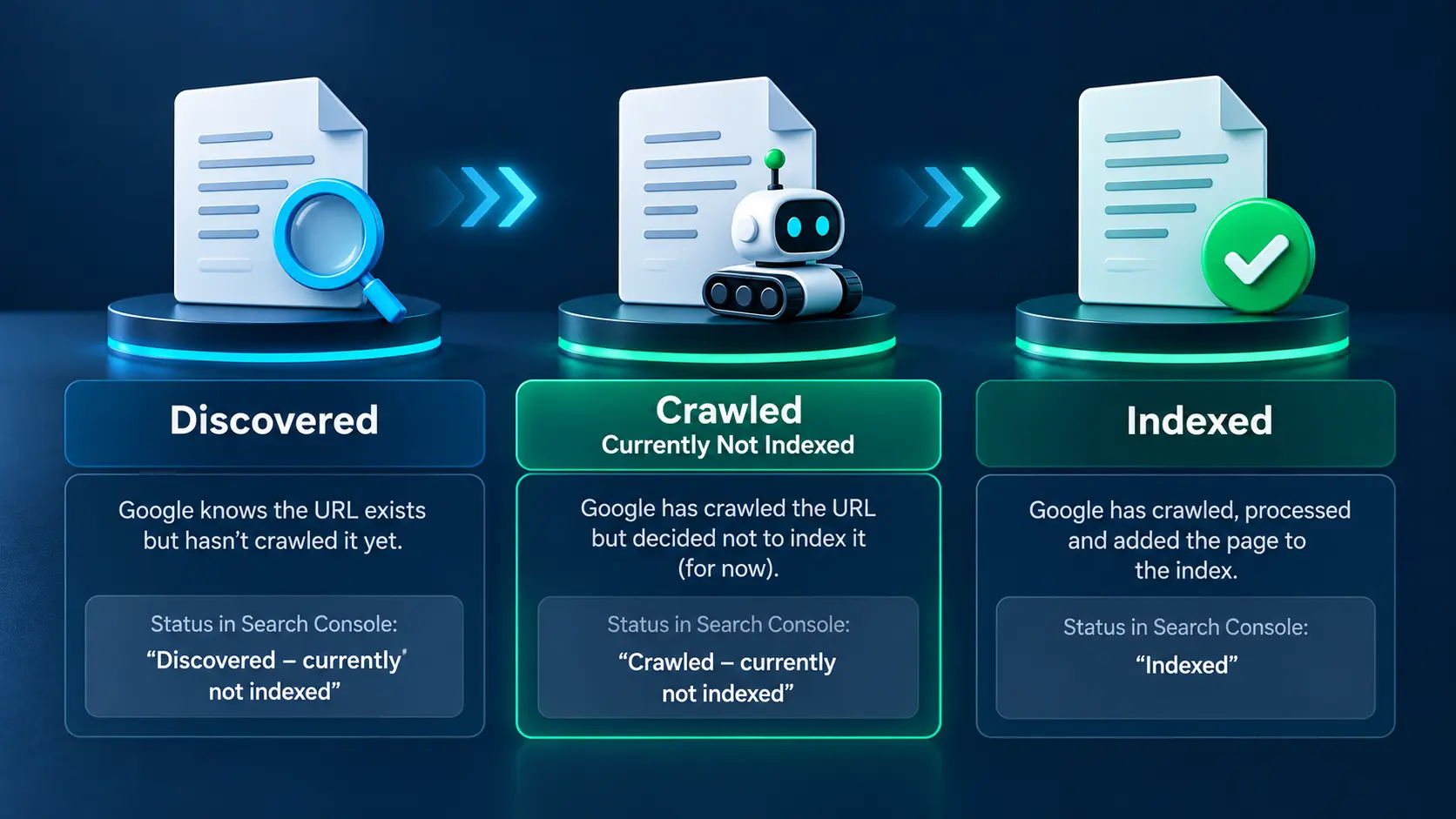
| Stage | What Google has done | What it means |
| Discovered – currently not indexed | Google knows the URL exists | Not crawled yet |
| Crawled – currently not indexed | Google crawled the URL | Not currently in the index |
| Indexed | Google processed the page | Page is included in the index |
The discovered vs crawled currently not indexed difference is simple: with “Discovered,” Google knows about the URL but has not crawled it yet. With “Crawled,” Google has already fetched it and the URL is still not in the index.
So, crawled does not mean indexed. Crawling gets the page into Google’s processing pipeline; it does not guarantee the next step.
There is also a useful bit of reassurance here. This status by itself is not a penalty or a manual action. It also does not prove that the page is bad. Treat the Google Search Console not indexed pages list as a list of URLs to investigate, not as a list of failed pages.
First: Decide Whether the URL Should Be Indexed
Not every URL in the “Crawled – currently not indexed” report needs to be indexed. First decide whether the URL is a page you actually want appearing in Google Search.
Keep investigating the URL if it is an important article, service page, product page, landing page or other page with a clear search purpose.
Consider leaving it unindexed, consolidating it, or removing it if it is a feed, duplicate URL, thin archive, internal search result, tracking-parameter version or another URL that does not provide a distinct search result.
The goal is not to make the number of “Crawled – currently not indexed” URLs reach zero. The goal is to make sure the important URLs have a strong reason to be indexed.
Why Google Crawls a Page but Doesn’t Index It
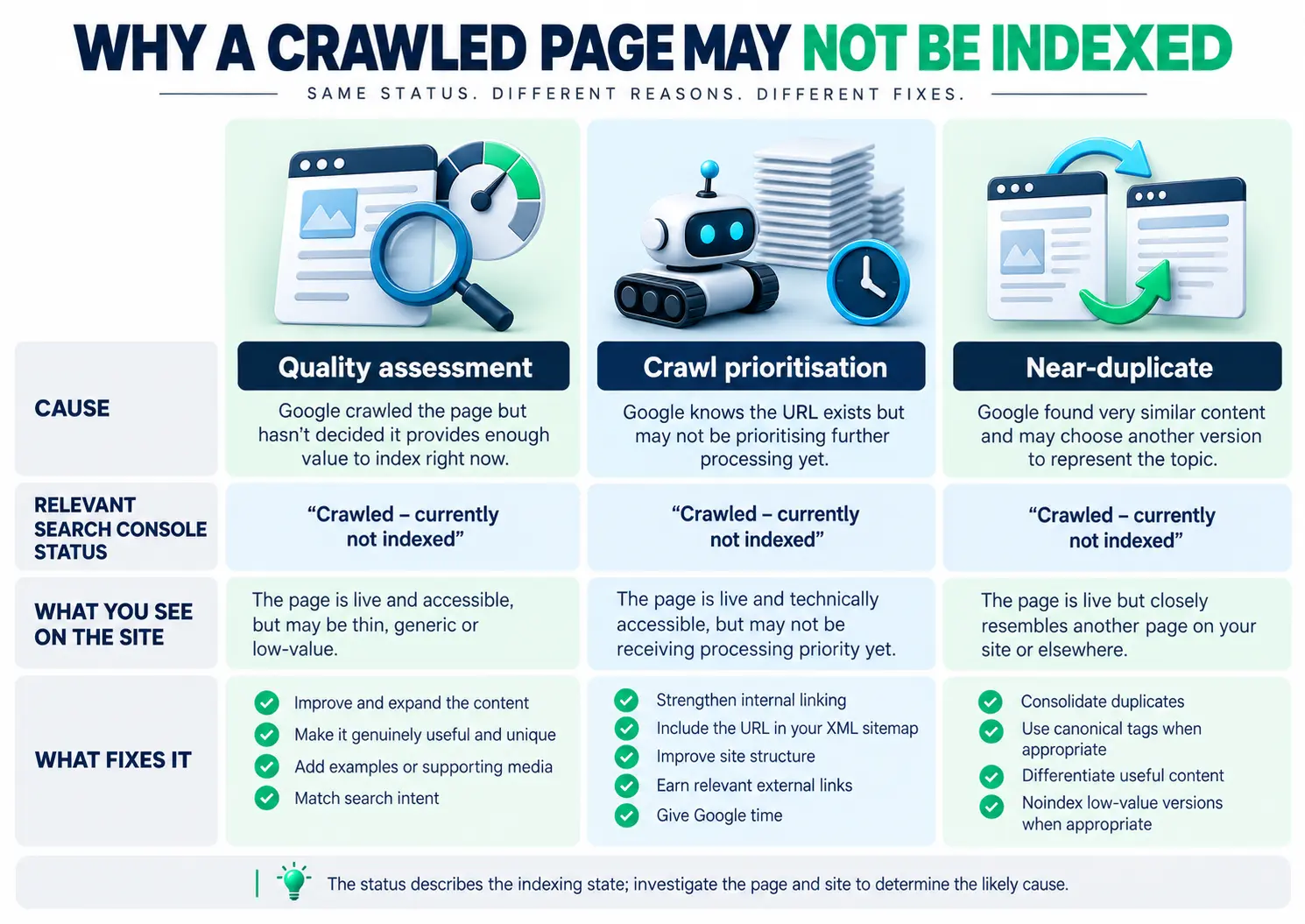
I use three practical buckets when diagnosing this status. They are not labels Google gives you for each URL; they are a way to narrow the investigation. The point is not to guess Google’s private decision. The point is to find something you can actually check and improve.
Why Google May Not Index a Crawled Page
| Possible issue | What to inspect |
|---|---|
| Duplicate or similar URLs | Similar pages, filters, archives and alternate URLs |
| Thin or low-value content | Unique usefulness and search intent |
| Canonical issue | Google-selected and declared canonical |
| Weak internal links | Relevant links from important pages |
| Rendering problem | Whether the main content appears in rendered HTML |
| Search-intent mismatch | Whether the page satisfies the query |
| Site pattern | Many similar URLs being published |
Crawled – Currently Not Indexed Diagnostic Workflow
Confirm URL
↓
Check canonical
↓
Check indexability
↓
Inspect rendered content
↓
Compare competing URLs
↓
Assess unique value
↓
Strengthen internal links
↓
Improve, consolidate or remove
↓
Revalidate
This order matters. Start with the URL and technical signals you can verify, then assess whether the page deserves its own search result. Only after making a meaningful change should you request another crawl.
1. The page may not add enough value
First, look at the page itself. Google may have crawled it but not found enough unique value to keep it in the index.
Thin pages are an obvious example: a short service page, a nearly empty archive, or a location page where the city name is the only meaningful change. But word count is not the real test. A 2,000-word article can have the same problem if most of it simply repeats information readers can find everywhere else.
Search intent can be the less obvious problem. A page can be well written and technically clean, yet still answer a different question from the one behind the query.
So don’t turn this into a word-count exercise. Google indexes short pages and skips long ones too. If you want to improve page quality for indexing, ask a simpler question: after reading this page, does the visitor have something useful that was genuinely worth opening this URL for? Google publishes a set of self-assessment questions for exactly that kind of review, and they are more useful than any word-count target.
2. Google may not be prioritising the URL yet
The second possibility is prioritisation. Google deals with an enormous number of URLs, so crawling one page does not mean every later processing step happens immediately.
This is also where the term “crawl budget” gets used too quickly. Google’s own crawl budget guidance is written for sites with a million or more pages or ten thousand or more that change daily, and it says plainly that if your pages are being crawled around the time you publish them, the guide is not for you. On a small WordPress site, I would not start there. Internal linking, site structure, the overall quality of the site and Google’s own processing priorities can all affect what gets processed and when. Search Console does not give you a priority score for an individual URL, so you cannot look at a number and prove that prioritisation is the cause.
For a new or small site, some waiting is normal. But waiting only makes sense after you have checked that the page is technically sound and worth indexing.
3. Another URL may be doing the same job
The third bucket is duplication or very close similarity. If several URLs cover almost the same topic, Google has to decide which version is the best representative.
Look for things such as near-identical location pages, overlapping articles, product/filter URLs, or multiple versions of the same list. These URLs may all be valid pages, but they can still compete with each other.On WordPress, this can happen without anyone deliberately creating duplicate content. Archives can create extra routes to the same posts, while WooCommerce can add filtered and sorted product URLs. The question is not whether those URLs technically exist; it is whether each one deserves to stand as a separate search result.
How to Check the Problem in Google Search Console
Search Console will not give you a neat diagnosis, but it gives you enough information to start narrowing the problem. Older tutorials may call this the Coverage report; in the current interface, the relevant area is Page indexing.
- Open Google Search Console and select the correct property.
- Go to Indexing → Pages.
- Scroll to Why pages aren’t indexed.
- Find Crawled – currently not indexed and note the page count and trend.
- Click the row to see the affected URLs.
- Run URL Inspection on individual URLs to check the crawl date, canonical, and whether Google’s declared canonical matches yours.
- Open the live page yourself and check the response code, the robots meta tag, and how much unique content is above and below the fold.
- Decide what you’re going to change before you request indexing again.
The Source column is especially useful. A website-sourced problem such as a noindex tag, robots.txt block, 403, or server error gives you something concrete to inspect. When Search Console puts a URL under Google systems, you have less direct information about the cause. That is a good reason to investigate the page rather than invent a precise explanation for Google’s decision.
For documenting and prioritizing technical findings across a website, you can also use our SEO report template.
What this looked like on MarketLatch
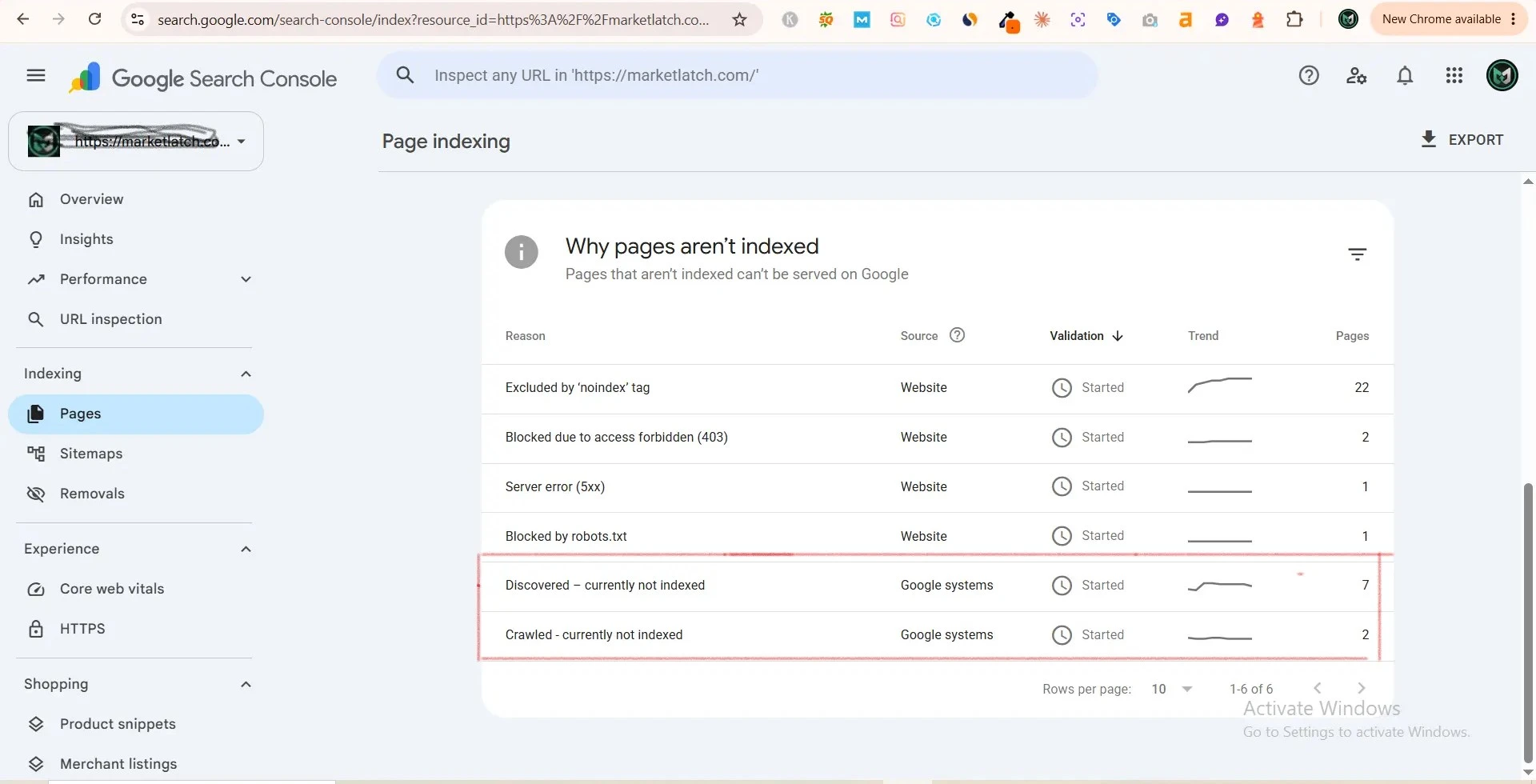
Six reasons were listed. Four were website-sourced: 22 pages excluded by a noindex tag, 2 blocked by a 403, 1 server error, and 1 blocked by robots.txt. Two were Google-systems-sourced: 7 pages discovered – currently not indexed, and 2 pages crawled – currently not indexed.
Here’s the distinction that keeps this honest. What Search Console reports is those counts and sources. What we infer is everything else. I checked our own robots.txt and confirmed it only disallows WooCommerce and /wp-admin/ paths, and that sitemap_index.xml returns a 200 — so the website-sourced rows were consistent with deliberate configuration on a WooCommerce site rather than accidents. For the two crawled-but-unindexed URLs, we have no data on Google’s reasoning, so we treated them as two separate investigations rather than assuming one shared cause. Two URLs in this state on a site of this size is not an emergency; it’s a prompt to check each one.
How to Fix Pages Not Indexed by Google
If you are wondering how to fix pages not indexed by Google, start with the boring checks. They are faster than rewriting an article only to discover that a noindex directive was blocking it.
Step 1: Check that the page is actually indexable
Before rewriting anything, make sure Google is actually allowed to index the URL:
- The URL returns 200, not a 404, 403, 5xx, or an unintended redirect.
- No noindex in the robots meta tag or X-Robots-Tag header.
- The URL isn’t disallowed in robots.txt.
- The canonical tag points to this URL, not another one.
- The page renders its main content without requiring JavaScript that Google can’t execute.
- The page is reachable by following links from your site, not orphaned.
In WordPress, most of these are settings rather than code. Check Settings → Reading for “Discourage search engines,” then your SEO plugin’s per-post robots controls and its post-type and taxonomy defaults — MarketLatch runs Rank Math, and the equivalent panels exist in Yoast and SEOPress. These checks rule out common WordPress configuration problems before you spend time changing the content. If the technical signals are clean, move on to content value, search intent, duplication and internal linking. So work through them before you spend time rewriting.
If the indexing problem involves WordPress implementation, rendering, or technical configuration, see our technical SEO diagnosis.
Step 2: Improve content quality
If the technical checks are clean, move on to the page itself:
- Does it answer the search intent, or an adjacent question?
- Would someone finish it with what they came for?
- Is there anything here that isn’t on the first ten results already — data, examples, screenshots, a real process?
- Is it substantially thinner than what ranks?
- Does it duplicate another page you own?
If the page is weak, rewrite the weak parts instead of adding paragraphs just to make it longer. Padding a thin page creates a longer thin page.
Step 3: Strengthen internal linking
Internal links are useful for both discovery and context. Add links from genuinely related pages, preferably pages that are already part of the site’s normal crawl path. Use anchor text that tells the reader what they will find. Do not sprinkle unrelated links everywhere just to make one URL look important.
So, does internal linking fix indexing? Sometimes it helps, but it is not a guarantee. A page can be perfectly connected to the rest of the site and still be too similar or too weak to deserve its own result.
Step 4: Check duplication and canonical issues
If several URLs cover the same topic, decide whether you really need all of them. Merge pages that should have been one, make genuinely different pages more distinct, and use canonical tags where they fit. Remember that a canonical is a signal about your preferred version, not an instruction Google must follow. With WooCommerce filters and sorting, deal with those URL patterns deliberately rather than blocking everything by default. When duplicate URLs or canonical signals may be involved, use our guide to Alternate Page with Proper Canonical Tag to check whether Google is consolidating URLs as intended.
For a broader technical investigation, use our SEO audit template to record findings, priorities and implementation actions.
Step 5: Keep the important URL in the XML sitemap
Your XML sitemap is another check worth making. The important URL should be included, return a normal response, and not be excluded by your SEO settings. A sitemap helps Google discover URLs; it does not force them into the index. Keep the sitemap focused on the canonical pages you actually want indexed.
Step 6: Give Google time to process the changes
After you make a meaningful change, give Google a chance to crawl and process it. There is no reliable countdown. Constantly changing the page every couple of days also makes your own testing messy because you cannot tell which change, if any, made a difference.
How Long Does Crawled – Currently Not Indexed Last?
There is no standard timer for this status. How long crawled not indexed lasts varies from site to site. Crawl frequency, site history, internal linking, technical setup and the page’s own value can all play a part.
Some URLs move to indexed within days. Others stay there for weeks. And some never make it into the index. That is not necessarily a failure, especially when the URL is an archive, filter, or other page that does not add much as a standalone search result.
Instead of trying to force an indexation result on a deadline, ask what you can verify and improve on the URL. That gives you something useful to work with; a request button cannot.
And if the URL is not important to you in the first place, you may not need to fix it at all.
What NOT to Do When a Page Isn’t Indexed
- ❌ Don’t repeatedly click “Request indexing” for the same unchanged URL. Resubmitting identical content gives Google nothing new to evaluate.
- ❌ Don’t resubmit unchanged URLs in bulk. Same problem, larger scale.
- ❌ Don’t publish near-identical variants hoping one gets picked up. That creates duplication, which is one of the causes.
- ❌ Don’t stuff the XML sitemap with low-value or duplicate URLs to look bigger.
- ❌ Don’t treat Request Indexing as a guarantee. It queues a URL for crawling. It does not decide indexing.
- ❌ Don’t assume you have a crawl budget problem because you read about one. On a small site, that’s rarely the constraint.
The common mistake is spending time resubmitting the URL instead of changing something that actually needs changing.
When Should You Request Indexing Again?
Request indexing still has a place. Use it after a meaningful change, not as the diagnosis itself.
Diagnose → Fix → Verify → Request indexing → Monitor
Diagnose: identify which of the three categories most likely applies to this specific URL.
Fix: make the corresponding change — technical, content, or consolidation.
Verify: confirm the fix is live. Load the URL, check the response code and robots meta, and run URL Inspection on the live URL.
Request indexing: once, after meaningful changes are live. This asks Google to recrawl the URL; it does not guarantee that the page will be indexed.
Monitor: watch the Page indexing report over the following weeks rather than resubmitting.
Use Request indexing after meaningful changes, not as a routine button to press on an unchanged page.
If a technically clean URL is still stuck after a reasonable period, go back to the page and its relationship with other URLs. Another submission is unlikely to tell you anything new.
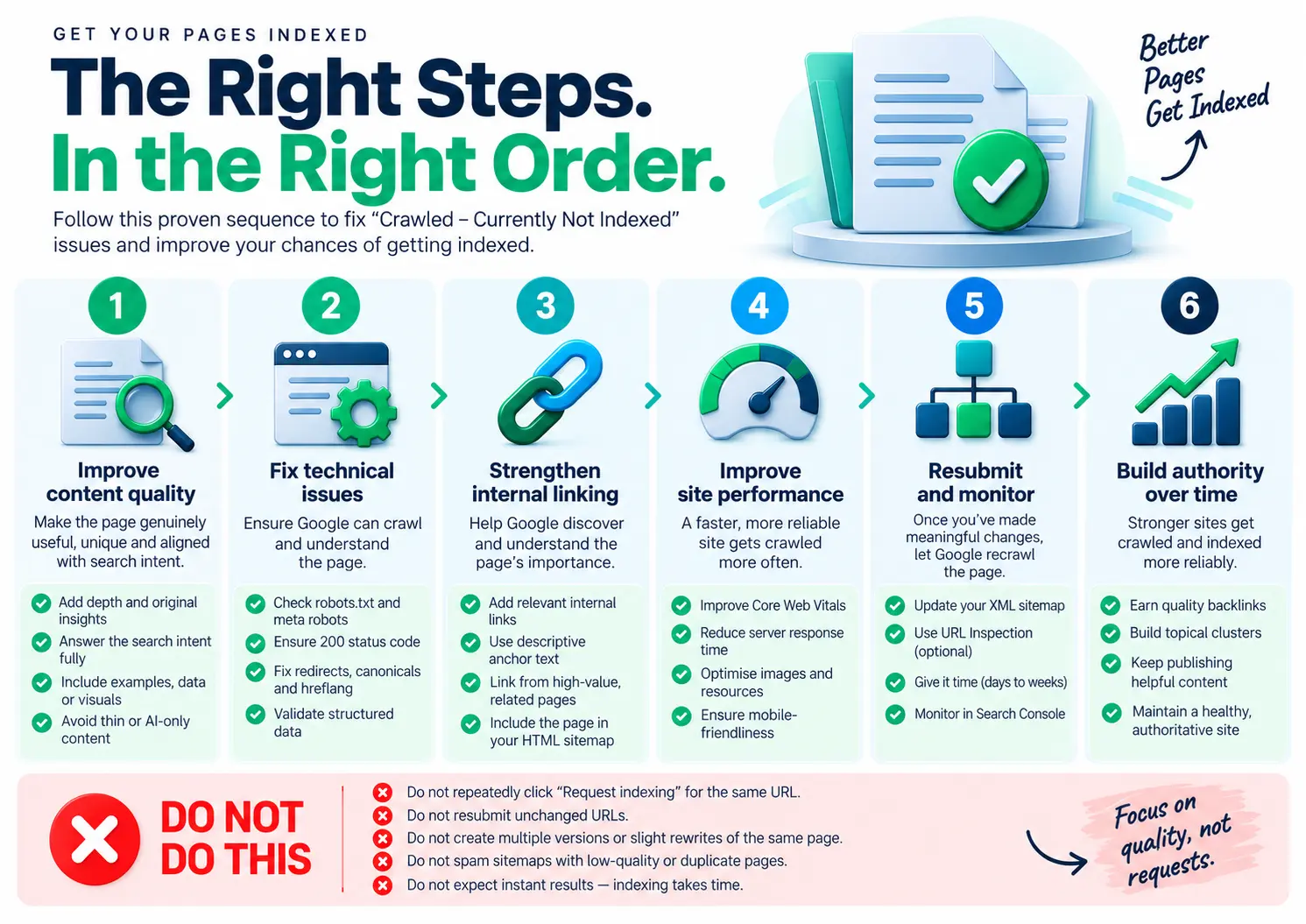
Final Checklist: Is Your Page Ready to Be Indexed?
- Page returns a normal successful response
- Page is accessible to Google
- No unintended noindex directive exists
- The page is not unnecessarily blocked in robots.txt
- Canonical configuration is appropriate and self-referential where it should be
- Content satisfies the search intent it targets
- Content provides genuine value beyond what already ranks
- Content is not substantially duplicating another URL you own
- Relevant internal links point to the page with descriptive anchors
- The URL is appropriately included in the XML sitemap
- Meaningful improvements have been made where they were needed
- Google has been given time to recrawl and process the changes
Checking these items puts the page in a much better position, but no checklist can guarantee indexing. What you gain is clarity: if the URL is still not indexed, you have ruled out the problems you can actually control.
If you would rather have someone else work through the checks, MarketLatch offers a free technical audit of your indexing issues, We can also handle the technical SEO services fixes when the problem needs implementation.
Frequently Asked Questions
What does Crawled – currently not indexed mean?
Google has crawled the URL, but it is not in the index at this time. The status tells you what happened, not exactly why.
How long does crawled not indexed last?
There is no fixed period. A URL may move out of the status in days, weeks, or not at all. It depends on the site, the URL and Google’s processing.
Why are my pages not indexed by Google?
Possible explanations include the page not offering enough unique value, Google not prioritising further processing yet, or another URL being a better representative of the same topic.
Can internal links help a crawled page get indexed?
They can help with discovery and context, especially when the linking page is relevant. They are support, though, not a substitute for useful, distinct content.
Should I request indexing again?
After a real change, and after you have verified that the change is live. Repeated requests on the same unchanged URL are not a replacement for fixing the page.
Is Crawled – currently not indexed a Google penalty?
No. “Crawled – currently not indexed” is an indexing status, not a manual action or penalty. Google has crawled the URL but has not included it in the index at that time. The right response is to diagnose whether the page has a technical, content, duplication, intent or internal-linking issue.
Conclusion
Crawled – currently not indexed is not a diagnosis. It simply tells you that Google crawled the URL and has not put it in the index yet. Your job is to investigate the parts you can actually see.
For most URLs, the practical workflow is straightforward:
- Understand the status — it’s an indexing state, not a diagnosis.
- Diagnose the likely cause — quality, prioritisation, or duplication, after ruling out technical blockers.
- Fix the actual problem — not a list of unrelated SEO tips.
- Request indexing once, after meaningful changes are live.
- Monitor in Search Console instead of resubmitting.
Follow that process and you will either improve the page’s chances of being indexed or discover that the URL does not need to be there in the first place. Either result is more useful than repeatedly submitting the same unchanged URL.
About the author

Nadeem Alam is the founder of Market Latch, a digital marketing agency working with clients across the USA, UK, Canada, Australia, the UAE and Pakistan. He is a digital growth strategist and WordPress specialist with around 5 years in search, covering technical, on-page, off-page and local SEO, generative engine optimization and answer engine optimization, WooCommerce and Elementor development, and Google and Meta Ads.
He is the author of the Generative Engine Optimization Book, the AEO Masterclass guide and the AI SEO Implementation Checklist 2026, and holds certifications from Google Digital Garage, Semrush Academy, Coursera, uConnect and Virtual University (DigiSkills).