To add your business to Google, create or claim an eligible Google Business Profile, enter accurate business information, choose the correct category, add your address or service area, and complete Google’s verification process. Once verified, you can manage how your business appears on Google Search and Google Maps.
How to Add My Business to Google
Adding your business to Google starts with checking whether a Business Profile already exists. You can then create a new profile or claim an existing unverified profile, enter your real business information, choose the appropriate category and location settings, and complete Google’s verification process.
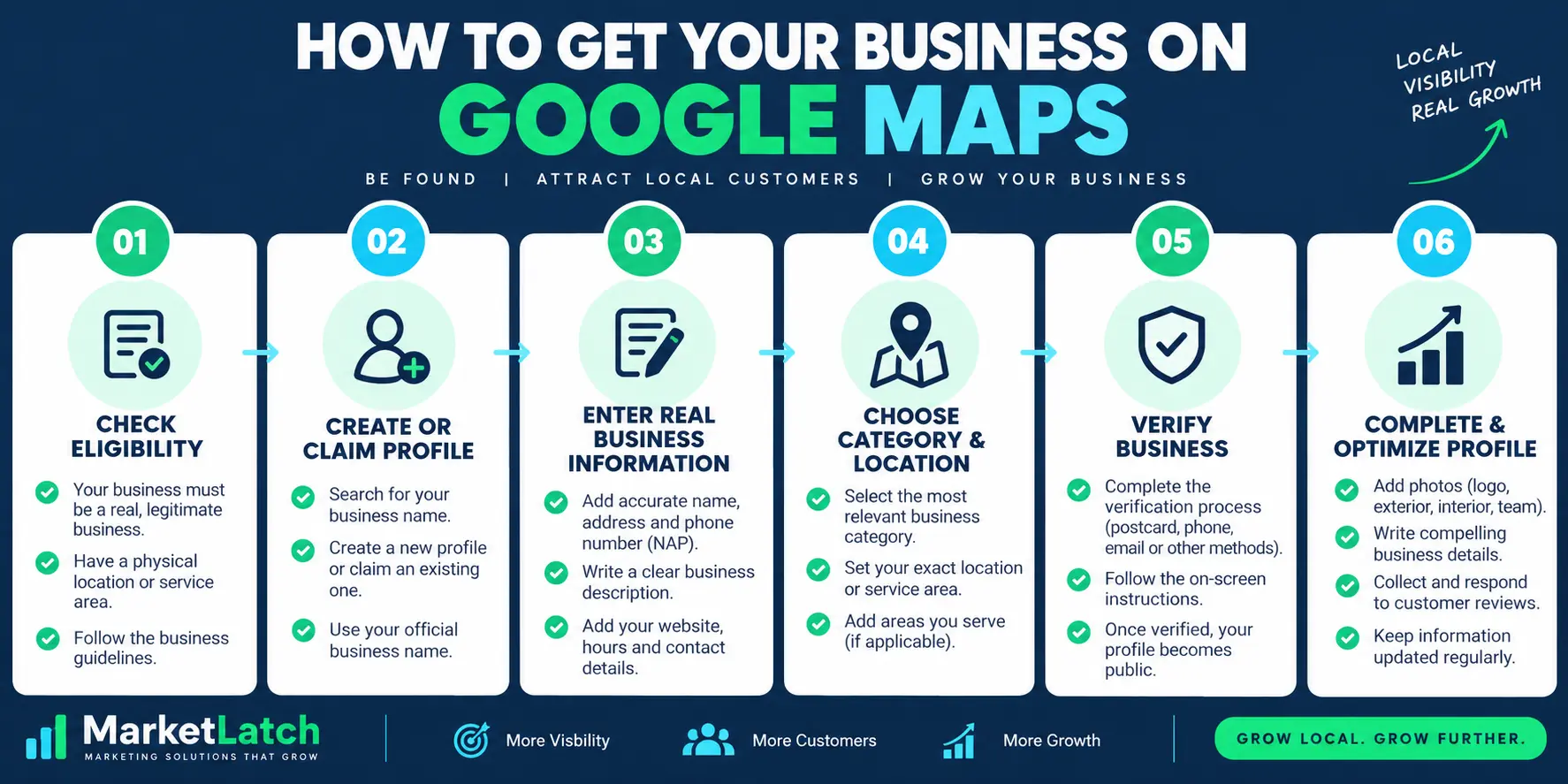
1. Check whether your business already has a profile
Search your business name and location on Google Search and Google Maps before creating a new listing.
2. Create or claim the Business Profile
If no profile exists, create one. If an unverified profile already exists, claim it. If someone else verified the profile, use Google’s ownership-request process instead of creating a duplicate. Google Help
3. Enter your real business name
Use the business name that represents the real-world business rather than adding unnecessary keywords.
4. Choose the correct business type and location
Select the appropriate business setup and provide the correct address or service-area information.
5. Select the most accurate primary category
Choose the category that best represents the business’s core service.
6. Add accurate business information
Add accurate business information that customers can use to identify, contact and visit the business. Keep the information consistent with the real business and its authoritative website.
7. Complete Google’s verification process
Google determines which verification methods are available for the profile. Available options can vary by business and region. Google Help
8. Complete the Business Profile
Add relevant photos, services, business information and other available profile details.
9. Check the live listing
After verification, review how the business information appears on Google Search and Maps.
10. Keep the profile accurate
Continue updating important business information and managing the profile after setup.
Google says a verified Business Profile can be managed on Search and Maps and used to maintain business information such as hours, website, phone and location.
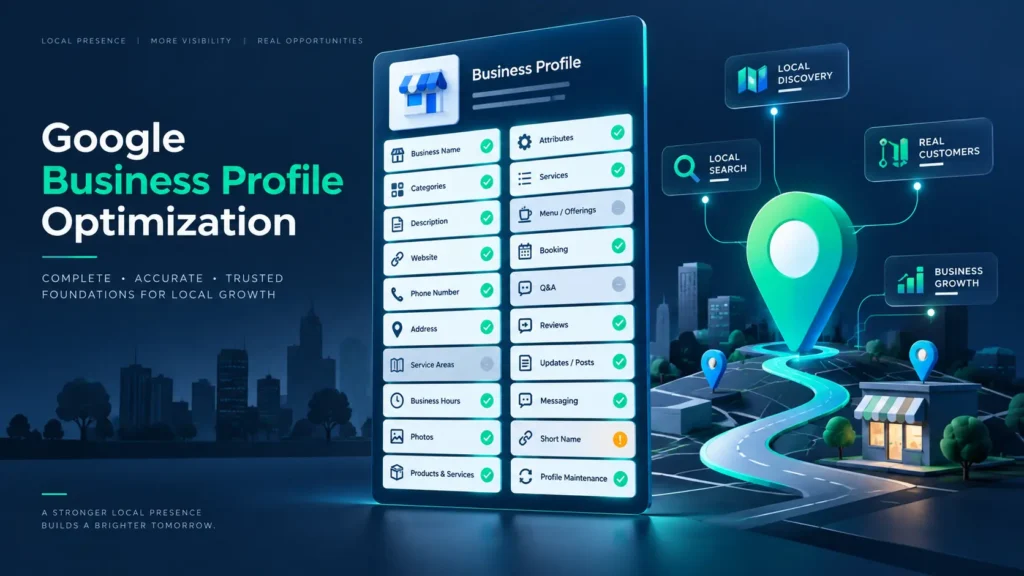
Once your profile is verified, the next step is keeping the listing accurate and improving its local visibility through Google Business Profile optimization.
The quick process above gives you the complete workflow. The sections below explain each important step in more detail, including how to avoid duplicate profiles, choose the correct business information, handle location settings and complete verification.
Step 1: Search for Your Business Before Creating a New Profile
Do not immediately create a new listing. First, search Google Search and Google Maps for your exact business name and location.
If an unverified profile already exists, claim it instead of creating a duplicate. If the profile is already verified by someone else and you are authorized to manage the business, Google provides an ownership-request process.
This simple check can prevent duplicate profiles, conflicting information, and a much messier cleanup later.
Step 2: Create or Claim the Google Business Profile
If no profile exists, go to Google’s Business Profile creation flow and choose the option to add your business. Follow the prompts to enter the business details.
Start from Google Business Profile or use Google’s direct add-business workflow.
If a listing already exists but is unclaimed, search for it on Google Maps, choose the correct business, select the claim option, and follow the verification instructions.
Step 3: Use Your Real Business Name
Use the name your business actually uses in the real world. Do not turn the business-name field into an SEO title by adding locations, services, slogans, or keywords that are not part of the real-world name.
This is one of the areas where aggressive SEO can create the opposite result. Google explicitly requires businesses to represent themselves accurately, and unnecessary information in the business name can lead to problems, including suspension.
See Google’s guidelines for representing your business before finalizing the profile name.
Step 4: Choose the Correct Business Type and Location
Your location setup should describe how customers actually interact with your business. A storefront that serves customers at its address can display that address. A service-area business that does not serve customers at its address should not publish a customer-facing address simply to appear closer to searches.
For service-area and hybrid businesses, Google currently allows service areas based on cities, postal codes, or other defined areas rather than a radius. You can set up to 20 service areas, and Google advises keeping the overall area realistic for the business. For the current rules, see Google’s service-area guidance
Step 5: Choose the Most Accurate Primary Category
Your primary category tells Google what your business fundamentally is. Choose the category that best represents your core business rather than selecting the broadest category or trying to capture every service you offer.
You can add appropriate additional categories when they genuinely describe the business, but more categories are not automatically better. Google’s guidance is to choose the fewest categories needed to describe the core business.
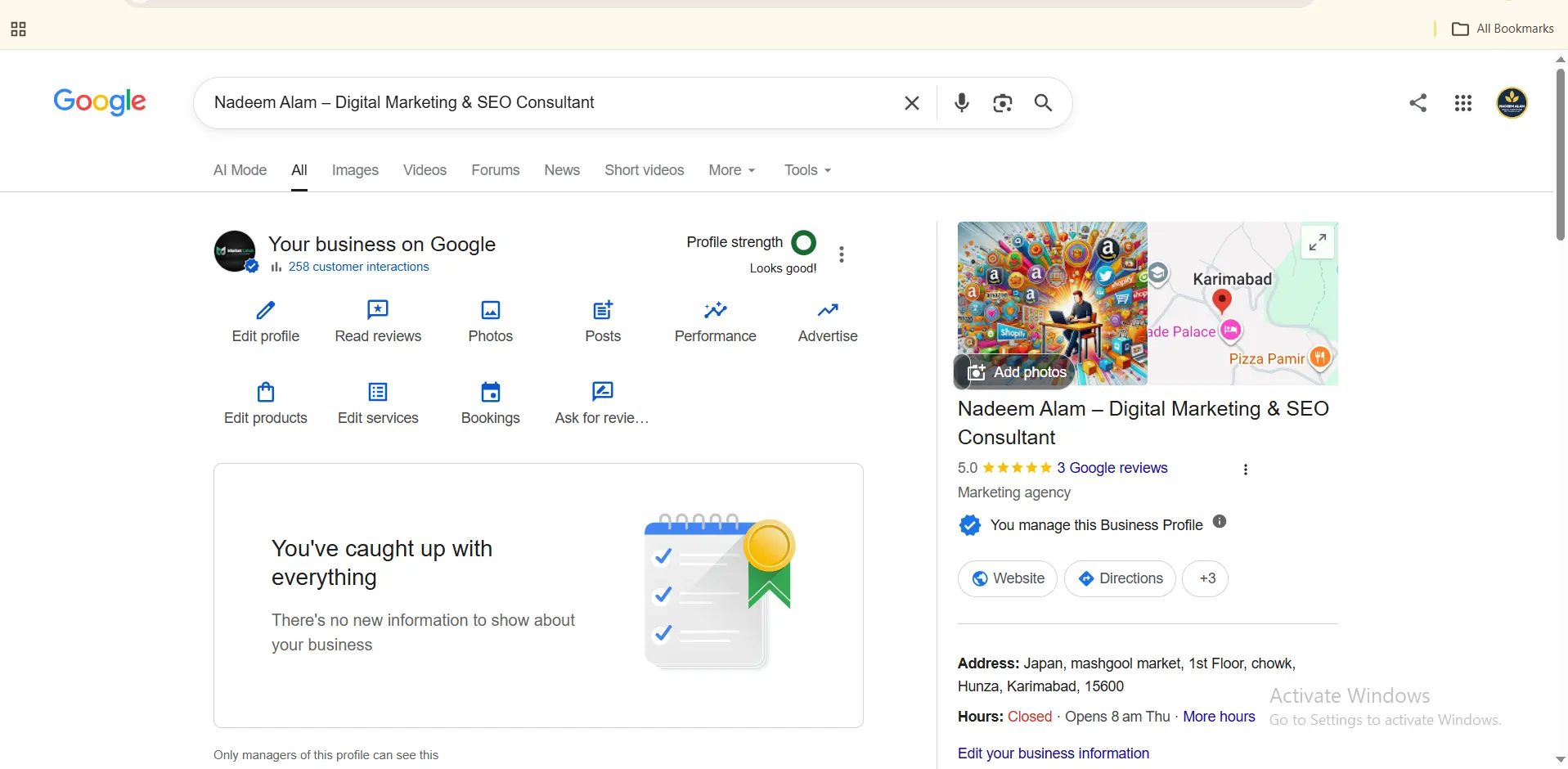
My own profile is a useful example of why this matters. I have used a primary category and additional categories to describe the actual business, rather than trying to turn the category field into a keyword list.
Step 6: Add Accurate Business Information
Complete the profile with information that customers can actually use: your real business name, correct address or service area, working phone number, website, business hours, and an accurate description.
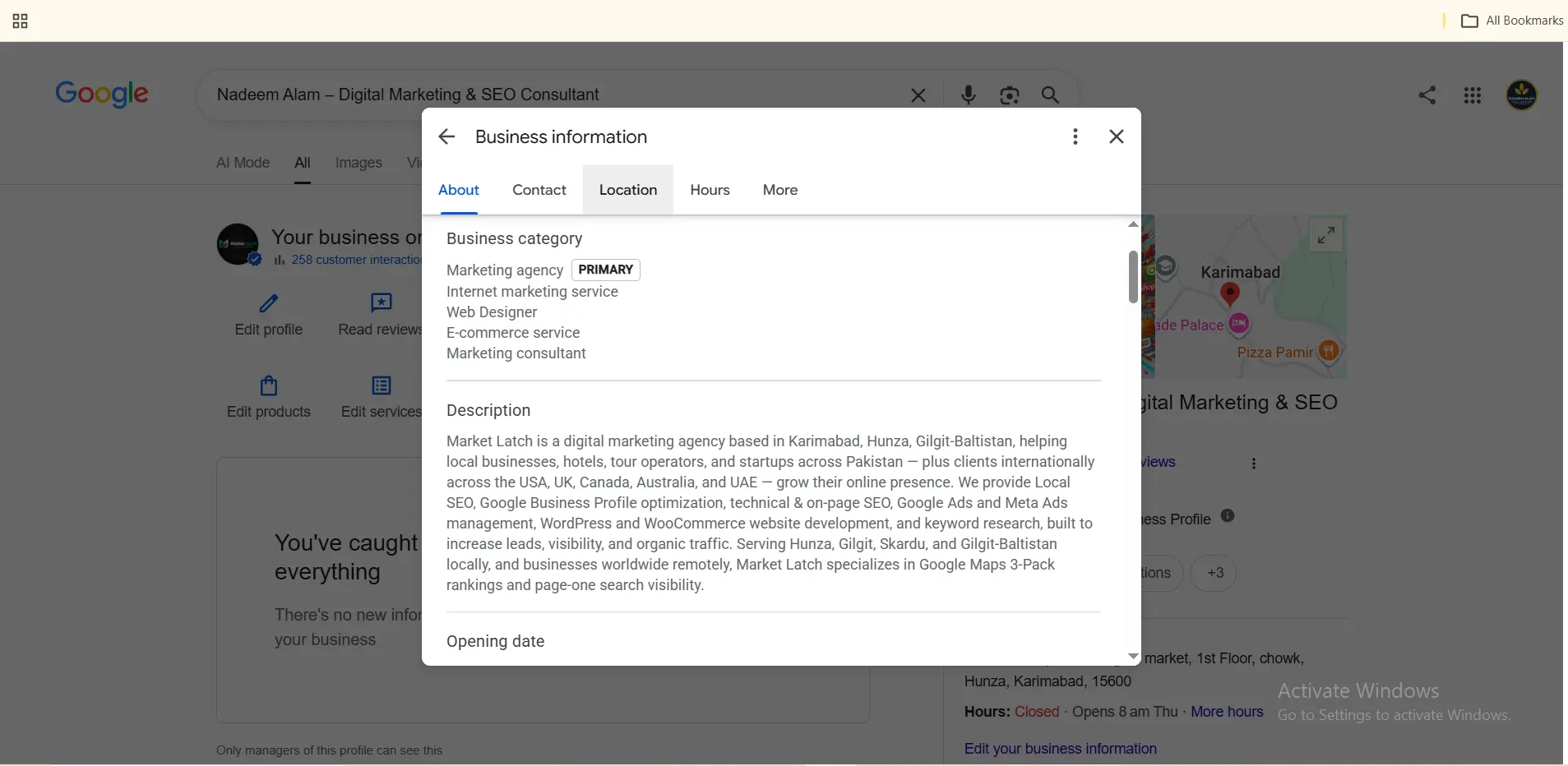
Do not invent locations, use an address where the business does not operate, or copy details from another business. Your profile should describe the business that actually exists.
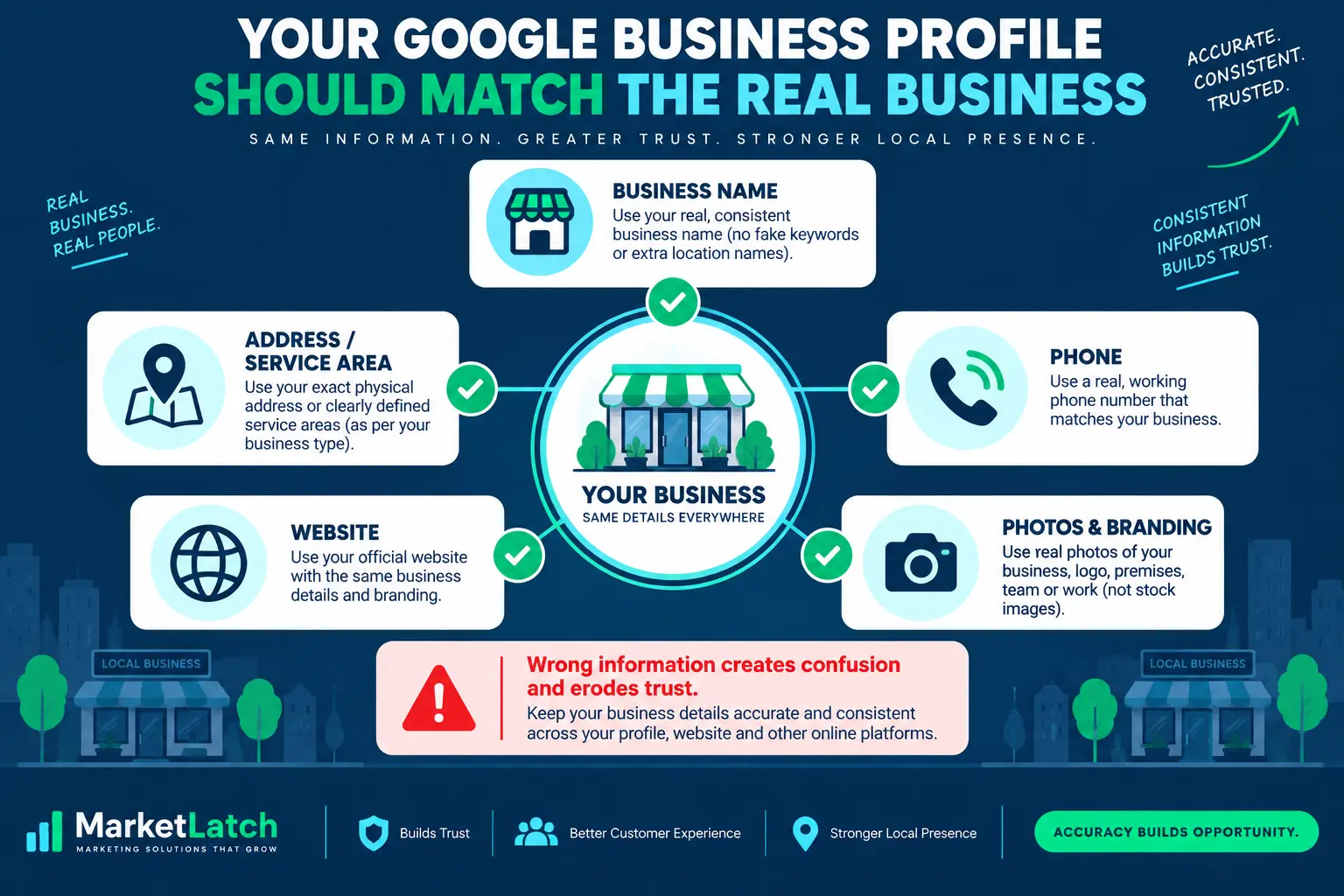
This is also where consistency matters. If a customer sees one name on Google, a different name on the website, a different phone number on another directory, and a different location on social media, the customer has to stop and wonder which version is real.
Step 7: Verify Your Business
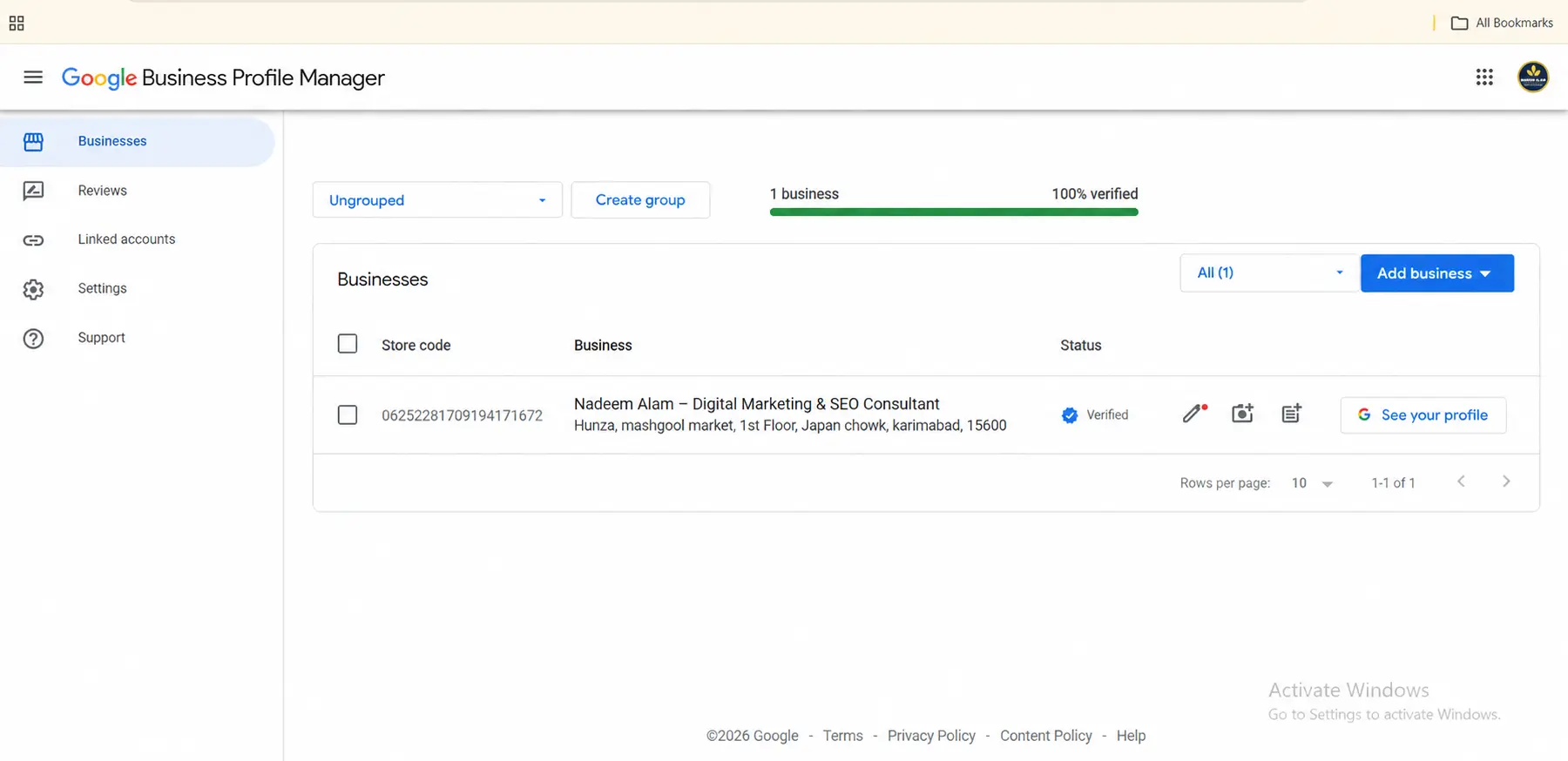
Verification confirms that you are authorized to manage the Business Profile. Google determines which verification methods are available for a particular business. Depending on the profile, Google may offer methods such as video, phone or text, live video, email, or mail.
Do not assume that every business can choose phone verification or email verification. The options shown to you are determined by Google.
If Google asks for additional verification, follow the method presented in the profile. Keep your business information accurate while you are completing the process.
For the current verification process, use Google’s Verify your business guide.
What Is a Google Business Profile?
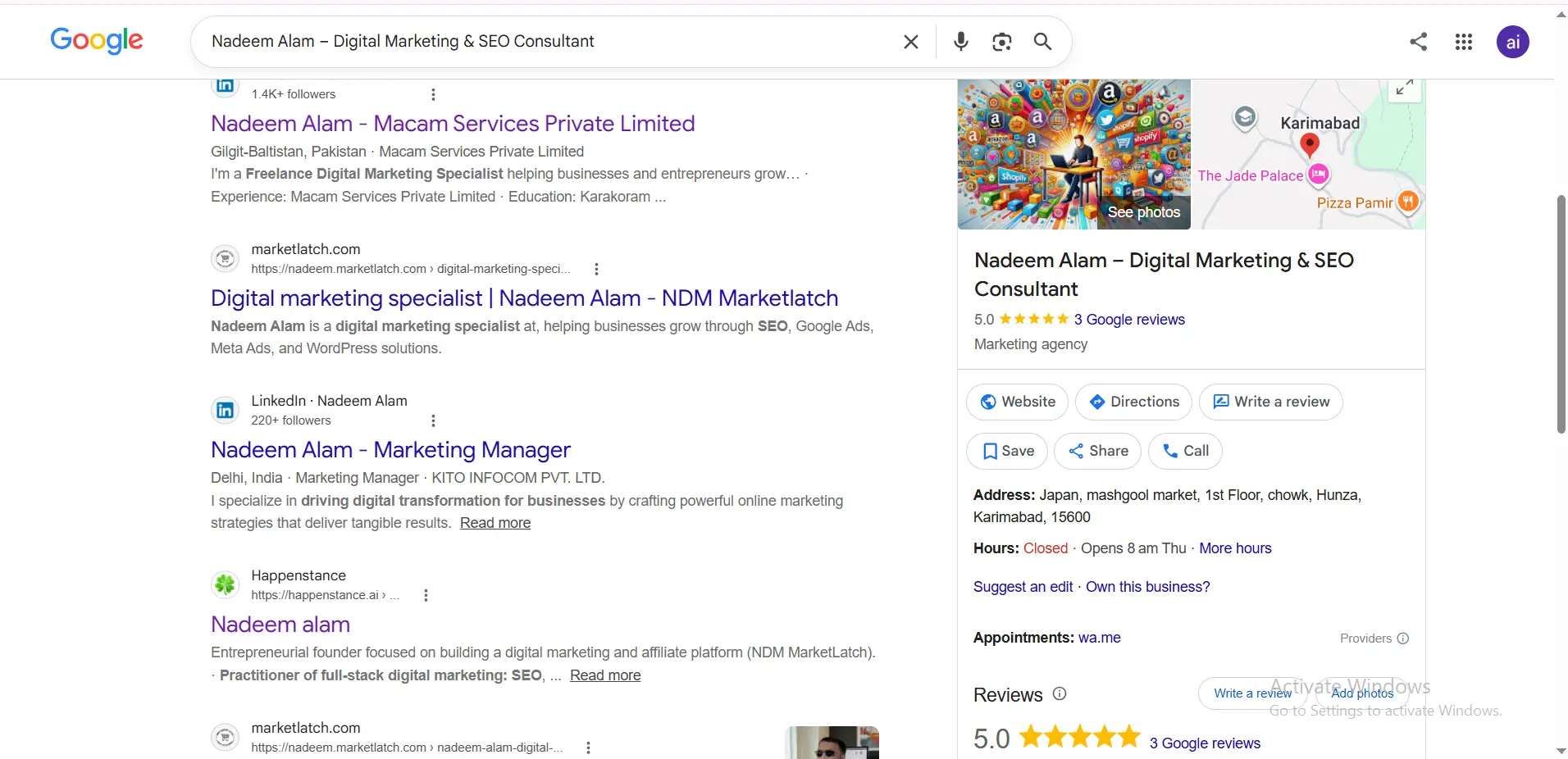
A Google Business Profile is the business listing you manage so customers can find information about your business across Google Search and Google Maps. It can contain details such as your business name, category, address or service area, hours, phone number, website, photos, services, and customer reviews.
Google provides Business Profiles at no charge. The profile is not a replacement for your website. Think of it as the local business identity that connects your real-world business to Google’s local search surfaces.
If you want the official Google process, use Google’s Add or claim your Business Profile guide.
Is Your Business Eligible for Google Maps?
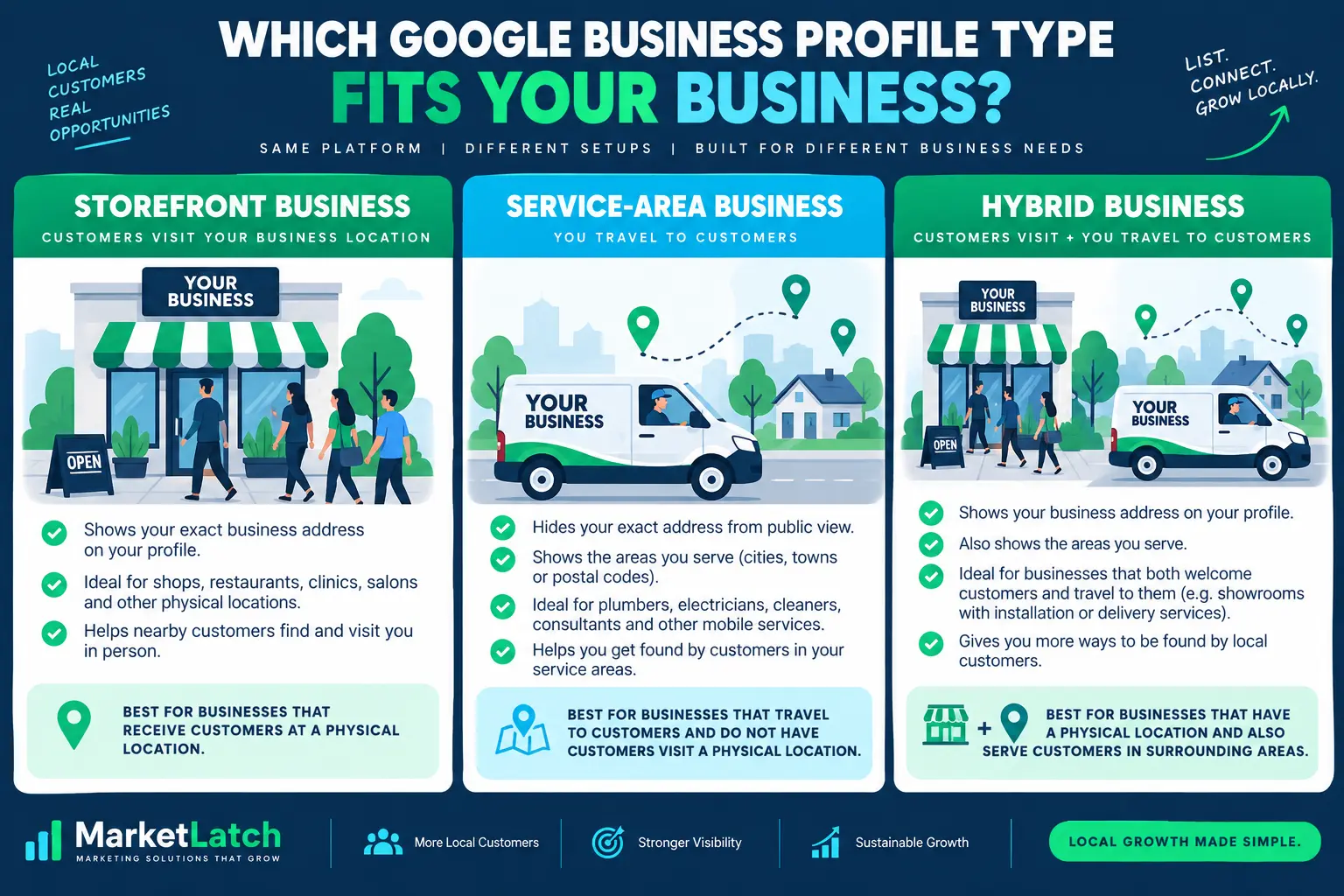
Before you create a profile, check eligibility. Google generally allows a Business Profile when a business has a physical location customers can visit or when the business travels to customers to provide products or services.
That creates three common setups:
- Storefront business — customers visit your physical business location.
- Service-area business — you travel to customers or deliver to them and do not serve customers at your listed address.
- Hybrid business — customers can visit your location and you also travel to or deliver to customers.
An online-only business that never makes in-person contact with customers generally does not qualify for a Business Profile. Do not create a local listing simply because you have a website or want a local ranking.
For the current eligibility rules, check Google’s Business Profile eligibility and ownership guidance.
What to Have Ready Before You Start
You can complete the setup more smoothly if you have one consistent set of business facts ready first. Prepare the real-world business name, the correct customer-facing address or service area, a working phone number, the official website if you have one, business hours, and the most accurate primary category you can identify.
If you already have a listing, have the business name and location ready so you can search for it before creating anything new.Do not prepare a keyword-stuffed business name or an invented address just because you think it will help rankings. The information you enter should describe the business that actually exists. That makes the setup safer and makes the profile more useful to the person who finds it.
My Google Business Profile Verification Experience
I created my Google Business Profile from scratch for personal use first and later edited it for the company. During my own setup, I successfully verified the profile using both phone/SMS and email.
That experience is useful, but there is an important limitation: my available verification methods should not be presented as a universal rule. Google decides which methods are available for each profile.
Once the profile was verified, I continued working through the profile instead of treating verification as the finish line.
How I Optimized My Google Business Profile
After verification, I worked through the profile systematically. I changed and reviewed the primary category, additional categories, business description, services, service areas, hours, photos, logo, posts, and website information. Once the profile is set up, the next step is making sure those details are accurate, complete and useful. See our Google Business Profile optimization guide for the full field-by-field checklist and audit workflow.
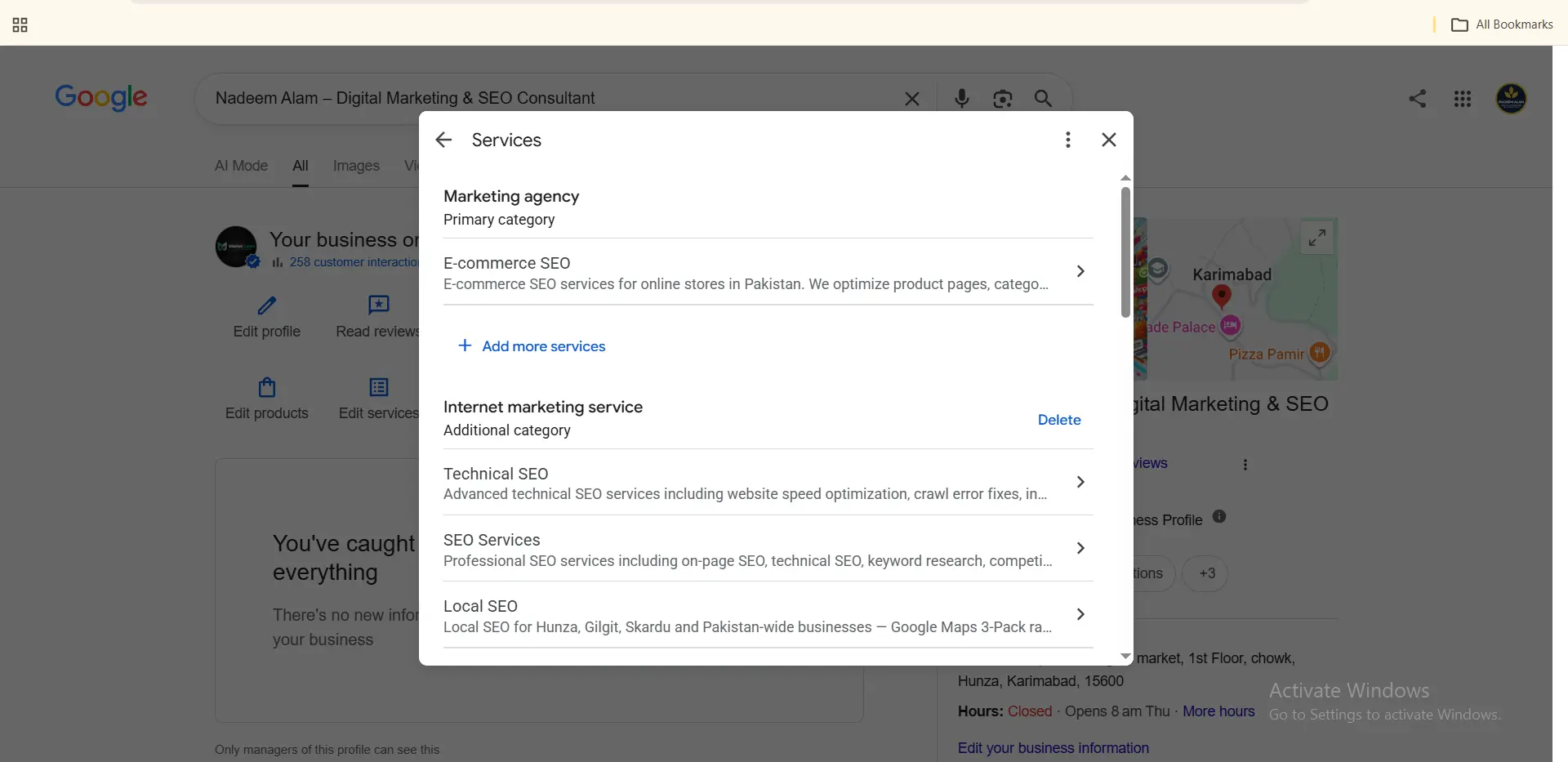
The objective was not to fill every field with keywords. The objective was to make the profile complete, understandable, and consistent with the actual business.
Google itself recommends keeping business information complete and accurate, responding to reviews, and adding useful photos and videos. Those are customer-facing improvements as much as SEO improvements.
For the current local-ranking guidance, see Google’s tips to improve local ranking.
My Biggest Google Maps Mistake: I Used the Wrong Address
I learned one of the most important Google Maps lessons from my own mistake.
When I first set up the profile, I entered my home address instead of the company’s actual business address. That was not a theoretical SEO problem. It created a real-world mismatch.
I started receiving calls and visits related to the wrong location, while the profile was not getting the kind of Maps activity I expected. Once I identified the mistake, I corrected the profile to the company’s actual address.
After correcting the address, I observed an improvement in Maps visits. I am deliberately describing that as an observation rather than claiming a measured causal percentage, because I did not run a controlled before-and-after test. The larger lesson is more important than the number: your Google Business Profile should describe the business that actually exists.
Why Accurate Business Information Matters
Accuracy is not an optional polish layer. It is part of representing a legitimate business.
- Business name — use the real-world business name.
- Address — show the genuine customer-facing location when eligible.
- Service area — define the areas you actually serve.
- Phone — use a real working business contact number.
- Website — connect customers to the official business website.
- Photos and branding — use real images that represent the business.
The customer journey should make sense from beginning to end. If someone finds you on Google, calls the number, visits the website, or travels to the address, the experience should match what the profile promised.
How to Add My Business to Google for Free — and Get It on Google Maps
Creating and claiming an eligible Google Business Profile is free. You do not need to buy advertising to create the listing.
The practical free setup is:
- Check whether the business is eligible.
- Search Google Maps and Search for an existing profile.
- Create a new profile or claim the existing one.
- Enter the real business information.
- Choose the correct business type, location and category.
- Complete Google’s available verification method.
- Finish the profile with accurate hours, services, photos and other useful information.
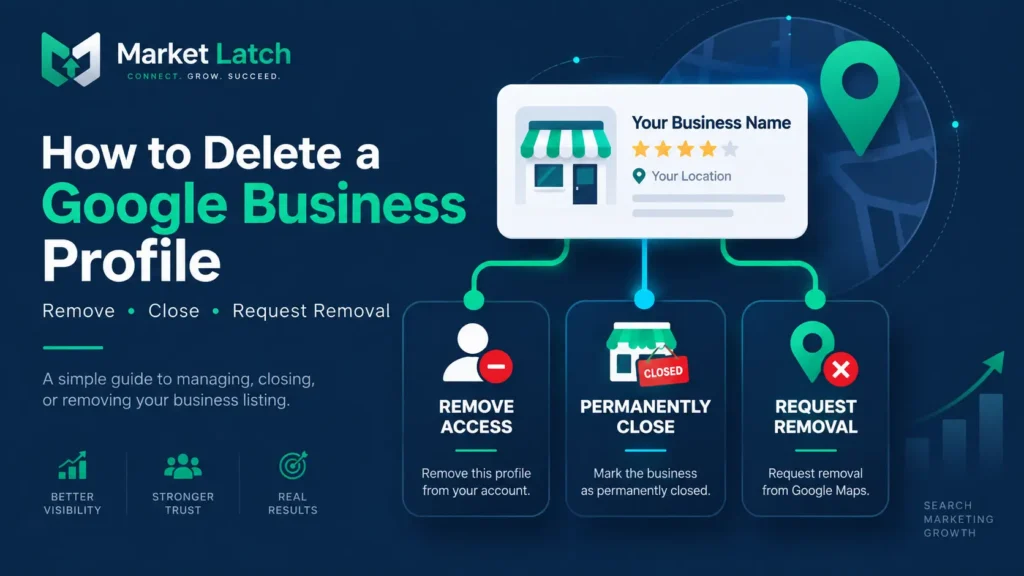
If you already have a Google Business Profile but need to remove it from your Google Account, see our guide on how to delete a Google Business Profile.
Free does not mean automatic. A profile can be free to create and still require careful verification and accurate information before it becomes a useful local asset.
How to Improve Your Visibility on Google Maps After Setup
Once the profile exists, the question changes from ‘How do I get listed?’ to ‘How do I become more relevant to the searches that matter?’
Google says local results are mainly influenced by relevance, distance, and prominence. There is no way to pay Google or request a better organic local ranking.
- Relevance — make the profile accurately describe what the business offers.
- Distance — understand that proximity to the searcher matters.
- Prominence — build the real-world reputation and web presence of the business over time.
- Completeness — keep useful business information accurate and current.
- Reviews — earn genuine customer reviews and respond professionally.
- Photos and videos — show customers what the business actually looks like and offers.
- Website support — keep the website consistent with the business identity and useful to local customers.
Do not interpret this as a checklist that guarantees a top-three position. Local results vary by query, searcher location, competition, and Google’s systems.
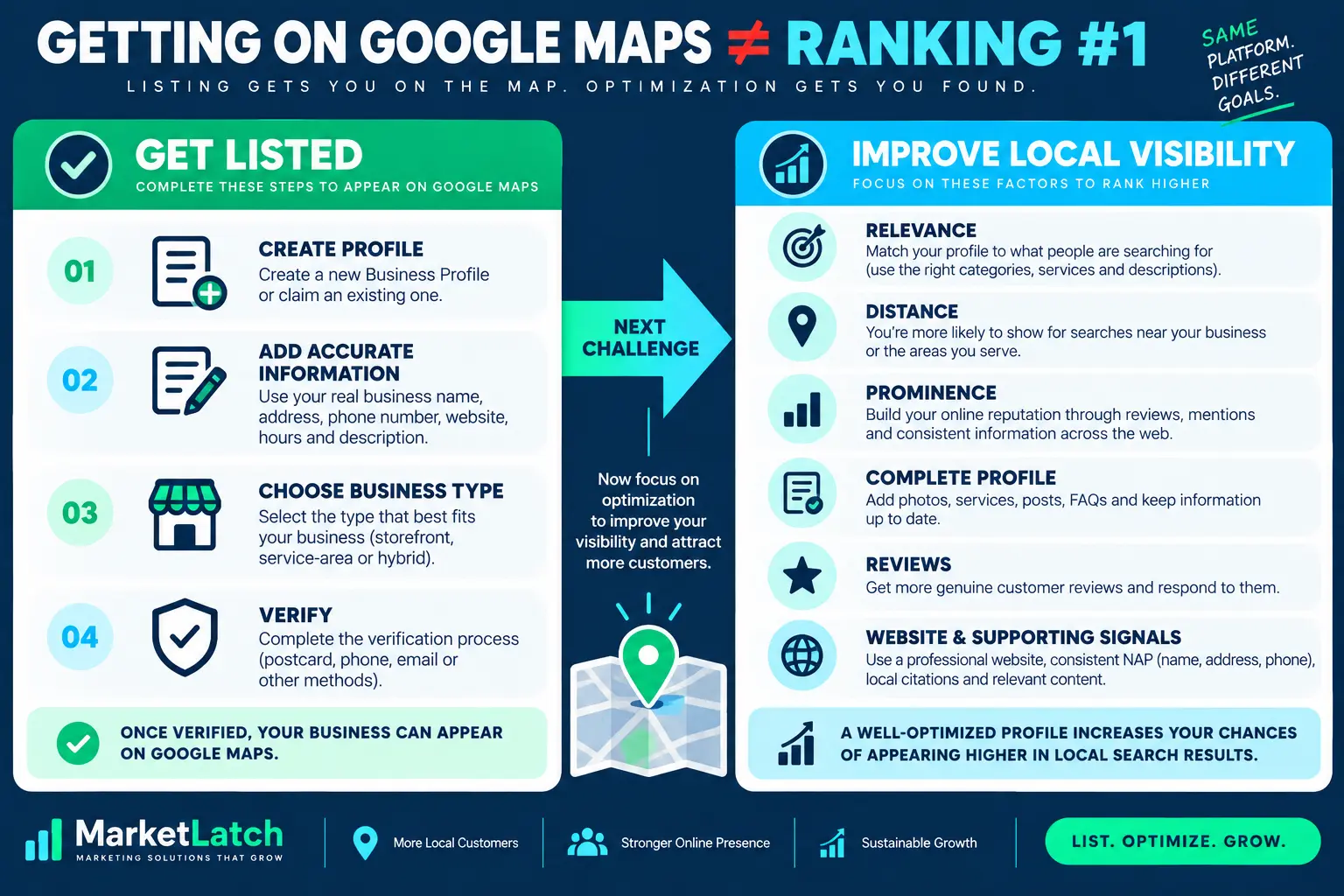
Being on Google Maps Does Not Mean You Will Rank #1
This distinction is where many Google Maps tutorials become misleading.
Verification establishes that you are authorized to manage the profile. It does not guarantee a position in the local map pack. Completing every profile field does not guarantee a position either.
Google’s own explanation is much simpler: local results are primarily based on relevance, distance, and prominence. That means two businesses with equally complete profiles can still appear differently for the same search from different locations.
So the correct sequence is:
- Get the legitimate business onto Google.
- Make the profile accurate and complete.
- Build relevance around the real services and business category.
- Build genuine reputation and prominence.
- Measure what customers are actually doing.
- Improve the profile and supporting website based on evidence.
How to Know Whether Your Google Maps Presence Is Working
Do not judge the profile only by whether you can find it when searching your own business name. Your own branded search is the easiest query to win and tells you very little about broader local visibility.
Use the performance information available in your Business Profile to understand profile views and customer interactions. Look at the different discovery surfaces and actions available to your profile, then compare them over time.
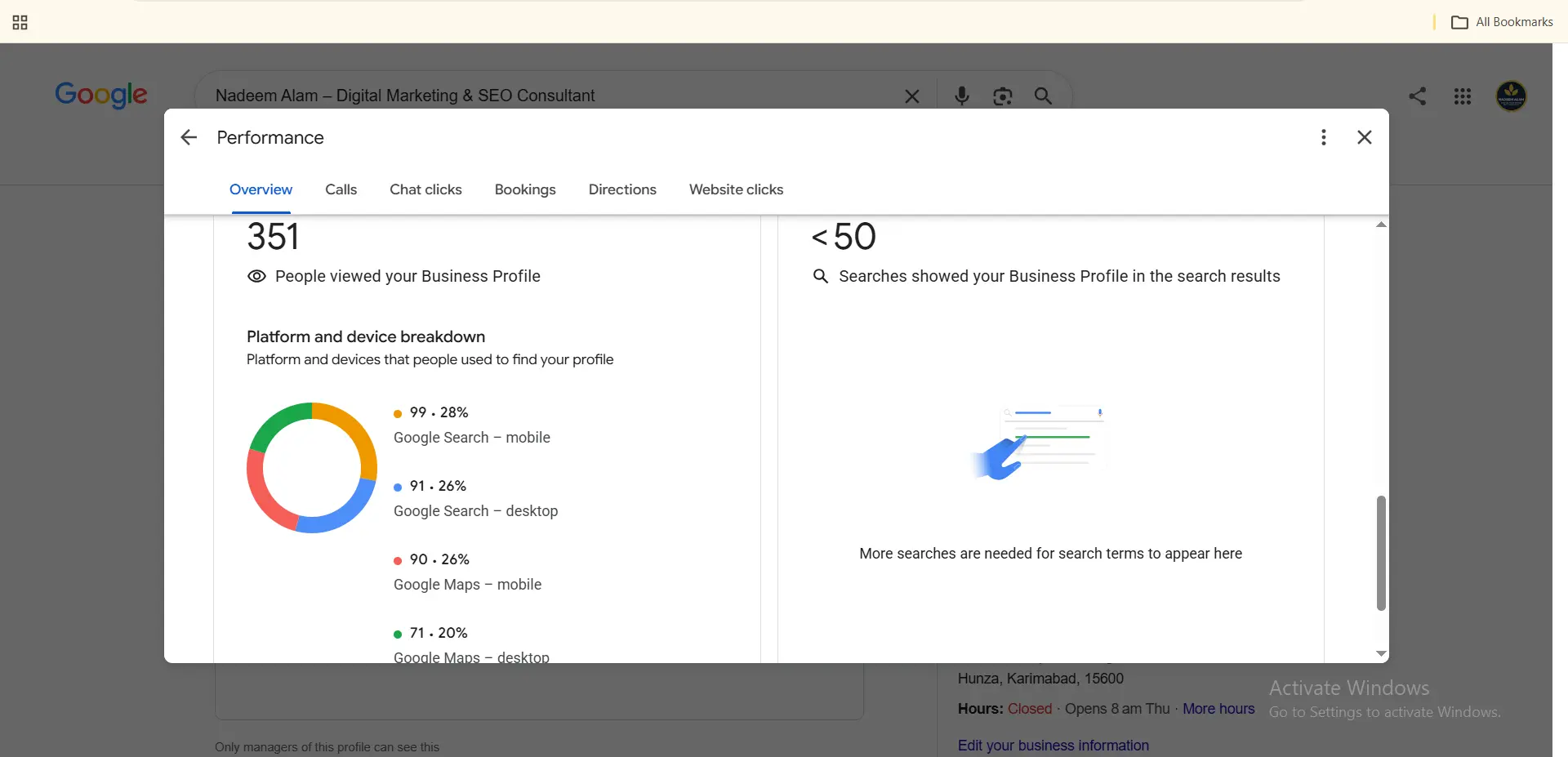
My own profile currently provides a useful example. The performance screenshot shows 351 profile views and fewer than 50 searches that showed the profile in the captured view, alongside the Search and Maps device breakdown. These are account-level observations from the screenshot, not universal benchmarks.
What If Your Business Is Not Showing on Google Maps Yet?
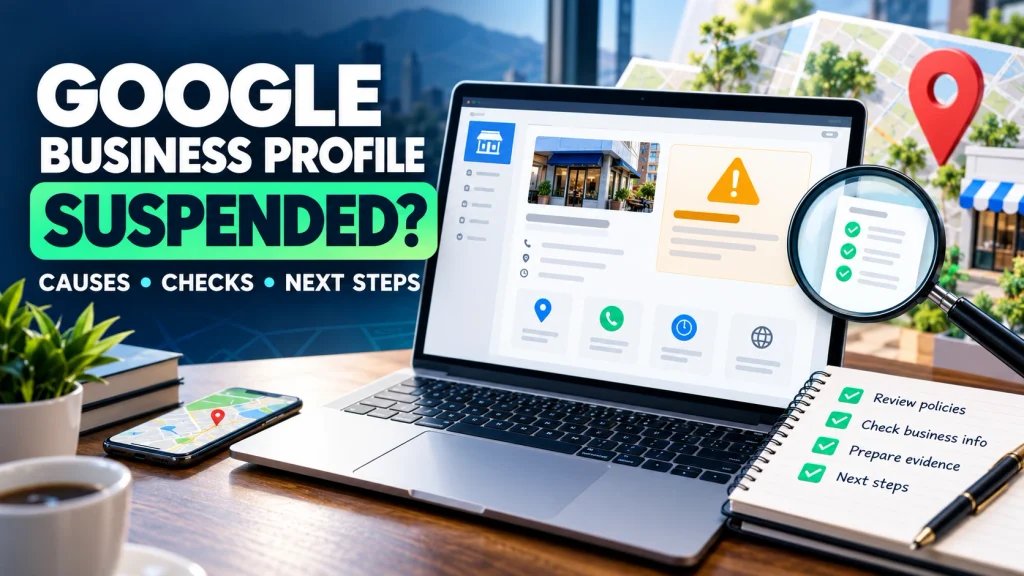
First, confirm that the profile is actually verified and that you are looking at the correct business name and location. Google says only verified businesses can show their business information on Search and Maps. For a new business, local visibility can also take time to develop, and edits may take time to appear.
If you cannot find the profile, check for a duplicate or an existing listing that should be claimed. Then review the profile for eligibility, address or service-area accuracy, category, business name, and verification status before assuming the problem is an SEO ranking problem.
Do not create a second profile simply because the first one is not appearing immediately. Fix the existing setup first.
Common Google Maps Mistakes to Avoid
- Creating a duplicate profile when an existing listing should be claimed.
- Adding keywords or locations to the business name that are not part of the real-world name.
- Using an address where customers are not actually served.
- Choosing a business category that does not accurately represent the business.
- Adding service areas that the business does not genuinely serve.
- Treating verification as a guarantee of ranking.
- Stuffing the business description with keywords instead of writing for customers.
- Using stock or misleading photos instead of real business images.
- Buying or manufacturing reviews instead of earning genuine customer feedback.
- Assuming a website, reviews, posts, or any single optimization tactic guarantees a map-pack position.
- Ignoring profile changes after the business moves, changes hours, changes services, or changes how it serves customers.
Google Maps Setup Checklist
Before you consider the setup finished, run through this checklist:
- ☐ Business is eligible for a Google Business Profile.
- ☐ I searched Google Maps before creating a new profile.
- ☐ I created or claimed the correct listing.
- ☐ Business name matches the real-world business name.
- ☐ Primary category accurately describes the core business.
- ☐ Address or service area matches how customers are actually served.
- ☐ Phone number is real and monitored.
- ☐ Website is the official business website, if the business has one.
- ☐ Business hours are accurate.
- ☐ Services are accurate and relevant.
- ☐ Photos and branding represent the real business.
- ☐ Verification is complete.
- ☐ Reviews are genuine and being handled professionally.
- ☐ Profile information matches the business website and other important business listings.
- ☐ I understand that being listed does not guarantee a #1 local ranking.
Frequently Asked Questions
How do I add my business to Google?
Create or claim an eligible Google Business Profile, enter your real business information, choose the appropriate business type and category, and complete Google’s verification process. Once verified, the profile can appear on Google Search and Google Maps.
How do I put my business on Google Maps for free?
Create or claim an eligible Google Business Profile. Google does not charge a fee to create or claim the profile. You still need to provide accurate business information and complete the verification method Google makes available.
How do I claim a Google Business Profile?
Search for your business on Google Maps. If an unverified profile exists, select the claim option and follow Google’s verification steps. If someone else has verified the profile, you may need to request ownership.
Can I add my business to Google if I do not have a storefront?
Yes, if the business is eligible and makes in-person contact with customers. Service-area businesses can use a service area instead of publicly displaying an address when they do not serve customers at their business address.
How do I verify my business by phone?
Phone or text verification is available only when Google offers that method for the particular Business Profile. Google determines the available verification methods automatically.
How long does Google Business Profile verification take?
The timing depends on the verification method and Google’s review process. Some methods can be completed quickly, while other verification methods or reviews can take longer. Follow the instructions shown in your profile rather than assuming a fixed timeline.
Does getting on Google Maps mean my business will rank #1?
No. Getting listed and ranking prominently are different outcomes. Google says local results are mainly based on relevance, distance, and prominence, so a verified profile does not guarantee a top local ranking.
What address should I use for my Google Business Profile?
Use the real business address when the business is eligible to display a storefront location. If you operate as a service-area business and do not serve customers at your address, follow Google’s rules for hiding the address and defining service areas.
How many service areas can a Google Business Profile have?
Google currently allows up to 20 service areas based on cities, postal codes, or other defined areas. The overall service area should be realistic for where the business can actually serve customers.
Why is my business not showing on Google Maps?
Check that the Business Profile is verified, eligible, and the correct listing has been claimed. Also check the business name, address or service area, and whether you accidentally created a duplicate. Google notes that new businesses can take time to appear in search results, and edits can also take time to be reflected.
What is the difference between a Google Business Profile and Google Maps?
A Google Business Profile is the business information you manage. Google Maps is one of the places where that business information can appear to customers. Creating and verifying the profile is the core process for establishing the business presence on Maps.
Conclusion
Learning how to add my business to Google is not difficult, but doing it correctly requires more than entering a name and clicking through a form.
Start by checking eligibility and searching for an existing listing. Create or claim the correct profile, use the real business name, enter the correct address or service area, choose an accurate category, verify the profile, and complete the information customers actually need.
Then remember the bigger lesson: being on Google Maps is the beginning, not the finish line. Local visibility depends on how well your business matches the search, where the searcher is located, and how prominent and trustworthy the business is.
I learned the importance of that firsthand when I accidentally entered my home address instead of the company’s real address. Correcting it fixed the real-world mismatch, and I observed an improvement in Maps visits afterward. That is why my strongest recommendation is simple: make your Google Business Profile describe the business that actually exists.
If you want help beyond the initial setup, see Google Business Profile optimization services.
If you prefer a structured system for auditing, implementing and maintaining the profile yourself, you can also use the Local SEO & Google Business Profile Domination Kit.
If you want the profile and wider website reviewed together, you can request a free SEO audit.
About the author

Nadeem Alam is the founder of Market Latch, a digital marketing agency working with clients across the USA, UK, Canada, Australia, the UAE and Pakistan. He is a digital growth strategist and WordPress specialist with around 5 years in search, covering technical, on-page, off-page and local SEO, generative engine optimization and answer engine optimization, WooCommerce and Elementor development, and Google and Meta Ads.
He is the author of the Generative Engine Optimization Book, the AEO Masterclass guide and the AI SEO Implementation Checklist 2026, and holds certifications from Google Digital Garage, Semrush Academy, Coursera, uConnect and Virtual University (DigiSkills)