Alternate page with proper canonical tag in Google Search Console usually means Google has identified a URL as an alternate or duplicate of another URL and considers the canonical relationship appropriate. The reported URL is not indexed as the representative version; Google is generally expected to use the canonical URL instead. If that matches your site’s intent, you may not need to fix anything.
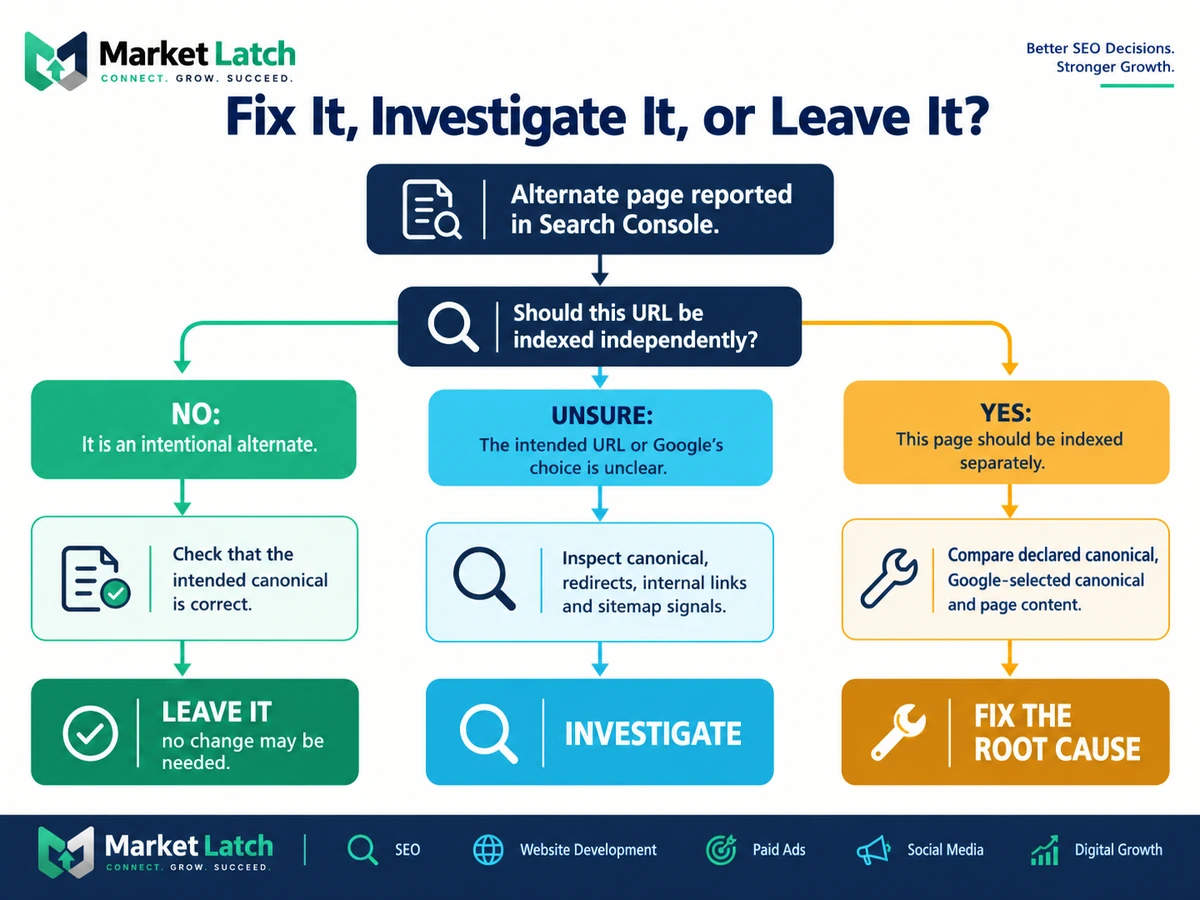
The important question is not “How do I remove this status?” It is “Should this URL be indexed independently, or should another URL represent this content?” If the alternate relationship is intentional and the canonical target is correct, leave it alone. If the page should stand on its own or Google has selected an unexpected representative, inspect the declared canonical, redirects, content similarity, internal links, and sitemap signals before changing anything.
This guide follows one rule: diagnose first, fix second. It explains how to read the status, compare the intended and Google-selected canonicals, investigate WordPress output, choose between a canonical tag, noindex, and a redirect, and verify the result without assuming that every excluded URL is an SEO problem.

| Quick answer Leave the status alone when the alternate URL is intentional and Google’s selected canonical is the page you want represented in Search. Investigate when the URL should be independently indexed, the canonical points to the wrong URL, or other technical signals conflict. |
What Does Alternate Page with Proper Canonical Tag Mean?
Canonicalization is Google’s process of choosing a representative URL from a group of duplicate or very similar pages. Google’s canonicalization documentation explains the process and the signals Google may use. A canonical tag is one signal that tells Google which URL you prefer to represent that content. Google considers page content and other signals as well, so a declared canonical is a preference—not a command.
The Search Console status means Google has treated the inspected URL as an alternate rather than the canonical version. In a normal duplicate relationship, this is expected: one URL is indexed as the representative, while the alternate URL is not independently indexed. If Google has selected a different representative than you intended, use Google’s canonical troubleshooting guidance to investigate the mismatch. Duplicate URLs are common on websites and are not automatically a spam violation.
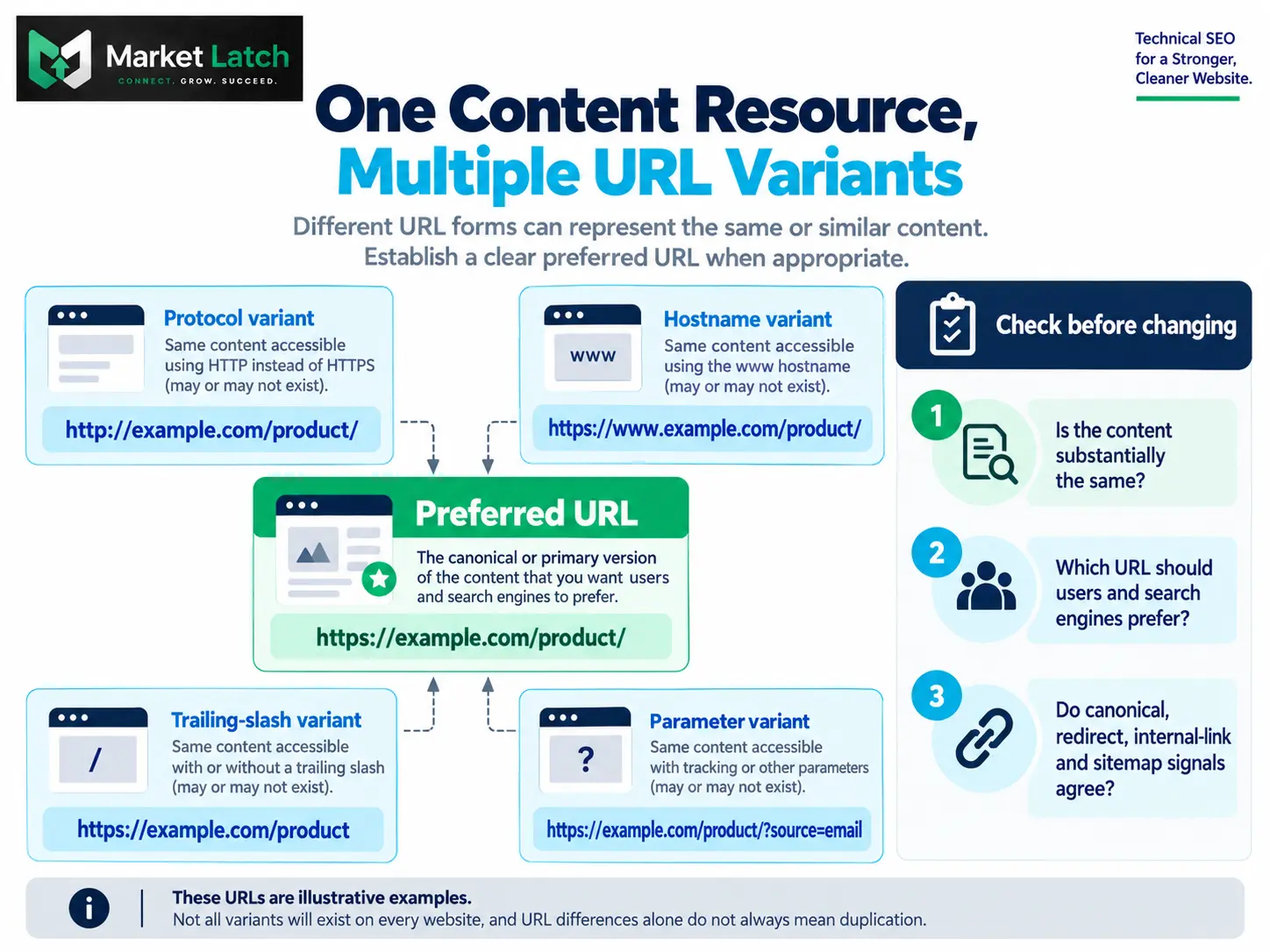
Examples can include HTTP and HTTPS versions, www and non-www hostnames, URL parameters, trailing-slash variants, or separate URLs that serve substantially the same content. Not every variation is necessarily a duplicate on every site; inspect what the URLs actually return and whether their primary content is the same.
Is It an Error—or Should You Leave It Alone?
Usually, the status is informational rather than a problem to eliminate. A URL can be excluded from indexing for a correct reason. Do not add a self-referencing canonical, remove a canonical, or change a redirect just to make the report look cleaner.
| Situation | Interpretation | Recommended action |
| The URL is an intentional duplicate and the preferred canonical is correct. | Expected canonical consolidation. | Usually leave it alone; check that internal links and sitemap use the preferred URL. |
| The URL should be indexed as a distinct page. | The current canonical relationship may be wrong, or the content may be too similar. | Compare the page, canonical signals, redirects, and internal links; fix the verified cause. |
| The declared canonical points to an unexpected URL. | A page-level, template, plugin, or server signal may be misconfigured. | Inspect rendered HTML and the final URL; correct the source if confirmed. |
| The URL redirects. | The redirect destination may determine the final representative. | Confirm that the destination is intentional and relevant before editing the rule. |
| The URL is blocked, noindexed, or returns an error. | This is a separate access or indexability question. | Investigate the response and directives separately; don’t assume canonical is the cause. |
| MarketLatch decision rule First decide whether this URL deserves its own search result. Then compare the declared canonical with Google’s selected canonical. Only make a change when the evidence shows a mismatch between the intended outcome and the current implementation. |
How to Diagnose the Status in Google Search Console
Use the indexed data in Search Console URL Inspection to understand what Google has processed. Enter the complete URL in Search Console, open the Page indexing details, and compare the user-declared canonical with the Google-selected canonical. If Google selected another URL, record that exact destination before making a change.
- Open Search Console and select the correct property.
- Enter the complete affected URL in URL Inspection.
- Review the indexed result—not only the live test—and locate the canonical fields.
- Record the user-declared canonical and Google-selected canonical.
- Check the last crawl date and page fetch/indexing details.
- Open the selected canonical, if it is in a property you control, and confirm that it is the page you intend users to find.
- Only then compare the current live HTML and HTTP response with the indexed information.
A live test can help determine whether Google can currently fetch a page and whether some live technical conditions have changed. It cannot predict canonical selection: Google’s canonical decision is determined during indexing. A live test also does not check every indexing condition. If the live output looks correct but the indexed report is older, verify the actual change and allow Google to recrawl and reassess it.
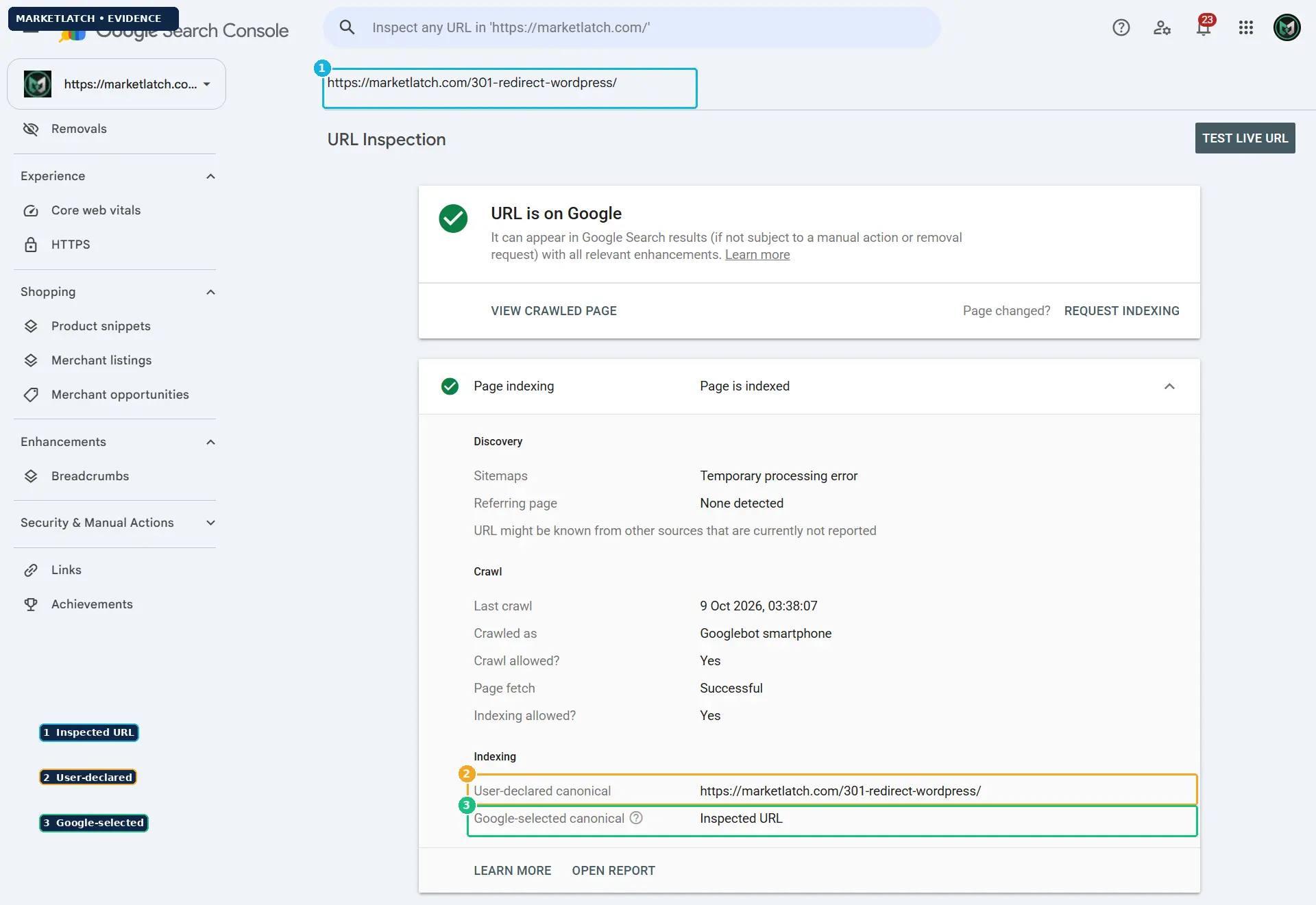
| Evidence boundary The supplied Search Console screenshot is for https://marketlatch.com/301-redirect-wordpress/. It shows the URL is indexed and the Google-selected canonical is Inspected URL. It does not show that this URL has the Alternate page with proper canonical tag status. |
The MarketLatch Canonical Signal Audit
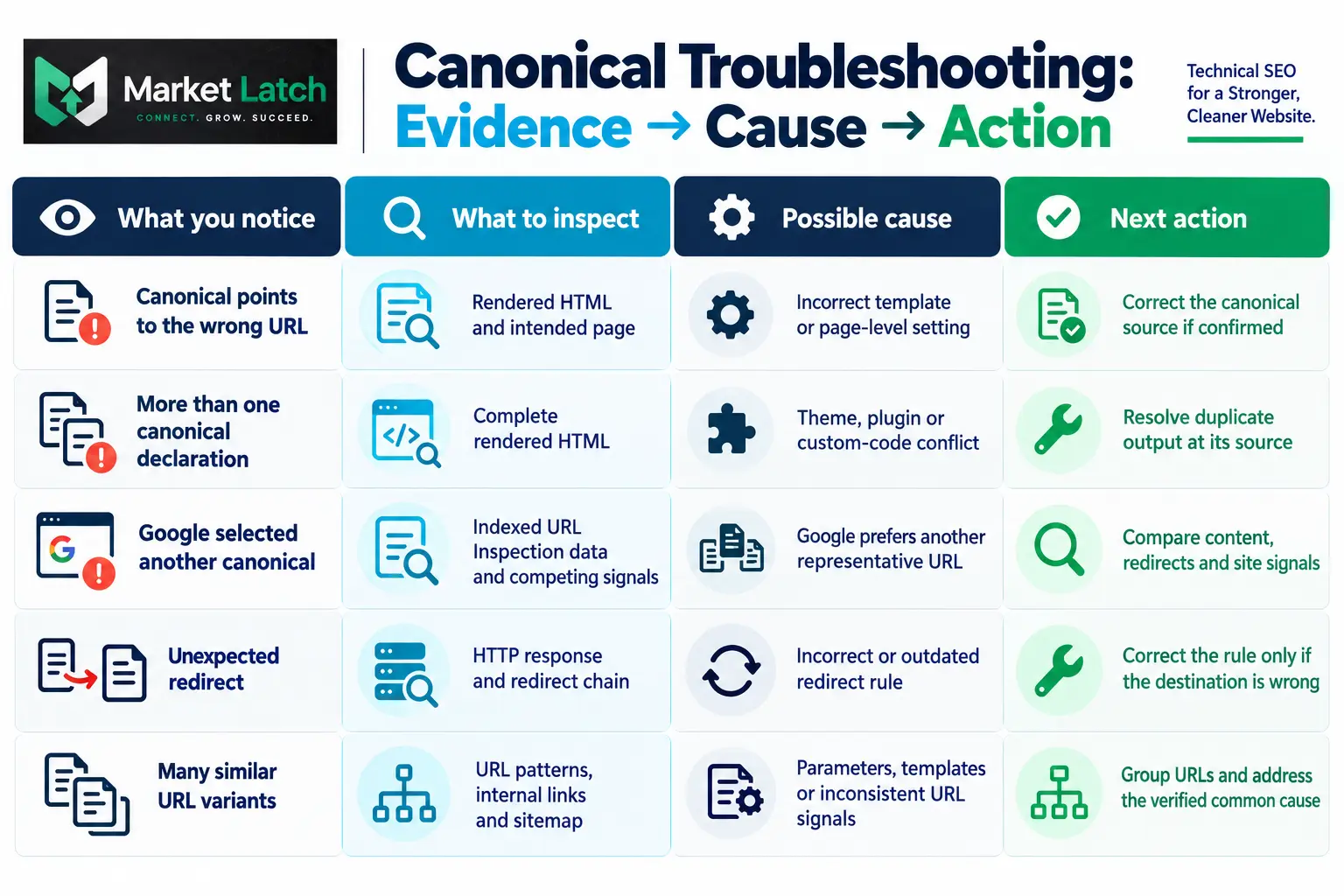
When the selected canonical is unexpected, audit the whole URL relationship. A canonical tag rarely tells the full story by itself. Follow this order so you do not change a page-level setting when the underlying cause is a redirect, template, or duplicate URL pattern.
- Establish the intended URL. Decide which page should represent this content for users and search engines.
- Inspect rendered HTML. Find rel=”canonical” in the final page output, not just in a WordPress settings screen. Look for missing, malformed, cross-domain, or multiple declarations.
- Check the HTTP response and final destination. Confirm whether the source URL returns a normal page, redirects, or fails, and follow the entire redirect chain. Then open the intended canonical target and verify that it resolves successfully, is accessible to Google, represents the content you want indexed, and does not redirect or declare a conflicting canonical. If the target returns an error or points elsewhere, investigate that relationship before changing the source URL.
- Compare internal links and sitemap entries. Important internal links and sitemap URLs should generally reinforce the preferred canonical URL.
- Compare URL variants. Check HTTP/HTTPS, www/non-www, trailing slashes, parameters, pagination, and other patterns only where they actually exist.
- Compare the content. If two pages are intended to be distinct, make sure their primary content and purpose are meaningfully different—not merely different titles around substantially identical content.
- Review indexing controls. Check noindex, robots.txt access, server response, and other technical issues as separate signals. These mechanisms don’t replace canonicalization. If Search Console reports a different status, such as Crawled – Currently Not Indexed, diagnose that status separately rather than treating it as the same canonical issue. If you are investigating that separate status, see our guide to Crawled – Currently Not Indexed for its specific troubleshooting steps.
- A robots.txt rule controls crawling; it does not reliably communicate which URL Google should select as canonical. If a page must be excluded from search results, do not block Google from crawling it as a way to implement
noindex, because Google needs to access the page to see that directive. Diagnose crawl access, indexing directives, and canonical selection as separate issues. - Re-check indexed data after Google has had time to recrawl. First confirm that the live page returns the intended response, exposes the expected canonical, and has consistent internal-link and sitemap signals. Then use URL Inspection to compare the indexed user-declared and Google-selected canonicals after reassessment. Record the result, but do not treat a successful live test or an indexing request as proof that Google will select your preferred canonical.
Google describes redirects and rel=”canonical” as strong canonicalization signals, while sitemap inclusion is a weaker signal. Its documentation on specifying a canonical URL explains how these methods can reinforce one another, but none guarantees that Google will select a particular URL. A consistent implementation is the goal.
How to Check a Canonical Tag in HTML
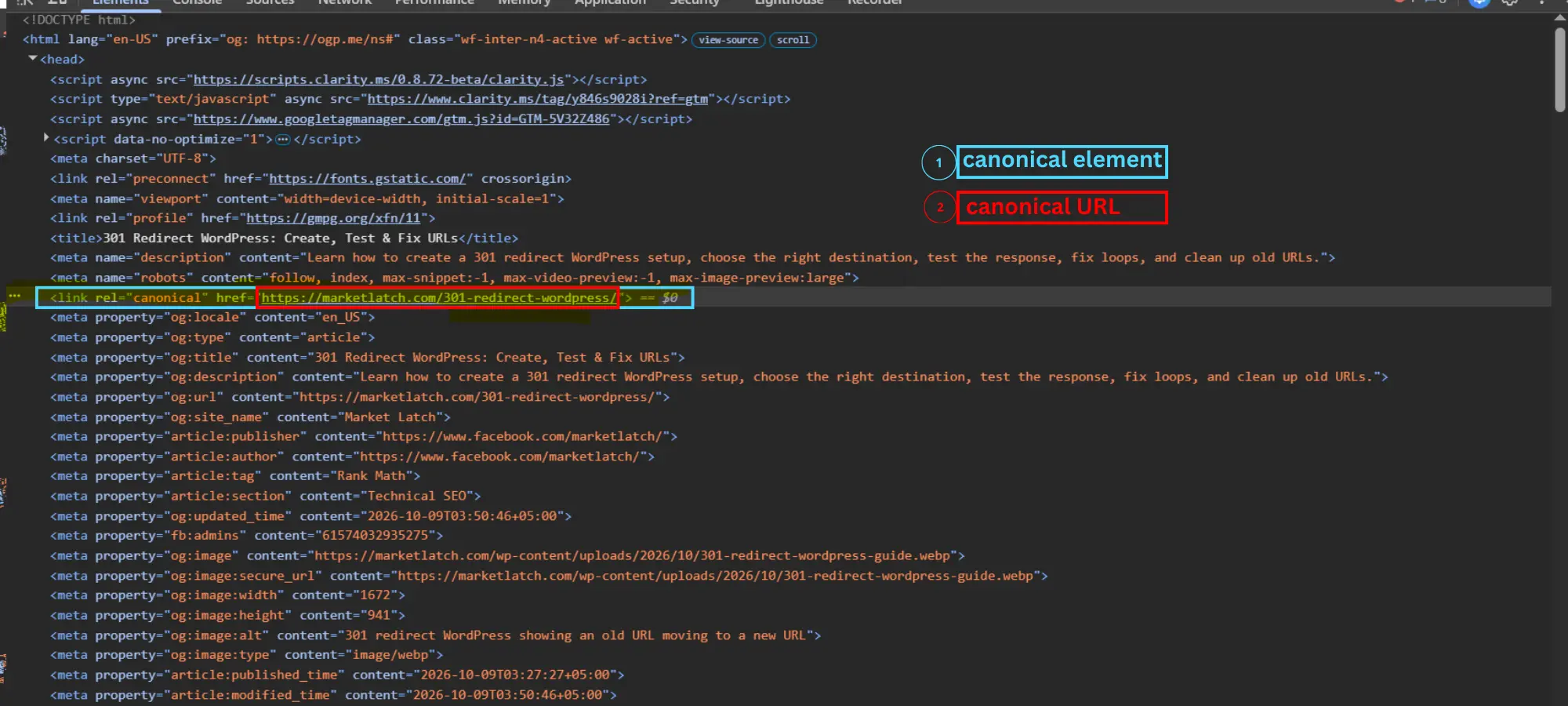
For a WordPress page, open the URL in a browser, view the page source or inspect the rendered document in developer tools, and search for rel=”canonical”. The expected element usually appears in the document head. Confirm the full URL exactly, including protocol, hostname, path, trailing slash, and any unintended query string.
For example, if the preferred page is https://example.com/guide/, a canonical element might look like this:
<link rel="canonical" href="https://example.com/guide/" />
This is an illustrative example, not code to paste blindly. Replace the example URL only after confirming the intended canonical. A self-referencing canonical is often appropriate for the preferred version of a standalone page, while a genuine duplicate may point to another representative URL.
If you find more than one canonical declaration, trace where each one comes from. A theme, SEO plugin, page builder, custom code, or cache layer may be contributing output. Do not remove a declaration until you know which component generates it and what other pages may depend on that component.
For some resources, a canonical URL can also be communicated through an HTTP Link header. If the HTML source does not explain the canonical signal you are investigating, check the response headers where relevant. For ordinary WordPress pages, start with the rendered HTML, then investigate other sources if the evidence does not match your intended URL.
Common Causes and How to Fix Them
1. The canonical points to the wrong URL
If the page should be indexed independently but its canonical points elsewhere, first confirm that the destination is not the intended representative. Then inspect the page-level canonical field and the rendered HTML. Correct the source of the wrong value, and check whether the same template or setting affects other URLs.
2. Multiple or conflicting canonical tags
Multiple declarations can make the implementation ambiguous. Inspect the complete HTML and trace each declaration to the system that produced it. Remove or reconfigure the conflicting source only after confirming the correct output. Avoid adding a manual tag on top of a plugin-generated tag without understanding the existing graph.
3. Redirects lead to an unexpected destination
A redirect can be a strong signal that the destination should become canonical. Test the source URL, status code, Location destination, and final landing page. A redirect is not automatically wrong: the destination should be corrected only when it does not match the intended URL relationship. For implementation details, see our guide to troubleshooting 301 redirects in WordPress.
Do not redirect every URL reported as an alternate. First confirm that the source URL is genuinely obsolete or should permanently resolve to another page. If both URLs need to remain accessible and contain duplicate or substantially similar content, a canonical may be more appropriate. If the pages serve different purposes, investigate the specific cause rather than redirecting them solely to remove the Search Console status.
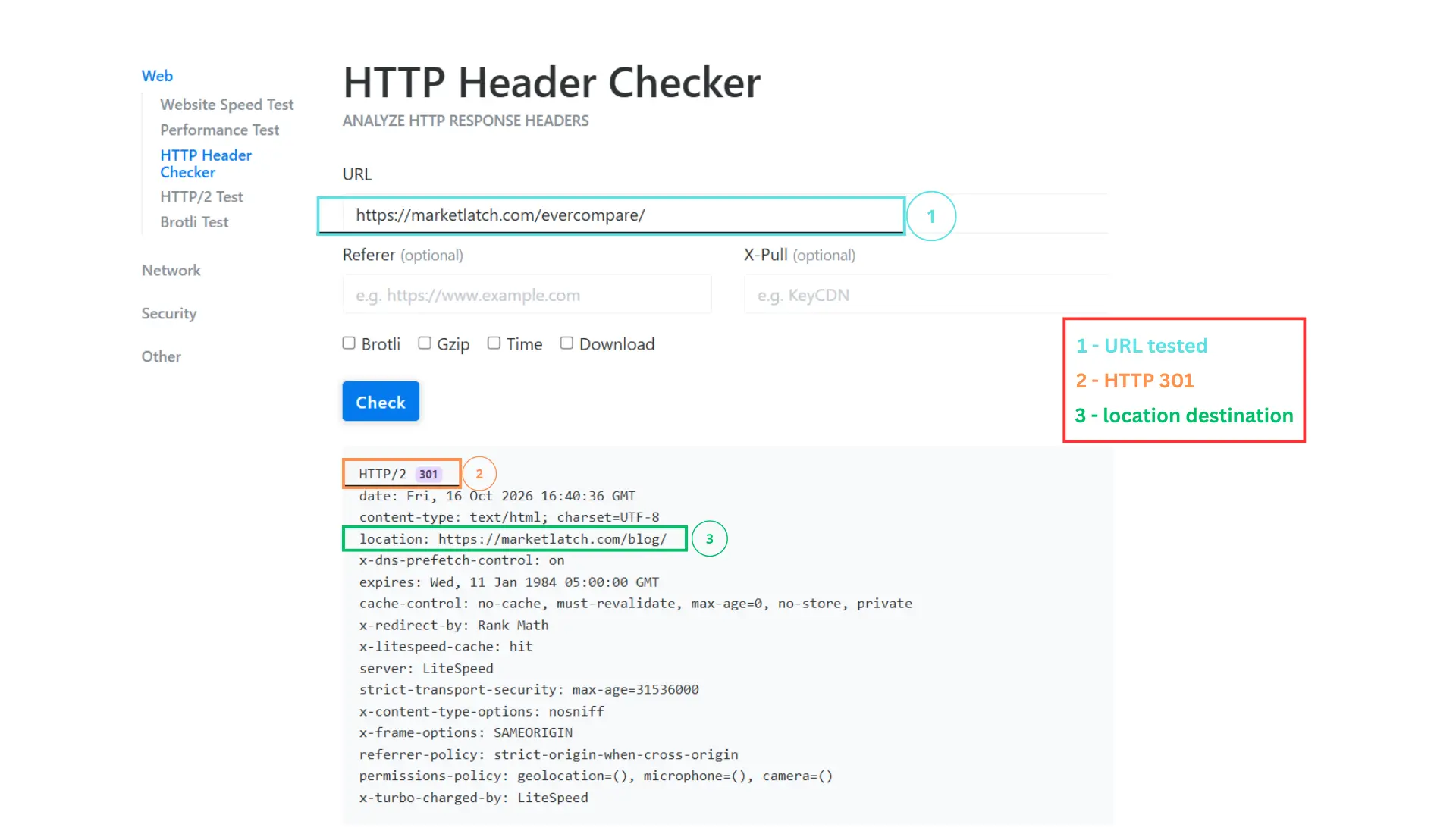
| Redirect screenshot limitation The supplied HTTP header screenshot tests https://marketlatch.com/evercompare/ and shows a 301 Location destination of https://marketlatch.com/blog/. Treat it as an example of inspecting a response. Decide whether the redirect is correct by evaluating the source URL’s intended destination and content history. |
4. Sitemap and internal links send mixed signals
Review whether the sitemap lists the preferred canonical URL and whether internal links point to alternate versions. A sitemap does not override all other signals, and it does not guarantee indexing. Clean up inconsistent links where practical so your own site repeatedly points users and crawlers toward the intended URL.
5. Duplicate pages are too similar
If two pages are intended to appear separately in Search, make sure they serve meaningfully distinct purposes and provide distinct primary content. Changing only the title, a few sentences, or a location name may not make pages sufficiently different. If the content should be consolidated, choose a representative URL and use the appropriate canonical or redirect strategy instead.
6. URL variants are being generated by the site
Sorting, filtering, tracking parameters, trailing slashes, host variants, and other site functions can create multiple URL forms. Identify which variants genuinely exist before changing configuration. Where the same or very similar content is available at several URLs, make the preferred version clear and keep internal links, sitemap entries, canonicals, and redirects consistent with that intent.
WordPress: How to Check or Add a Canonical Tag
In WordPress, canonical output can be controlled by an SEO plugin, theme, custom code, or a combination of components. The exact interface depends on the plugin version and configuration. MarketLatch uses Rank Math, so use the following as a diagnostic route rather than assuming every installation has identical screens.
- Edit the relevant post or page and inspect the Rank Math advanced or canonical URL setting, if available in that version.
- Check whether a custom canonical URL has been set at the page level.
- View the live page source and confirm what the site actually outputs.
- Check whether the theme or another plugin adds a second canonical declaration.
- Compare the output with the intended URL, then test the page again after a change.
If a page should be its own canonical version, the canonical should normally resolve to that page’s intended absolute URL. If it is an alternate copy, point it to the appropriate representative only when the pages are duplicates or substantially similar. Do not add a canonical to a different URL simply to force Google to index that destination.
If the same problem appears across many pages, investigate the template or generator before editing each URL separately. Correcting a shared source can fix a whole pattern, but it must be followed by checks on representative pages. For a broader diagnostic approach, see our WordPress technical SEO troubleshooting guide.
Canonical vs. Noindex vs. Redirect
These mechanisms serve different purposes. A canonical expresses a preferred representative among duplicate or very similar URLs. A noindex directive asks search engines not to include a page in search results, and the crawler must be able to access the directive to see it. A redirect sends requests from one URL to another. robots.txt controls crawling; blocking a URL in robots.txt is not a substitute for a noindex directive. Choose based on the intended user and indexing outcome, not just on the wording in Search Console.
Do not use noindex simply to force Google to choose a different canonical URL from a group of duplicate pages. Canonicalization and noindex have different purposes: use a canonical signal to indicate the preferred representative of duplicate or very similar URLs, and use noindex when a page should not appear in search results. If you need a specific URL to represent duplicate content, review Google’s canonicalization guidance before choosing an indexing directive.
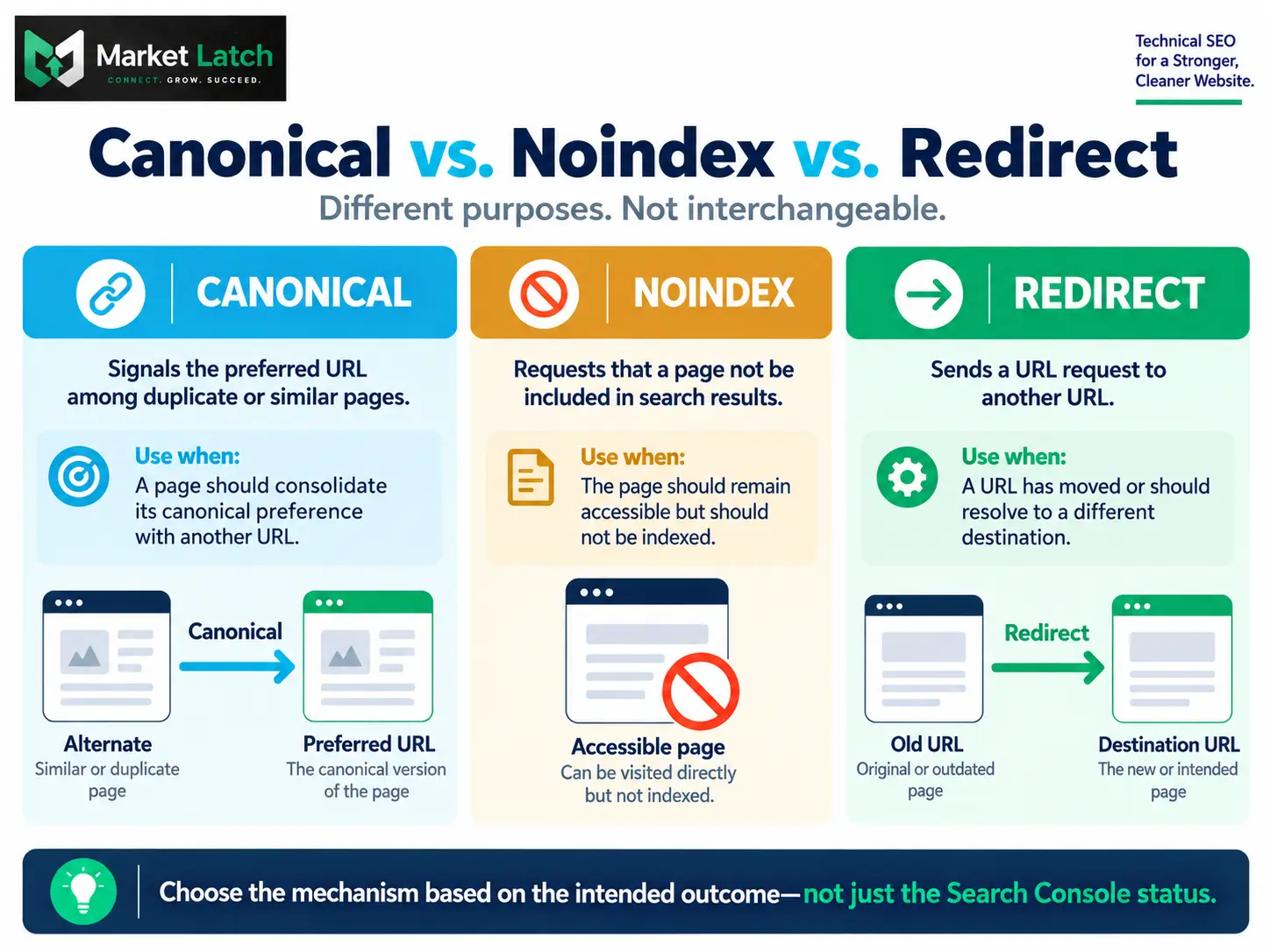
| Canonical | Signals the preferred URL among duplicate or very similar pages. | Both URLs may remain accessible, but one should represent the content. | Google may choose a different canonical. |
| Noindex | Requests that a page not appear in search results. | The page should remain accessible but should not be indexed. | Do not rely on robots.txt blocking to communicate noindex; the crawler must be able to see the directive. |
| 301 redirect | Sends the old URL to a new destination permanently. | The old URL has moved or should no longer serve as a separate page. | Choose a relevant final destination and avoid redirect chains or loops. |
If you are permanently retiring an old duplicate URL, a redirect may be more appropriate than leaving both pages accessible with a canonical tag. If the page must remain available but should not be indexed, noindex may fit better. If both versions need to remain accessible but one is the representative, canonicalization may be appropriate. These are decisions about site behaviour, not tricks for clearing a report.
How Long Does Google Take to Update a Canonical?
There is no guaranteed time for Google to re-evaluate a canonical after a change. The page must be recrawled and processed, and Google may continue to cluster pages that it considers duplicates. Google’s canonical troubleshooting guidance notes that reassessment can take time and that duplicate clustering may persist for up to two weeks after content changes; this is not a promise that every fix will be reflected within that period.
After a correction, verify that the live page outputs the expected canonical and that redirects and indexing controls behave as intended. For important URLs, you can request indexing through URL Inspection, subject to Search Console quotas. A request asks Google to recrawl; it does not guarantee indexing or a particular canonical choice.
Worked Examples: What the MarketLatch Screenshots Prove—and Don’t Prove
The supplied visuals show how to collect evidence from real interfaces. They should not be read as a verified before-and-after fix for the target status.
- Search Console screenshot: shows the indexed data and the fields where a user-declared canonical can be compared with Google’s selected canonical. On the captured MarketLatch URL, those values agree.
- HTML inspection screenshot: shows a canonical link element for the specific inspected page. It does not establish that every page has correct canonical output.
- HTTP header screenshot: shows a 301 response and its Location destination for the tested URL. Whether that redirect is correct depends on the intended destination.
- The remaining diagrams are explanatory visuals. They illustrate a decision framework, possible URL variants, diagnostic mapping, and differences between canonical, noindex, and redirect; they are not Search Console data.
This distinction matters for trustworthy SEO writing. A screenshot can prove what is visible in that screenshot. It cannot prove a sitewide condition, Google’s hidden reasoning, a ranking impact, or that a fix succeeded unless the relevant evidence is actually captured.
A Reusable Canonical Audit Checklist
- Identify the affected URL and exact Search Console status.
- Decide whether the URL should be indexed independently.
- Record the user-declared canonical and Google-selected canonical from indexed URL Inspection data.
- Inspect the current rendered HTML for missing, incorrect, or conflicting canonical declarations.
- Check HTTP status, redirect destination, and the final response.
- Review internal links and sitemap entries for the preferred URL.
- Compare content and confirm whether the URLs are duplicates or meaningfully distinct.
- Check noindex, robots.txt, and server errors as separate technical conditions.
- Fix the verified root cause rather than changing signals at random.
- Re-test the live implementation and allow time for Google to recrawl and reassess.
| What success means The implementation consistently expresses the intended URL relationship, the preferred URL is accessible and correctly referenced, and later indexed inspection can assess Google’s selection. This is a verification standard—not a guarantee of indexing, ranking, or a fixed processing time. |
Frequently Asked Questions
Is alternate page with proper canonical tag an error?
Usually not. It generally means Google considers the inspected URL an alternate and has selected another URL as the representative. If that matches your intent, no fix may be needed.
How do I fix alternate page with proper canonical tag in Search Console?
First decide whether the URL should be indexed separately. Compare the user-declared and Google-selected canonicals in indexed URL Inspection data, then inspect HTML, redirects, internal links, sitemap entries, and content. Correct a verified mismatch; do not change tags solely to remove the status.
What does Duplicate without user-selected canonical mean?
It is a different Search Console status. Google has identified a duplicate URL, but no user-declared canonical was selected as the representative. Inspect the duplicate relationship and decide whether to declare a preferred canonical or use another appropriate URL strategy.
Why did Google choose a different canonical URL than I did?
Google may select a different representative based on page content and the signals it processes, including redirects, canonical annotations, and sitemap inclusion. Check for technical conflicts and whether the pages are substantially similar; a canonical tag is not a guarantee.
How do I check a canonical URL?
Use the indexed data in Search Console URL Inspection to compare the user-declared and Google-selected canonical. Then inspect the current page HTML to confirm the live canonical output.
What should I do if a canonical tag is missing?
First, determine whether a canonical is needed for that page. If the page should be its own representative, a self-referencing canonical is often appropriate. If it is a duplicate, choose the intended representative. Verify the final HTML after changing the source.
How do I add a canonical tag in WordPress?
Use the canonical controls provided by your SEO plugin when available, then verify the rendered HTML. In Rank Math, inspect the page-level advanced/canonical settings and confirm that the theme or another plugin is not generating conflicting output. Interface details may vary by version.
What is the difference between canonical and noindex?
Canonical signals which URL should represent duplicate or similar content. Noindex asks that a page not be included in search results. They solve different problems and should not be treated as interchangeable.
Should I use a canonical tag or a 301 redirect?
Use a canonical when both URLs should remain accessible, but one should represent the content. Use a permanent redirect when an old URL has moved or should no longer be a separate destination. Confirm the correct final URL before implementing either.
How long does Google take to update a canonical after a fix?
There is no guaranteed deadline. Google must recrawl and process the changed pages, and duplicate clustering may persist while reassessment occurs. Verify the live implementation and monitor indexed data rather than promising a fixed date.
Final Takeaway
The Alternate page with proper canonical tag status is not, by itself, a reason to change your website. The right action depends on whether Google’s selected canonical matches the URL you intend to represent the content.
If the relationship is intentional, leave it alone. If it is unexpected, investigate the declared canonical, target response, redirects, content similarity, and conflicting site signals before changing anything. Verify the live implementation after a correction, then use indexed URL Inspection data to assess Google’s subsequent decision.
Sometimes the correct canonical fix is no fix at all.
About the author

Nadeem Alam is the founder of MarketLatch and a digital growth strategist specializing in technical SEO, WordPress, WooCommerce, and search optimization. His work also covers structured data, Generative Engine Optimization (GEO), Answer Engine Optimization (AEO), Google Ads, and Meta Ads.
His approach to technical SEO is implementation-first and verification-driven: inspect what a website actually outputs, identify the source of technical signals, make targeted changes when the evidence supports them, and verify the result rather than relying solely on plugin settings.
Nadeem authored the Generative Engine Optimization Book, AEO Masterclass Guide, and AI SEO Implementation Checklist 2026. His training and certifications include Google Digital Garage, Semrush Academy, Coursera, uConnect, and Virtual University (DigiSkills).
References and Verification Sources
These official Google sources provide further detail and supplement the contextual links placed beside the relevant explanations in this article.
- Fix canonicalization issues — Google Search Central — canonical troubleshooting and reassessment
- What is URL canonicalization — Google Search Central — how Google selects representative URLs
- How to specify a canonical URL — Google Search Central — redirect, rel=canonical, and sitemap signals
- URL Inspection tool — Search Console Help — indexed data, live test limitations, and canonical fields