If you searched for Google My Business suspended, you likely want to know why your business profile is unavailable and what to do next. Google now calls the product Google Business Profile, although many business owners still use the older name.
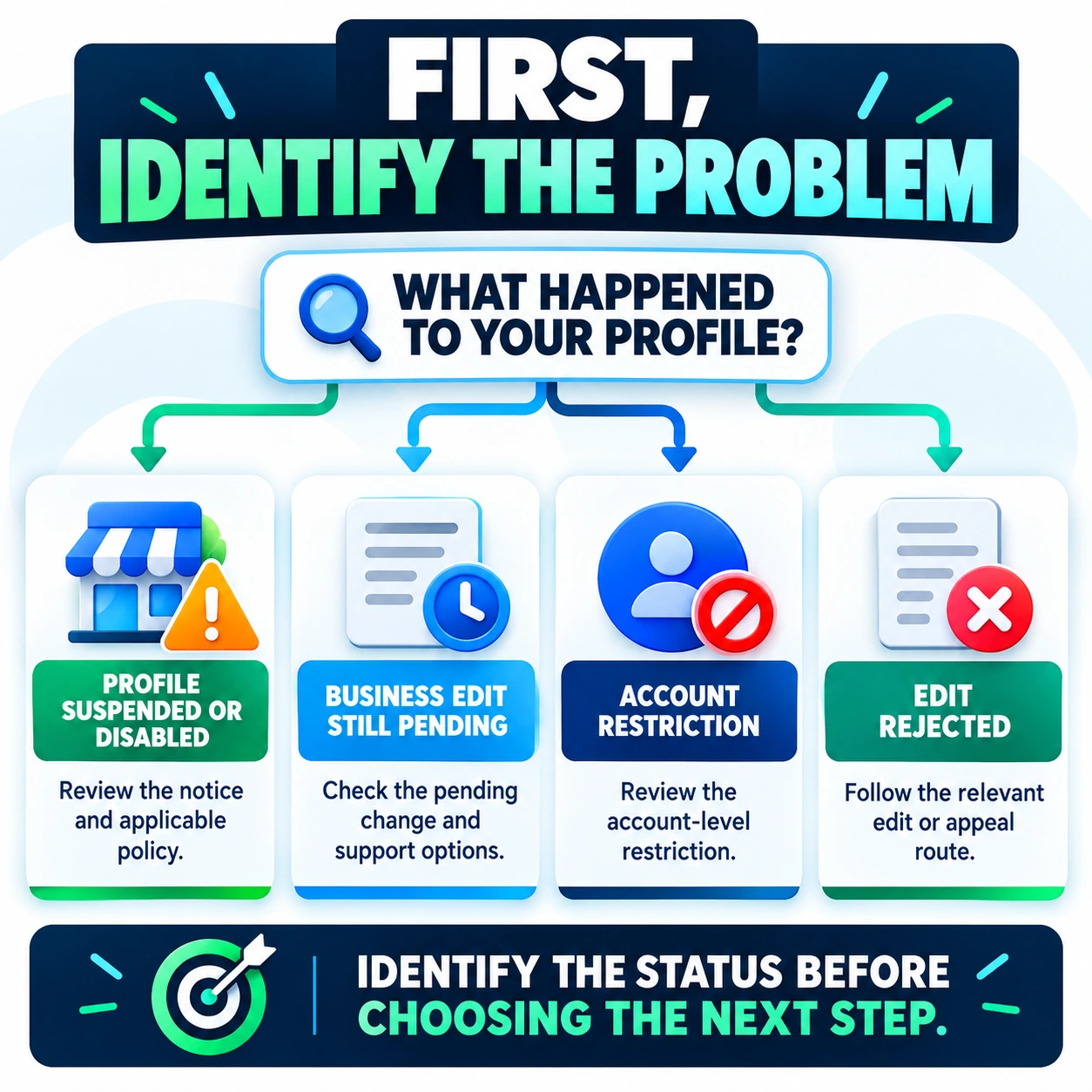
A suspended profile requires a different response from a rejected business-name edit, a pending change, an account-level restriction, or a temporary visibility problem. Confirm the actual status before changing profile information or submitting an appeal.
This guide explains how to diagnose the issue, review Google’s policies, prepare relevant evidence, follow the appropriate appeal process, and avoid mistakes that can complicate the situation. It also explains what to do if Google denies the appeal or reinstates the profile.
| The short answer Confirm the exact status and read the decision notice first. Review the policy Google identifies, correct verified problems, prepare genuine supporting evidence, and use the official route shown for your case. No tactic or appeal service can guarantee reinstatement. |
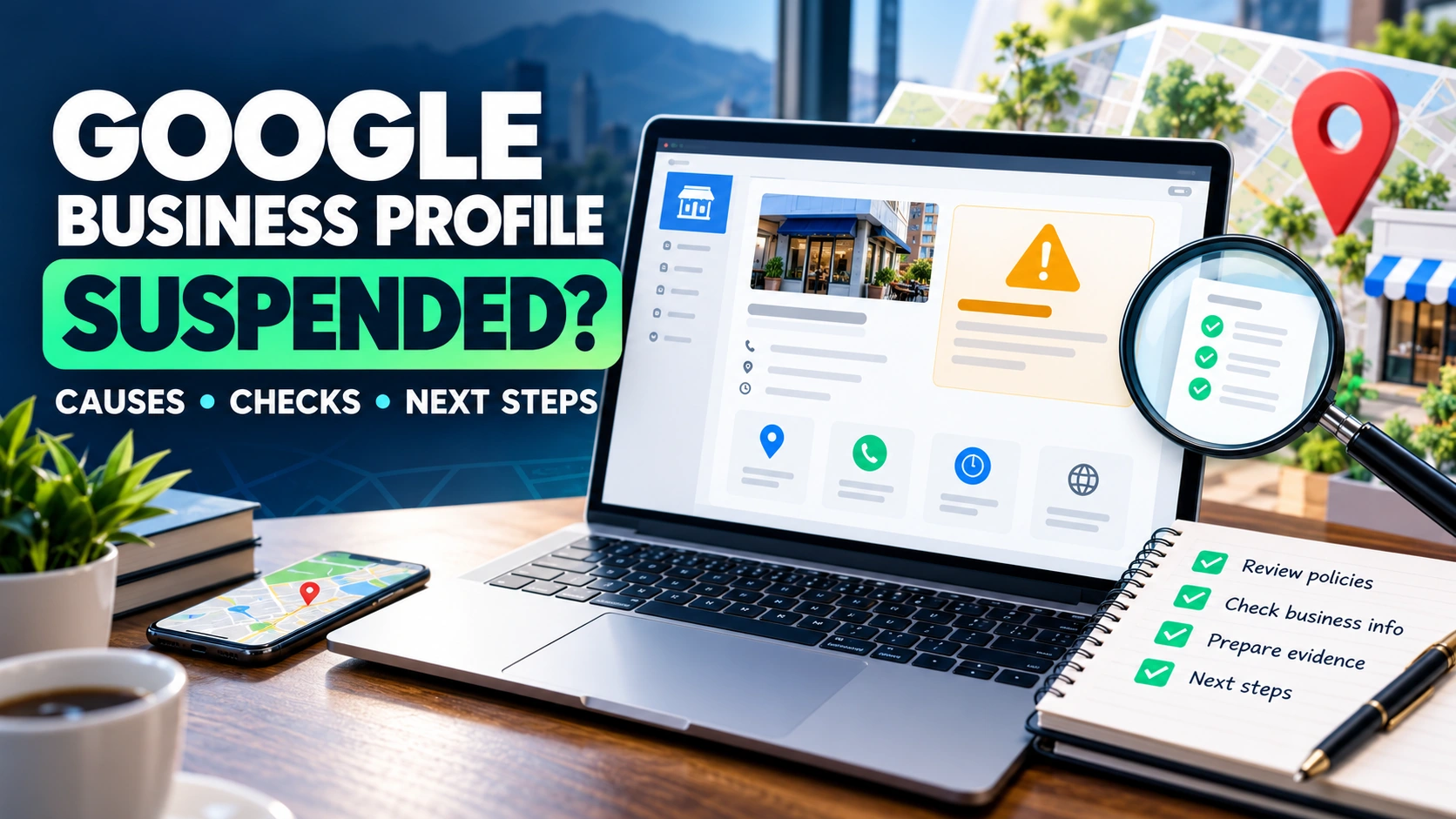
Google My Business Suspended? Confirm the Status First
A business disappearing from Search or Maps does not, by itself, prove that Google suspended the profile. Verification issues, duplicate listings, location changes, and ordinary visibility changes can also affect whether a business appears.
Start with the Google Account that manages the profile. Look for a suspension or restriction notice, an email from Google, a rejected edit, or a pending verification request. Check verification status before appealing; Google explicitly recommends this step in its guidance for profile-content and restriction appeals.
| What you observe | What it may mean | What to check first |
| Google explicitly says the profile is suspended or disabled | Profile-level moderation decision | Review the notice and the policy link in the official appeal tool. |
| You cannot manage one or more profiles | Possible account-level restriction | Review the Google Account notice and available account appeal route. |
| A business edit was rejected | Business-information moderation issue | Review the rejected field and the correct regional support route. |
| A business name or address change is pending | The edit has not finished processing | Check the status message and available support instructions. |
| A verified profile is difficult to find | Possible visibility or discovery issue | Check verification, profile status, duplicates, and location information before assuming suspension. |
For the official distinction between suspended profiles and rejected content or edits, use Google’s appeal and profile-restrictions guidance. The available remedy depends on the decision and the business’s location.
Account restrictions require a different order of action. If Google identifies a restriction on the Google Account itself, use the account-level appeal route shown in Google’s guidance first. Google explains that the account restriction must be lifted before you appeal the affected Business Profile suspension; if the profile remains suspended afterward, submit the separate profile appeal. Do not treat an account restriction and a profile-level decision as interchangeable. See Google’s suspended-profile guidance for the current sequence.
Why Was My Google Business Profile Suspended?
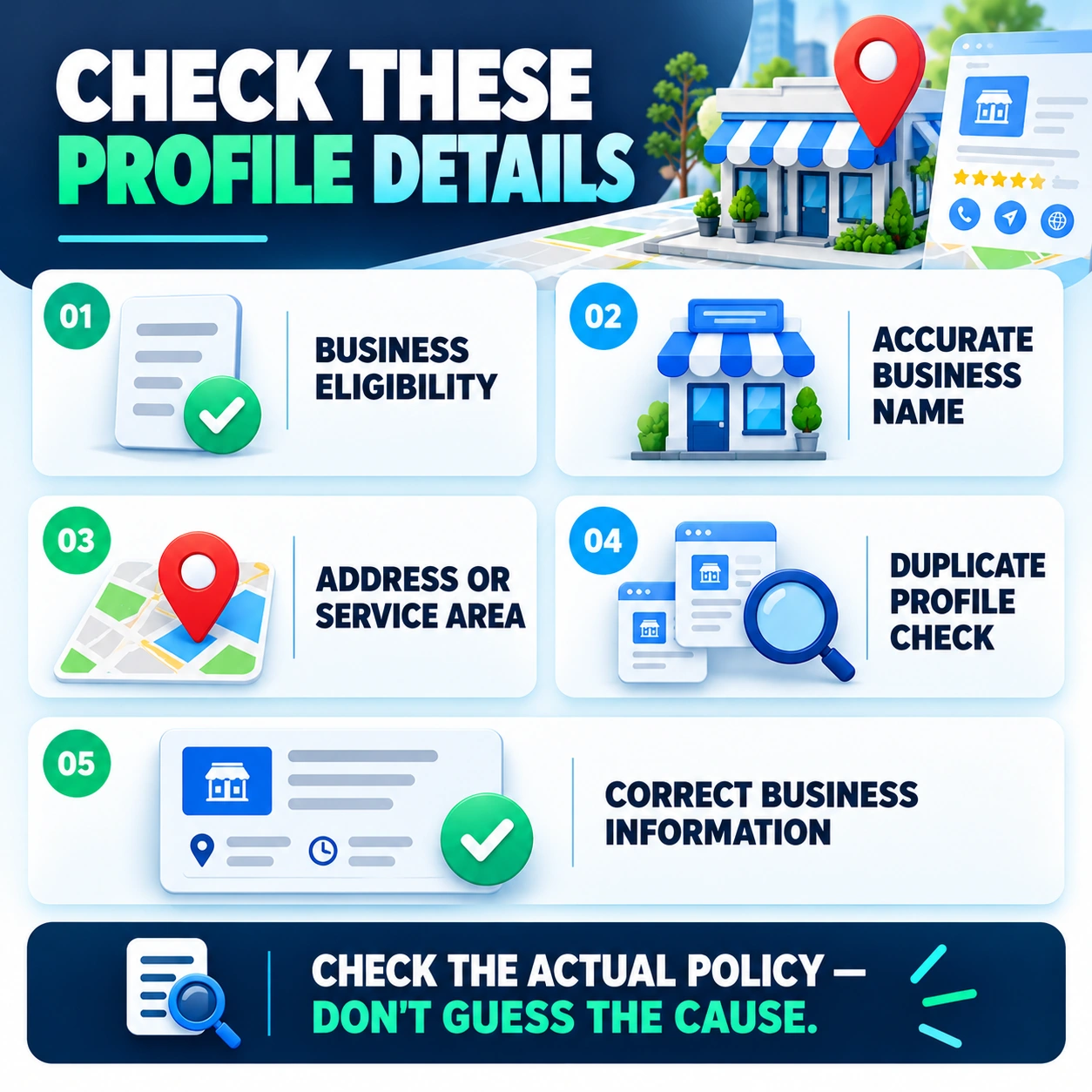
Google may suspend or disable a Business Profile that does not follow its guidelines. The notice and the specific policy link are the best starting points for investigating why. The checks below cover common policy areas; they don’t prove that a particular issue caused a specific suspension.
1. The business name does not match the real business
Google expects the profile name to match the business name as it is consistently represented in the real world. Adding extra service keywords, city names, slogans, or promotional phrases when they are not part of the real-world name can create a policy problem.
Compare the profile name with genuine branding, storefront signage where relevant, stationery, and other business records. If the name has genuinely changed, make sure the change represents the actual business rather than an attempt to add search terms. Google’s business representation guidelines explain which details belong in the name field and which belong in other profile fields.
2. The address or service area is inaccurate
Review the location settings against how the business actually operates. Google does not allow a remote mailbox or an unstaffed virtual office to be represented as an eligible business location. Coworking locations have specific conditions, including signage, customer access, and staffing by the business during business hours where applicable.
Service-area businesses should describe their real service area accurately. Do not add areas where the business does not genuinely serve customers. If a business operates from a residential address and does not receive customers there, review whether the address should be hidden under Google’s service-area rules.
3. The business may not meet eligibility requirements
Not every company is eligible for a Google Business Profile. In general, a business must make in-person contact with customers during its stated hours, subject to Google’s specific exceptions. Examples of businesses that are generally ineligible include online-only businesses and lead-generation companies.
If eligibility is the issue, changing the description or adding more keywords will not solve it. Read Google’s Business Profile eligibility and ownership guidelines before making changes.
4. Duplicate profiles or ownership problems
Check whether the same business location has more than one profile or whether management access and ownership have become confused. A duplicate profile is not the same thing as a suspension, but duplicates and ownership problems can complicate profile management and need to be handled through the relevant official process.
Do not create a replacement profile simply because the original is suspended or an appeal is pending. Google specifically warns against creating a new profile for the same business while the appeal is under review.
5. Deceptive content or other policy violations
A notice referring to deceptive content or misleading information deserves careful attention. It does not establish that every business receiving that notice has the same underlying problem. Review the specific policy link in the decision and compare it with the profile information or content that may be affected.
Avoid guessing at the cause, making unrelated edits, or assuming that one universal correction will solve every case. Google’s prohibited and restricted content policies and business representation rules provide the relevant baseline.
Google Business Profile Suspended for Deceptive Content: What Should You Check?
If the notice identifies deceptive content or misleading information, focus on the policy Google identifies rather than relying on generic suspension-recovery advice. The key question is which specific profile detail or content Google says violates its policy—not whether the label alone explains the full cause.
- Read the decision. Identify the stated reason and open the relevant policy link.
- Check business identity. Confirm that the profile name and other identity details represent the real business.
- Review location information. Verify that the address or service area corresponds to how the business actually operates.
- Check eligibility and duplicates. Resolve genuine inconsistencies that the applicable policy identifies.
- Document corrections. Keep relevant records that show the real business information and any corrective changes.
- Prepare an accurate explanation. Describe the issue and corrective steps without exaggerating or claiming changes you have not made.
The goal is to understand the actual policy issue and respond with truthful, relevant information—not to manufacture an explanation that merely sounds persuasive.
How to Fix a Suspended Google Business Profile
Once you have confirmed the status and reviewed the relevant policy, work through the following steps. This workflow is intended to help you organize a diagnosis; the official appeal tool remains the authority on whether a decision is eligible for appeal and what information is required.
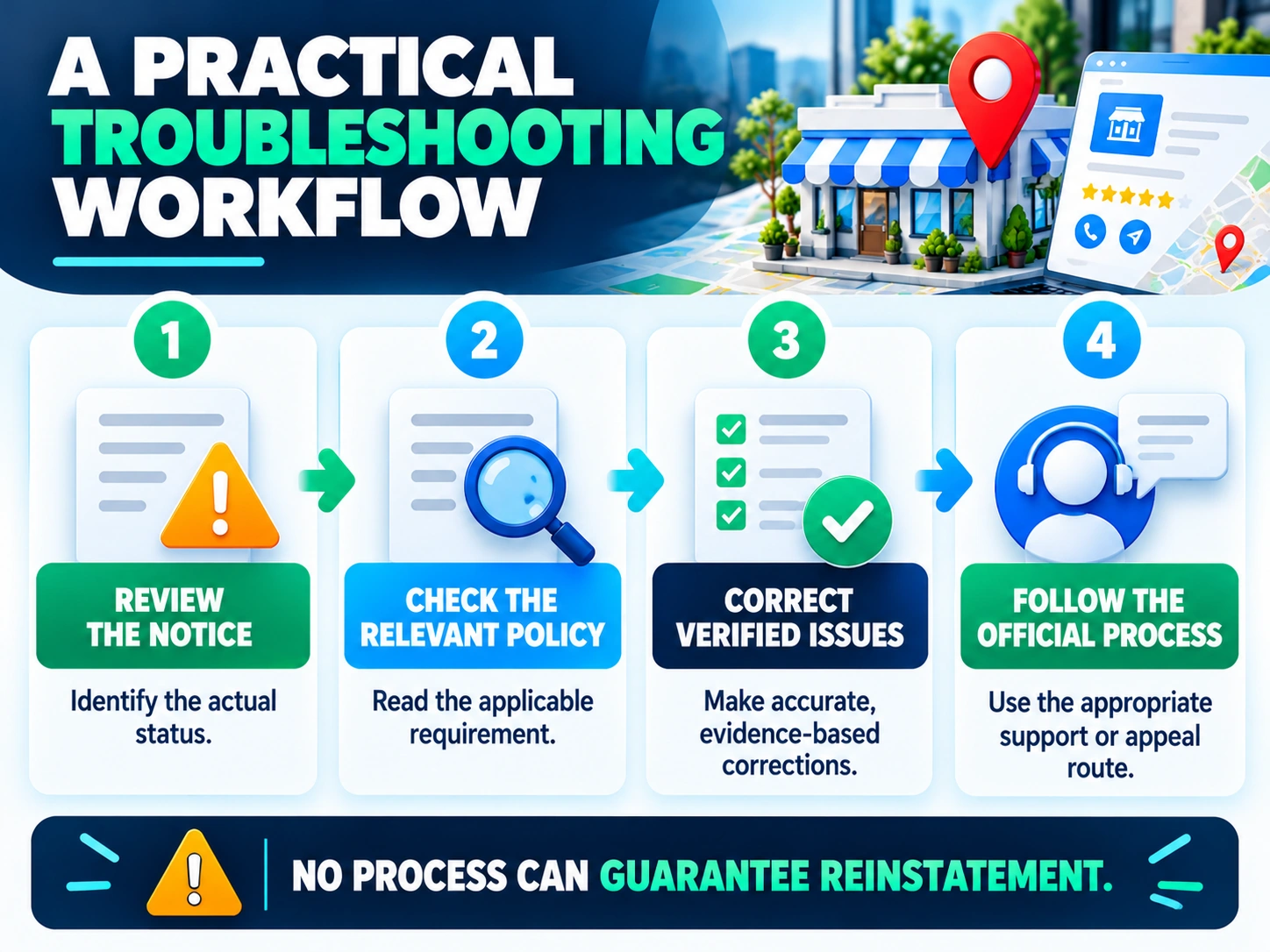
Step 1: Review the original notice
Find the Google notification or decision associated with the profile. Read it carefully before making further changes. If it provides a policy link, open that policy. In the official appeals tool, review the decision details shown for the affected profile, including the reason, the policy link, and whether the decision can be appealed.
Do not rely only on a third-party explanation or guess that the last profile edit caused the suspension. Timing may be a useful clue to investigate, but it is not proof of causation.
Step 2: Audit the profile against Google’s policies
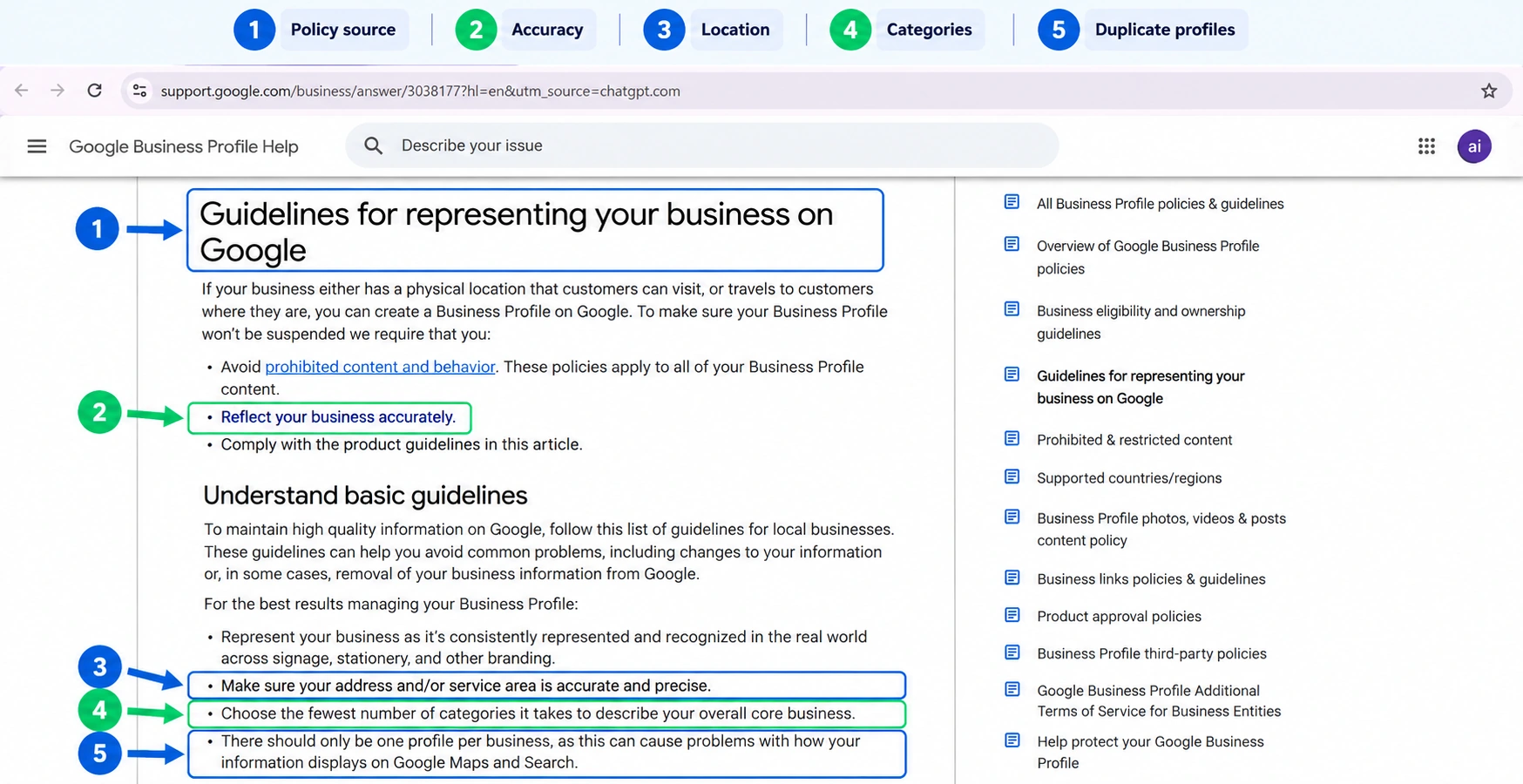
Review the business information relevant to the stated issue. Check the real business name, eligibility, address or service area, categories, duplicate profiles, and management access. Use the policy itself as the standard for each correction.
Do not change compliant information merely to make the profile look different. Correct the issues you can substantiate and keep notes of the changes you make.
Step 3: Correct verified problems
Make the changes needed to bring the profile into compliance where those changes are appropriate and available. For example, remove unsupported marketing additions from a business name if they do not reflect the real-world name. If the address is inaccurate, correct the underlying location problem rather than simply rewriting the address.
Do not create another profile, change ownership improperly, or submit unrelated information as a workaround. Make one coherent set of corrections that you can explain and document.
Step 4: Prepare relevant supporting evidence
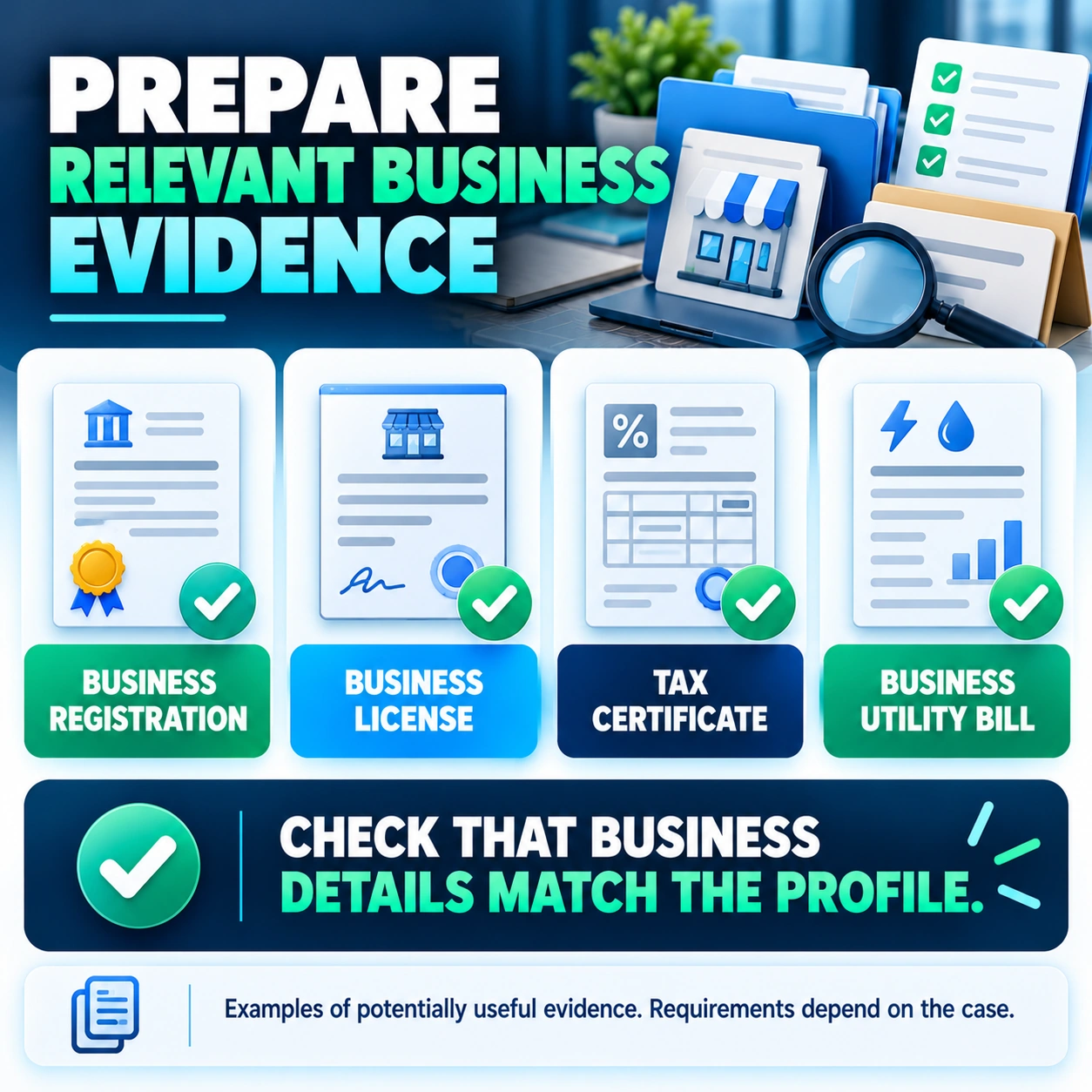
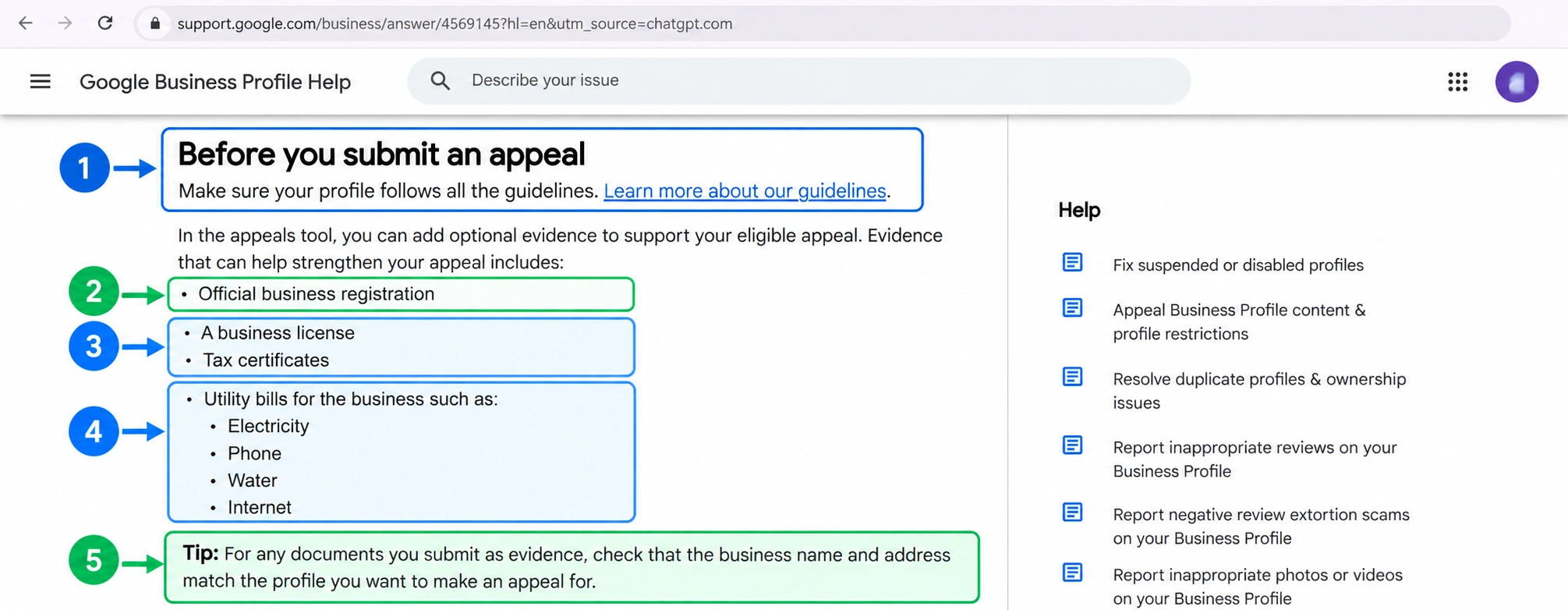
Google says supporting evidence can strengthen an eligible appeal. Depending on the context, examples include official business registration, a business license, tax certificates, and utility bills such as electricity, phone, water, or internet bills. These are examples, not a requirement to submit every document in every case.
Check that the business name and address on documents match the profile being appealed. Use genuine documents, choose evidence that relates to the issue, and avoid including unnecessary personal information.
Before You Open the Appeal Tool: Preparation Checklist
- Confirm that you are signed in to the Google Account associated with the affected Business Profile.
- Check the profile’s verification status and identify the exact decision the appeals tool offers you.
- Read the decision notice and the specific policy link before making corrections or writing the appeal.
- Prepare only relevant, genuine documents; check that business names and addresses match the profile being appealed.
- Draft a short, factual explanation of the issue and the verified corrections. Do not claim changes or evidence you cannot support.
- Keep supporting files ready. If Google presents a linked evidence form after submission, submit the evidence within 60 minutes of opening that form.
This checklist is a preparation aid, not a list of documents every business must submit. The official tool determines which decisions are eligible and what options are available.
Step 5: Follow Google’s official appeal process
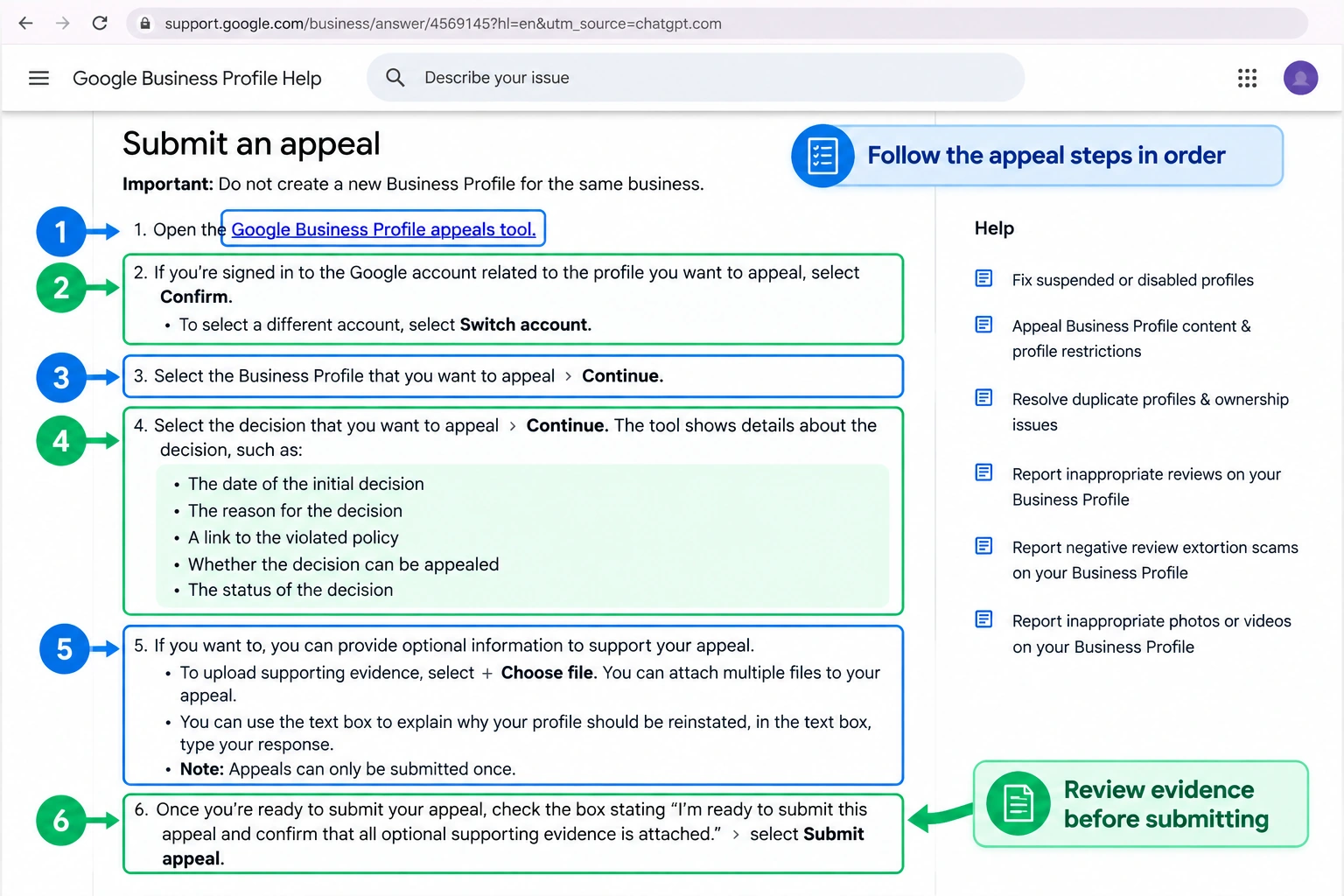
Begin with Google’s official Fix suspended or disabled profiles guide and open the linked appeals tool. The general sequence is:
- Sign in to the Google Account associated with the affected profile.
- Select the correct Business Profile.
- Choose the decision you want to appeal, if the tool offers an eligible decision.
- Review the decision details and the linked policy.
- Prepare the explanation and supporting evidence requested by the current workflow.
- Submit the appeal according to the on-screen instructions.
The interface can differ by decision and region. Follow the instructions displayed in the official tool rather than copying an older screenshot step for step.
Step 6: Submit optional evidence within the stated window
Google’s guidance says that if the appeal flow presents a linked evidence form after submission, you must submit the supporting evidence within 60 minutes of opening that form or it will not be attached to the appeal. This is a conditional deadline: it applies when the linked form is presented, not to every Business Profile issue or every appeal route.
Step 7: Monitor the appeal status
After submission, use the official appeals tool to check its displayed status and watch for Google’s email decision. Google says appeal reviews and decisions can take up to five business days, but this is not a guarantee that every case will be resolved within that period.
Do not submit multiple appeals for the same issue before receiving a decision. If Google requests more information or provides further instructions, follow those instructions rather than repeatedly submitting the same explanation.
How to Read the Appeal Status
The appeals tool can display statuses such as Submitted, Approved, Not Approved, Can’t be appealed, and Eligible for appeal. Read the status beside the specific profile and decision you selected; it may not represent every profile managed by the same account.
- Submitted — Google has received the appeal. Monitor the tool and the associated email account for a decision or request.
- Approved — the appeal decision is approved. Check the affected profile and its business information rather than assuming every visibility issue has resolved immediately.
- Not Approved — Google did not approve that appeal. Read the decision and check whether the tool offers an additional review for the case.
- Eligible for appeal — the tool indicates that a decision is available for appeal. Review its details and prepare before submitting.
- Can’t be appealed — that decision is not appealable through the current tool flow. Do not repeatedly submit the same appeal; follow the official contact route if Google indicates one is available.
If the tool says there is no moderated content or restricted access to appeal, review the decision details. For a separate restriction, follow Google’s contact route; do not infer eligibility from a general guide. See Google’s current appeal guidance.
What If Your Google Business Profile Appeal Is Denied?
A denied appeal does not mean you should immediately create another profile or submit the same material again. Read the decision and identify whether Google offers an additional review for your case.
- Read the decision again and revisit the policy it identifies.
- Check whether the first appeal addressed the actual issue and whether the submitted documents were relevant and consistent.
- Look for a permitted additional-review route in the official tool or email decision.
- Prepare new, relevant evidence if the applicable process allows it.
Eligibility and available options depend on the decision. Follow the instructions displayed in Google’s official tool; do not assume that every case can be appealed repeatedly.
Is Your Profile Suspended or Is Your Business Edit Still Pending?
A delayed business-information edit is not automatically a suspension. The message and status shown by Google matter. A pending edit, rejected change, account restriction, and suspended profile should not be treated as interchangeable problems.
| MarketLatch first-hand evidence: what it shows—and what it does not MarketLatch’s supplied screenshot documents a business-name edit that was taking longer than expected, with current and pending information and a support option. It is an example of a pending-edit issue, not evidence that MarketLatch experienced a profile suspension or obtained a reinstatement. Keeping that distinction explicit makes the example more useful and trustworthy. |
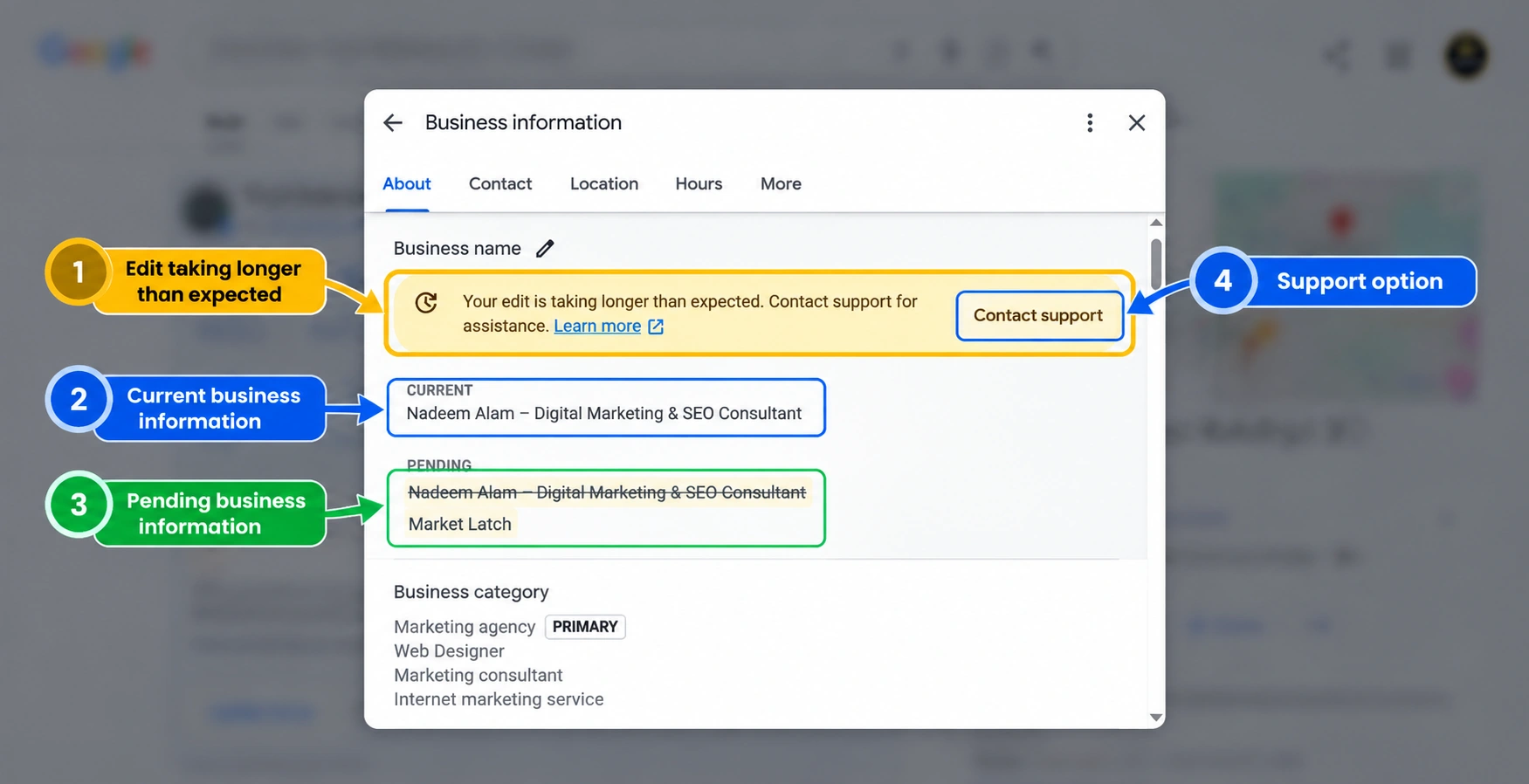
If your issue concerns a rejected business-information edit rather than a suspended profile, use the route that applies to your region. Google says businesses in the UK and European Economic Area can use the appeals tool for certain rejected edits, while businesses elsewhere must contact Google for those rejected edits and certain other content restrictions. Suspended-profile appeals have a separate route. Check the current appeal and profile-restrictions guidance for the precise workflow.
If You Already Have a Google Support Case
If a support case already exists, review its displayed status and last-update information. A case marked “In progress” means the case is shown as active in that interface; it does not establish that the underlying problem has been fixed or that a suspension appeal has been approved.
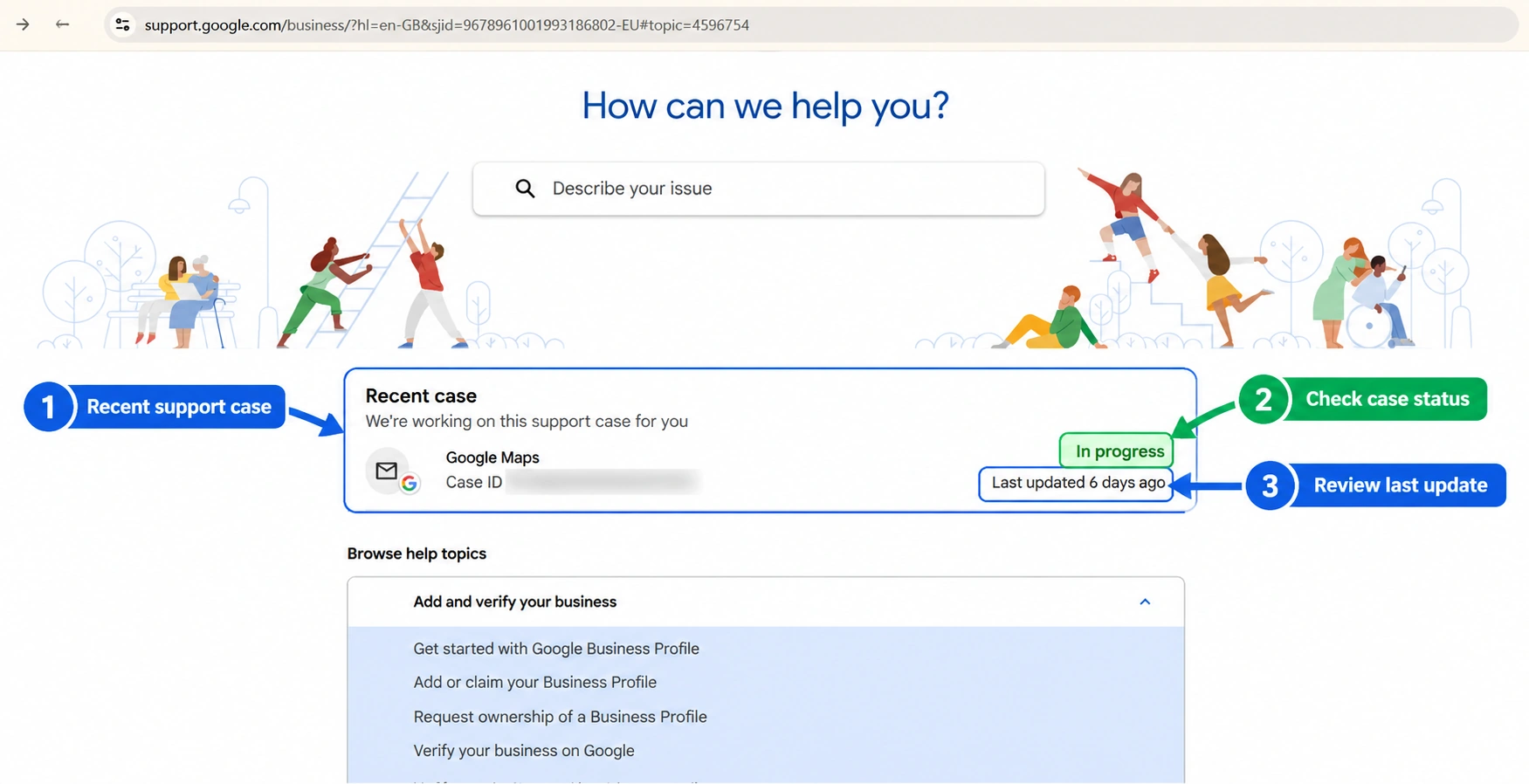
Keep the case identifier and account details private when sharing screenshots publicly. Save relevant support correspondence, but avoid repeatedly opening duplicate cases for the same issue unless Google instructs you to do so.
What Not to Do During a Suspension
- Do not create a new profile for the same business while an appeal is under review.
- Do not repeatedly submit the same appeal before a decision arrives.
- Do not submit altered, misleading, or unrelated evidence.
- Do not make unrelated edits just to show activity. Correct verified issues and keep a record of what changed.
- Do not rely on third parties promising guaranteed reinstatement or claiming special access to Google decision-makers.
- Do not assume every disappearance from Search or Maps is a suspension. Check status and verification first.
What to Do While You Wait
A suspension can disrupt customer discovery. Although these steps will not reinstate the profile, they can help you maintain business continuity while Google reviews the case.
- Keep your website accessible. Check the key service pages, contact details, booking forms, and enquiry routes.
- Keep customer communication available. Monitor your phone, email, appointment system, and other legitimate channels.
- Preserve the evidence. Keep copies of the decision notice, submitted documents, and support correspondence.
- Avoid unnecessary profile changes. Follow Google’s instructions and document any correction that is genuinely needed.
- Monitor the official status. Check the appeals tool and relevant email account for decisions or requests.
After Reinstatement: What Should You Check?
If Google reinstates the profile, verify the result before assuming everything has returned to normal.
- Check public visibility. Confirm that the profile appears as expected in Search or Maps.
- Review business information. Check the name, hours, address or service area, phone number, website, and categories.
- Confirm management access. Ensure authorized owners and managers can access the profile.
- Check your reviews. If reviews that were previously visible are missing, contact Google Business Profile Support. Google notes that reviews removed for policy violations are not restored, so do not assume every missing review will return.
- Keep monitoring. Continue to follow the relevant guidelines and investigate any new notices promptly.
For Google’s guidance on missing or delayed reviews, read About missing or delayed reviews. It explains that reviews may be delayed or removed for several reasons and advises contacting support if reviews are missing after reinstatement.
Frequently Asked Questions
Why was my Google Business Profile suspended?
Start with Google’s notice and the policy link in the appeals tool. The notice may not explain every detail in plain language, but it is a better starting point than guessing from recent edits or assuming a competitor caused the problem.
What should I do if my Google Business Account is suspended?
First, confirm whether the restriction applies to the Google Account or to an individual Business Profile. Review the account-level notice and the available appeal options. An account restriction can affect the profiles managed by that account, so the correct next step depends on the decision.
How long does Google Business Profile reinstatement take?
Google says appeal reviews and decisions can take up to five business days, but this is not a universal deadline or guarantee. Monitor the official appeal status and email notifications for your case.
Should I create a new profile if mine is suspended?
No. Google warns against creating a new Business Profile for the same business while an appeal is under review. Follow the official reinstatement or account-restriction process instead.
Do I need every listed document to appeal?
No. Google lists examples of evidence that may strengthen an eligible appeal. The appropriate documents depend on the case, and business details should match the profile being appealed.
Can changing my business name cause a suspension?
A change alone does not prove the cause of a suspension. The business name must reflect the real-world business. If an edit is pending or rejected, treat it as an edit issue unless Google identifies a suspension or another restriction.
What does a deceptive-content suspension mean?
Review the decision and the particular policy Google identifies. Do not assume every case has the same cause or remedy. Check the relevant profile information, correct verified issues, and prepare a truthful appeal where the decision is eligible.
Final Checklist Before You Submit an Appeal
- ☐ Identify the actual status: suspension, account restriction, pending edit, or rejected change.
- ☐ Check verification status before appealing.
- ☐ Read the decision and applicable Google policy.
- ☐ Review relevant business information and correct verified issues.
- ☐ Prepare genuine, relevant supporting evidence.
- ☐ Check that business names and addresses match the profile and documents.
- ☐ Follow the current official appeal instructions.
- ☐ If prompted to complete a linked evidence form, submit it within Google’s stated time limit.
- ☐ Review all information before submitting.
- ☐ Monitor the official appeal status and wait for the decision before taking further action.
Need Help Reviewing Your Google Business Profile?
A suspension issue should be addressed through the actual policy and official process, not through promises of guaranteed reinstatement. Professional assistance can help organize a profile audit and documentation, but Google makes the reinstatement decision.
If you need broader help with profile accuracy, categories, completeness, and ongoing management, explore MarketLatch’s Google Business Profile optimization services or read the Google Business Profile optimization guide.
About the author

Nadeem Alam is the founder of MarketLatch and a digital growth strategist specializing in technical SEO, WordPress, WooCommerce, and AI search optimization. His work spans Generative Engine Optimization (GEO), Answer Engine Optimization (AEO), website analytics, structured data, and search performance measurement.
His approach to SEO and analytics is implementation-first and verification-driven. He focuses on examining measurable website data, validating traffic sources, interpreting analytics reports, and identifying technical issues through verifiable evidence. At MarketLatch, he helps businesses understand search visibility, improve website performance, and make more informed decisions about organic and AI-driven discovery.
Nadeem also authored the Generative Engine Optimization Book, AEO Masterclass Guide, and AI SEO Implementation Checklist 2026. His training and certifications include Google Digital Garage, Semrush Academy, Coursera, uConnect, and Virtual University (DigiSkills).
Official Sources and Further Reading
The article’s policy and appeal instructions were checked against Google’s published guidance on October 29, 2026. Recheck the current help page immediately before publication because interface wording and eligibility paths can change.
- Fix suspended or disabled profiles — appeal steps, evidence examples, and account restrictions
- Appeal Business Profile content and profile restrictions — verification checks, regional routes, evidence form, and review timing
- Guidelines for representing your business on Google — business name, address, service area, categories, and duplicates
- Business eligibility and ownership guidelines — eligibility requirements and authorized representatives
- Prohibited and restricted content — content and conduct policies
- Overview of Business Profile policies — policy categories for Business Profiles
- About missing or delayed reviews — review delays, removals, and post-reinstatement support
- Creating helpful, reliable, people-first content — Google Search Central quality guidance for publishers
- Influencing your title links in Google Search — descriptive titles and avoiding repetitive keyword titles