To delete a Google Business Profile, open the profile while signed in to the associated Google Account, open Business Profile settings, select Remove Business Profile, choose Remove profile content and managers, and confirm the removal. This removes account-managed content but does not necessarily remove the business from Google Search or Maps.
If you no longer want to manage a Google Business Profile, you can remove its profile content and managers from your Google Account. But that is not the same as deleting the business from Google Search and Google Maps. Google explicitly says that removing a Business Profile from your account does not guarantee that the business will stop appearing on Search or Maps. If you searched for “delete Google Business Profile,” the same distinction is the first thing to understand.
That distinction is the part most quick guides get wrong. If you want to delete a Google Business Profile, you first need to understand whether you are removing the profile from your Google Account, closing the business, transferring ownership, or asking Google to remove the listing from Search and Maps.
I documented the current Business Profile interface for this guide, including the settings path, removal option, and confirmation screen. I did not complete a destructive removal just to create a before-and-after claim; the first-hand notes below are limited to what the live interface actually showed. That keeps the guide useful without pretending that an irreversible action was performed.
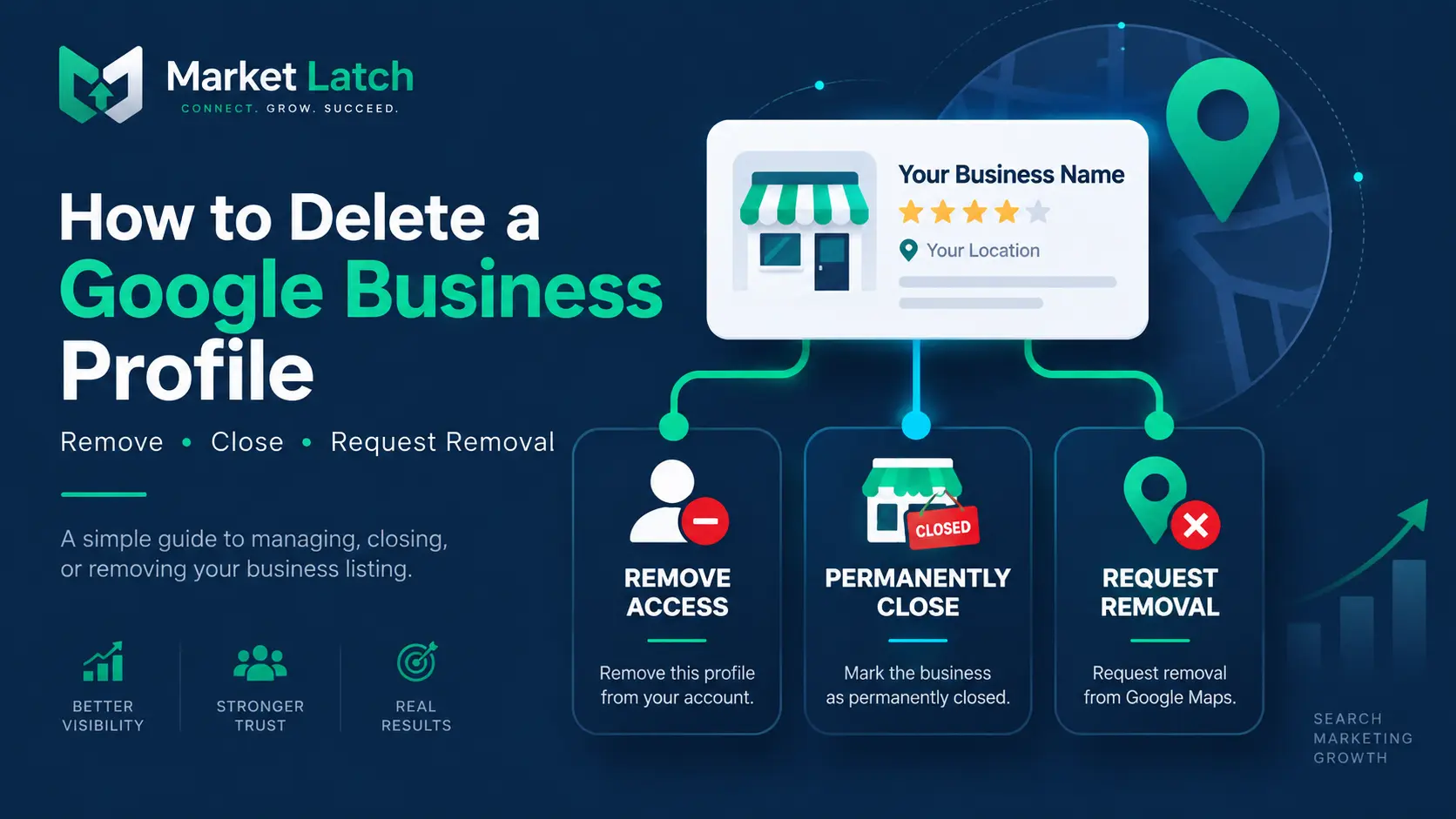
How to Delete a Google Business Profile
If your goal really is to remove the profile content and managers from your Google Account, the current process is straightforward. If you searched for how to delete Google Business Profile, the steps below show where Google currently places the removal controls. Before confirming anything, make sure you are working on the correct business and location.
The important part is understanding what the final confirmation means before you accept it.
Step 1: Open the Business Profile you want to remove
Sign in to the Google Account associated with the Business Profile and open the specific profile you want to remove. If you manage multiple locations, slow down here. Check the business name, location, website, and account before continuing. The biggest practical risk is not a complicated Google menu; it is selecting the wrong profile. To delete a Google Business Profile, first open the specific profile you want to remove and verify that it belongs to the correct business location.
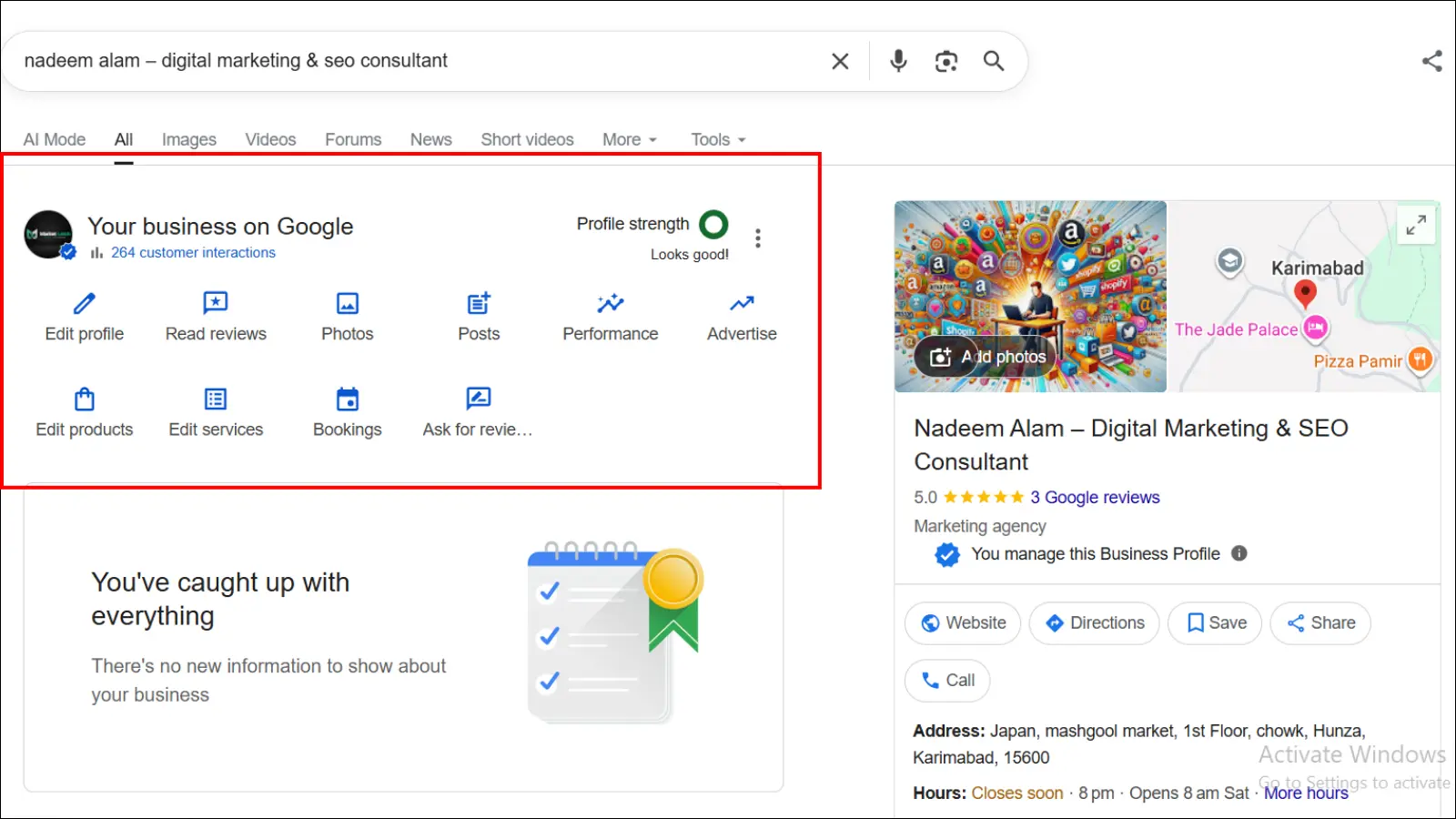
Step 2: Open Business Profile settings
From the profile, open the More menu and choose Business Profile settings. If you are trying to delete a Google Business Profile, this is the settings area where Google currently places the removal controls.
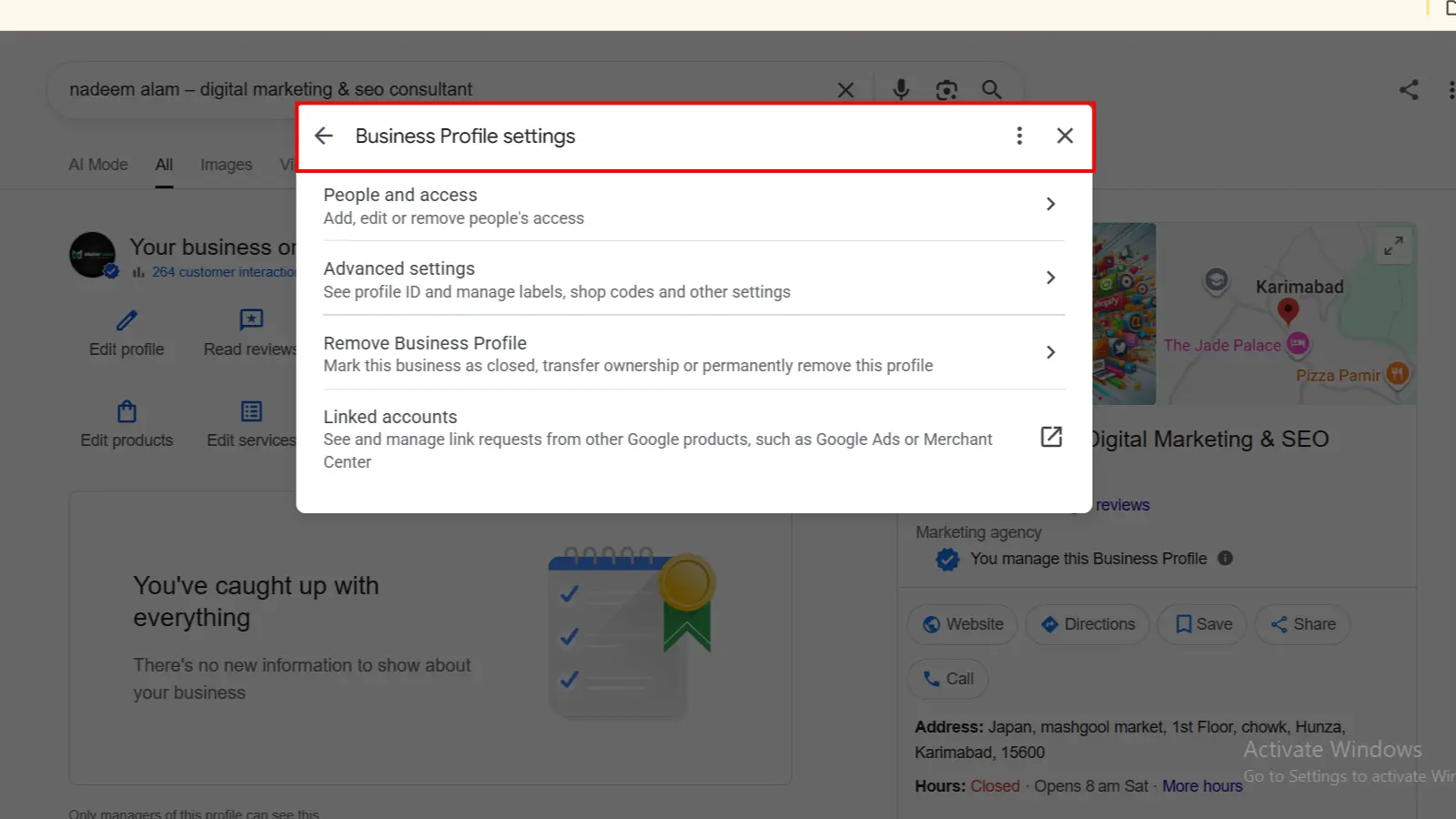
Step 3: Select Remove Business Profile
Inside Business Profile settings, select “Remove Business Profile.” Do not confuse this with simply removing yourself from the profile’s user list. One action changes who manages the listing; the other removes profile content and managers. Select Remove Business Profile only after confirming that you want to remove the profile content and management access from your Google Account.
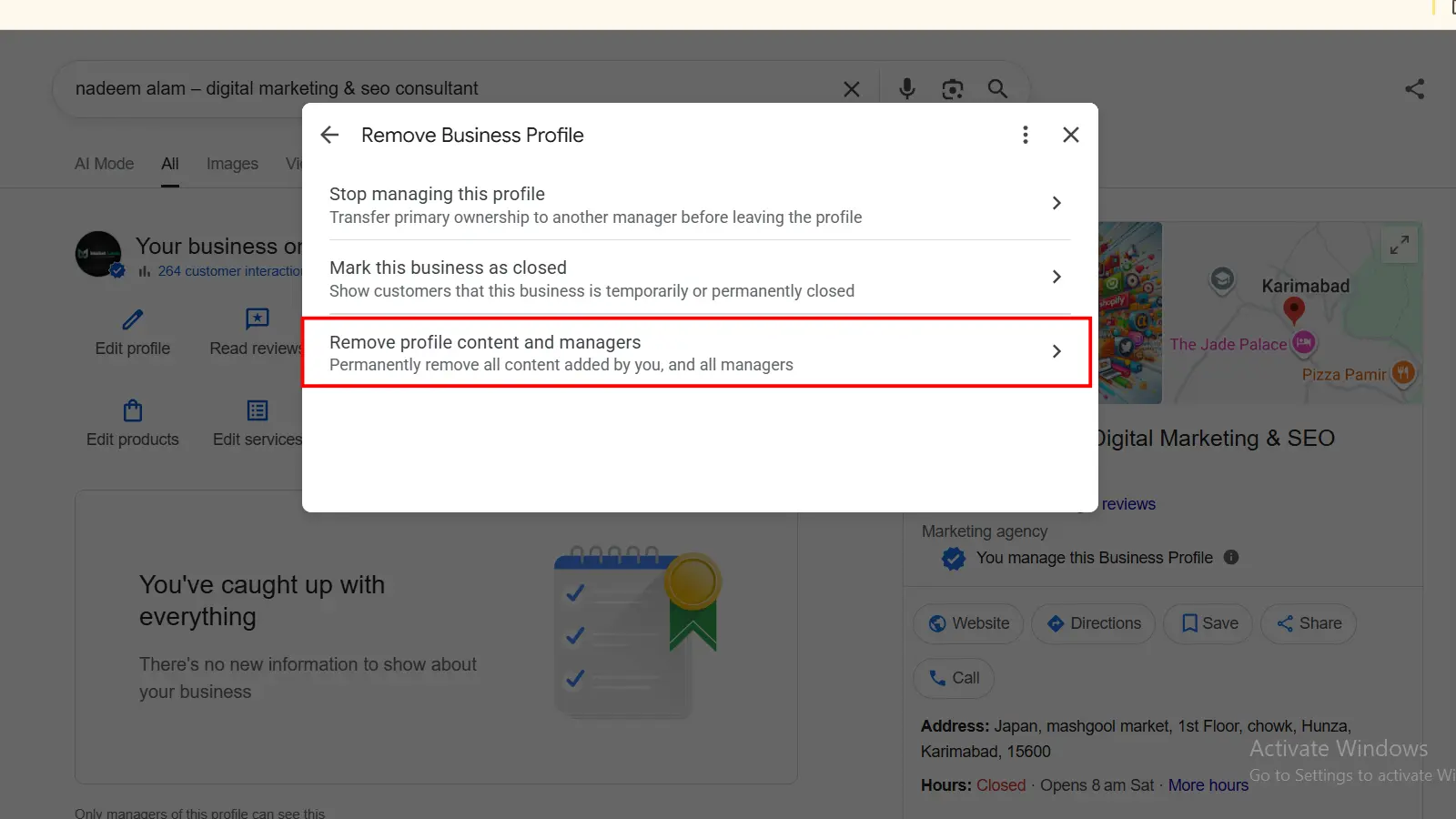
Step 4: Choose Remove profile content and managers
Google then presents the option to remove profile content and managers. Read this screen carefully. Google states that the removal of profile content and managers is permanent and affects the profile’s owners and managers.
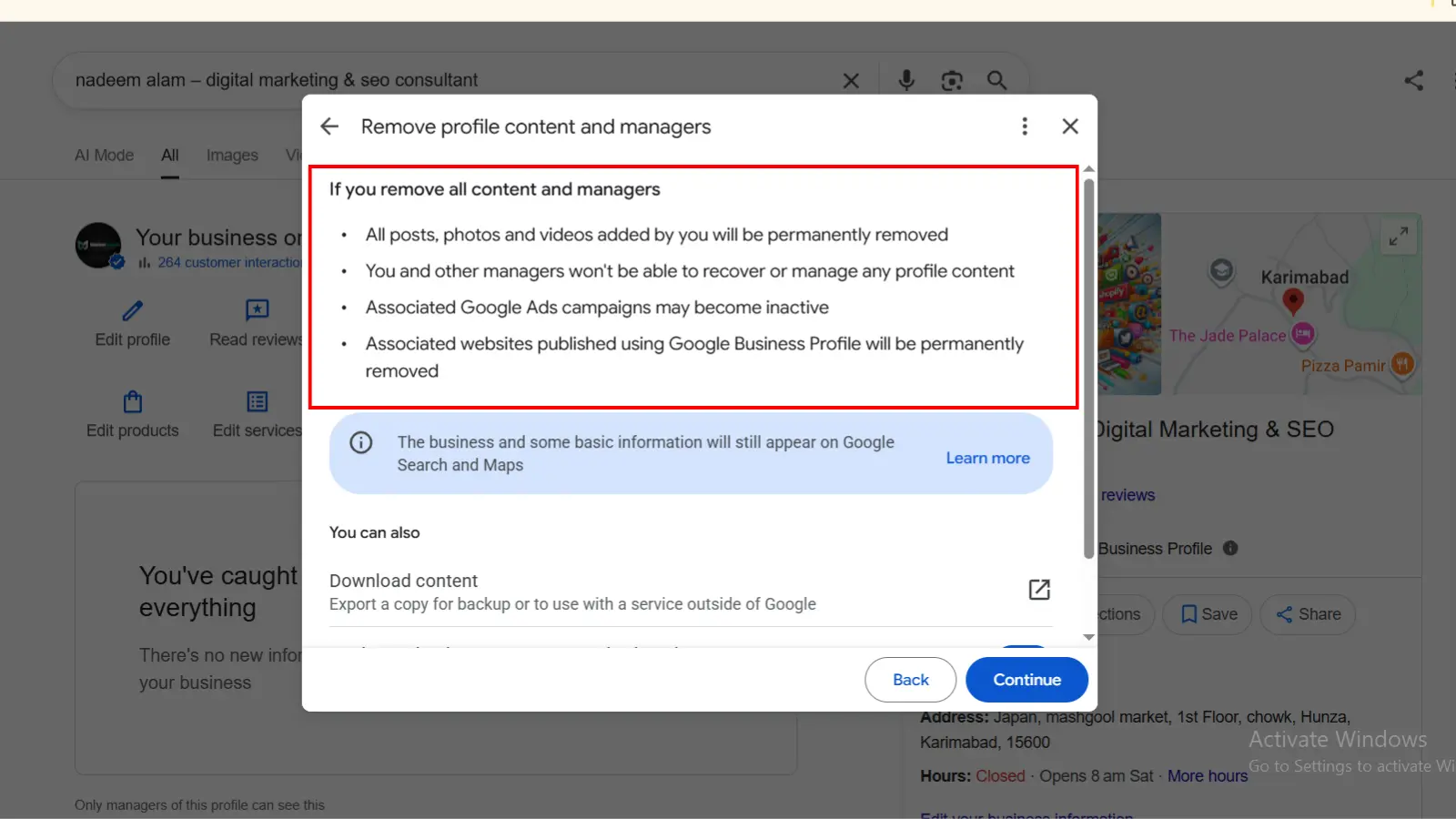
Step 5: Confirm the removal
Select “Continue,” then “Remove,” and finish with “Done.” Google’s current removal help identifies the primary owner as the role that can remove the profile content and managers through this process. Google also says new owners and managers have a seven-day waiting period before they can perform certain actions, including deleting or undeleting a profile. For the official sequence, use Remove a Business Profile from your Google Account.
Does Deleting a Google Business Profile Remove It From Google Maps?
No. Removing a Google Business Profile from your Google Account does not necessarily remove the business from Google Search or Google Maps. Google explicitly states that removing profile content and managers does not guarantee that the business will stop appearing on Search and Maps.
| Action | What it changes | Will it necessarily remove the listing from Search/Maps? |
| Remove profile content and managers | Removes management access and owner-added profile content. | No. |
| Mark permanently closed | Tells customers the business is permanently closed. | No. Google says the profile may still appear for searches for the business. |
| Mark temporarily closed | Shows that the business is temporarily closed. | No. |
| Request removal from Google | Asks Google to remove an inaccurate or ineligible business from Search and Maps. | If Google approves the request, yes. |
Not necessarily. If your actual search was “how to delete a Google Business Profile from Google Maps,” be careful: deleting the profile from your account is not automatically the same as requesting public removal from Google Maps. This is the single most important distinction in the whole process.
So if your real goal is “I want this place gone from Google Maps,” removing it from your account may be the wrong step. Google provides a separate request process for businesses that never existed or are not eligible to appear.
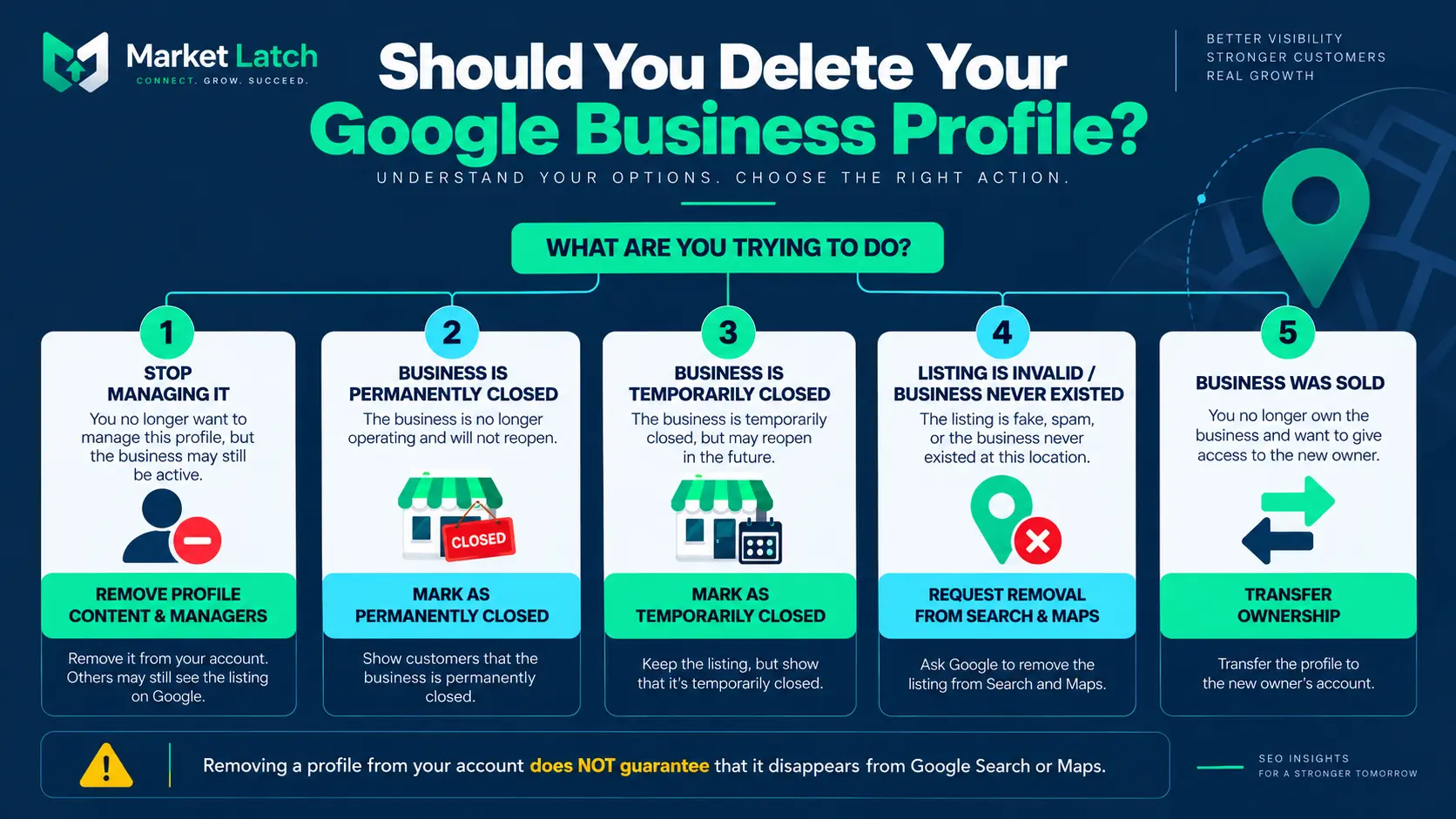
Delete vs Permanently Closed vs Transfer vs Public Removal
Before deleting a Google Business Profile, decide what outcome you actually need. You may want to remove your management access, mark the business permanently or temporarily closed, transfer ownership, resolve a duplicate, request public removal, or remove the profile content and managers from your Google Account.
| Your situation | Correct action | Why |
| You no longer want to manage the profile | Remove yourself / stop managing | The profile can remain available to customers while you give up your access. |
| Business permanently closed | Mark permanently closed | Customers can still find the listing and see that the business is closed. |
| Business temporarily closed | Mark temporarily closed | This communicates a temporary status instead of treating the business as gone. |
| Business was sold | Transfer primary ownership | Google has a separate process for removing inaccurate or ineligible listings from Search and Maps. |
| Duplicate profile | Resolve/remove the duplicate | This preserves the existing profile instead of throwing away a legitimate business listing. |
| Business never existed or is ineligible | Request public removal | Google says a business should have one Business Profile, so removing the wrong listing can create a bigger problem. |
Start with the reason you want the profile gone. Google provides different controls for different situations, and choosing the wrong one can remove useful content or leave the public listing in a state you did not expect.
The key point is simple: do not treat every “I want this profile gone” situation as a deletion problem.
Stop managing the profile
If the business still exists but you personally no longer want access, you usually do not need to delete the profile. You can stop managing it. If you are the primary owner and someone else should take over, Google requires the primary ownership to be transferred before you can remove yourself. See Google’s current owner and manager guidance for the role-specific rules.
The business is permanently closed
If the business genuinely shut down, marking the Business Profile as permanently closed is normally more useful than trying to erase it. Google says a permanently closed profile may still appear on Search and Maps when people search for the business, but it is clearly shown as closed.
The business is temporarily closed
Use the temporary-closure status when the business is expected to reopen. Google currently recommends “Temporarily closed” for businesses closed for more than seven days, during an off-season, or for an indefinite but non-permanent closure. For a closure of seven days or less, Google recommends using special hours instead.
The business never existed or is not eligible
This is different from removing your own profile from your Google Account. If a listing represents a business that never existed or is not eligible to appear on Google, you can request removal from Google Search and Maps. That request is reviewed by Google; it is not an instant delete button.
The business was sold
Do not delete a legitimate profile simply because ownership changed. If another person is taking over the business, transferring primary ownership is generally the cleaner route. The goal is to hand over the existing listing rather than destroy a useful profile and force the new owner to start again.
You created a duplicate
Be especially careful here. Google’s guidance is based on one Business Profile per business. If you accidentally created a second profile, identify the established and correct listing before removing anything. A duplicate cleanup problem can become an ownership or visibility problem if the wrong profile is deleted.
What Happens After You Delete a Google Business Profile?
This is where the word “delete” can be misleading. Removing the profile content and managers from your Google Account changes what you can manage. It does not automatically mean that every trace of the business disappears from Search and Maps.
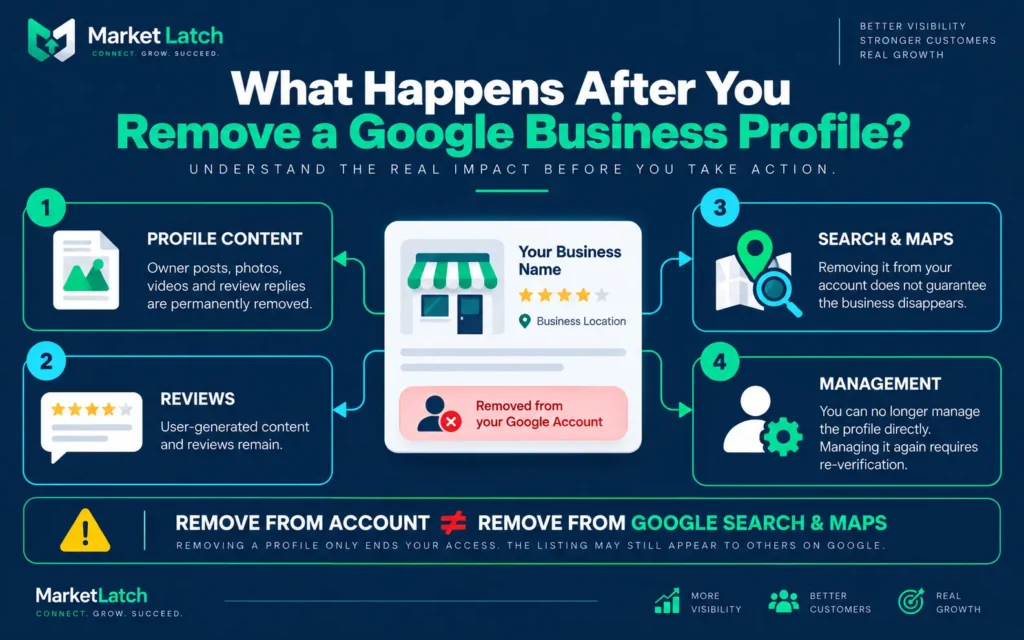
Your management access is removed
After the profile content and managers are removed, you can no longer manage the profile through that Google Account. If you later need to manage the business again, Google says the Business Profile must be re-verified. That makes the removal decision more consequential than simply hiding a listing from your dashboard.
Owner-added content is permanently removed
Google says posts, photos, videos, and review replies added by owners and managers are permanently removed. Google also states that removed profile content cannot be recovered or managed. If there is any information you may need for your records, save it before confirming the removal.
Customer reviews remain
A common misunderstanding is that deleting the profile will wipe out customer reviews. Google’s current help documentation says user-generated content and reviews remain after profile content and managers are removed. The owner- and manager-added content listed above is what Google specifically identifies as permanently removed.
The business may still appear on Google Search and Maps
Removing the profile from your account does not guarantee that the business will stop appearing on Search and Maps. If the business is still eligible to appear, Google may continue to show information about it even though you no longer manage the profile. If your actual goal is public removal, use the separate removal-request process described later in this article.
You may need to verify the profile again later
If you later decide that the business should be managed again, Google says the Business Profile must be re-verified. That is another reason not to use removal as a shortcut for ownership changes, rebranding, moves, or temporary closure.
How to Request Removal From Google Search and Maps
If the business should not exist on Google at all—for example, it never existed or is not eligible—you can request removal from Search and Maps. Google says you can make this request even if you do not own the Business Profile.
- Open Google Maps and sign in to your Google Account.
- Select the business listing you want to report.
- Choose “Suggest an edit.”
- Choose “Place is closed or not here.”
- Select the option that best describes the problem, then submit the request.
Google may follow up with questions. If the request is approved, Google says the business will be removed from Search and Maps. Approval is the important condition; submitting the request does not guarantee removal.
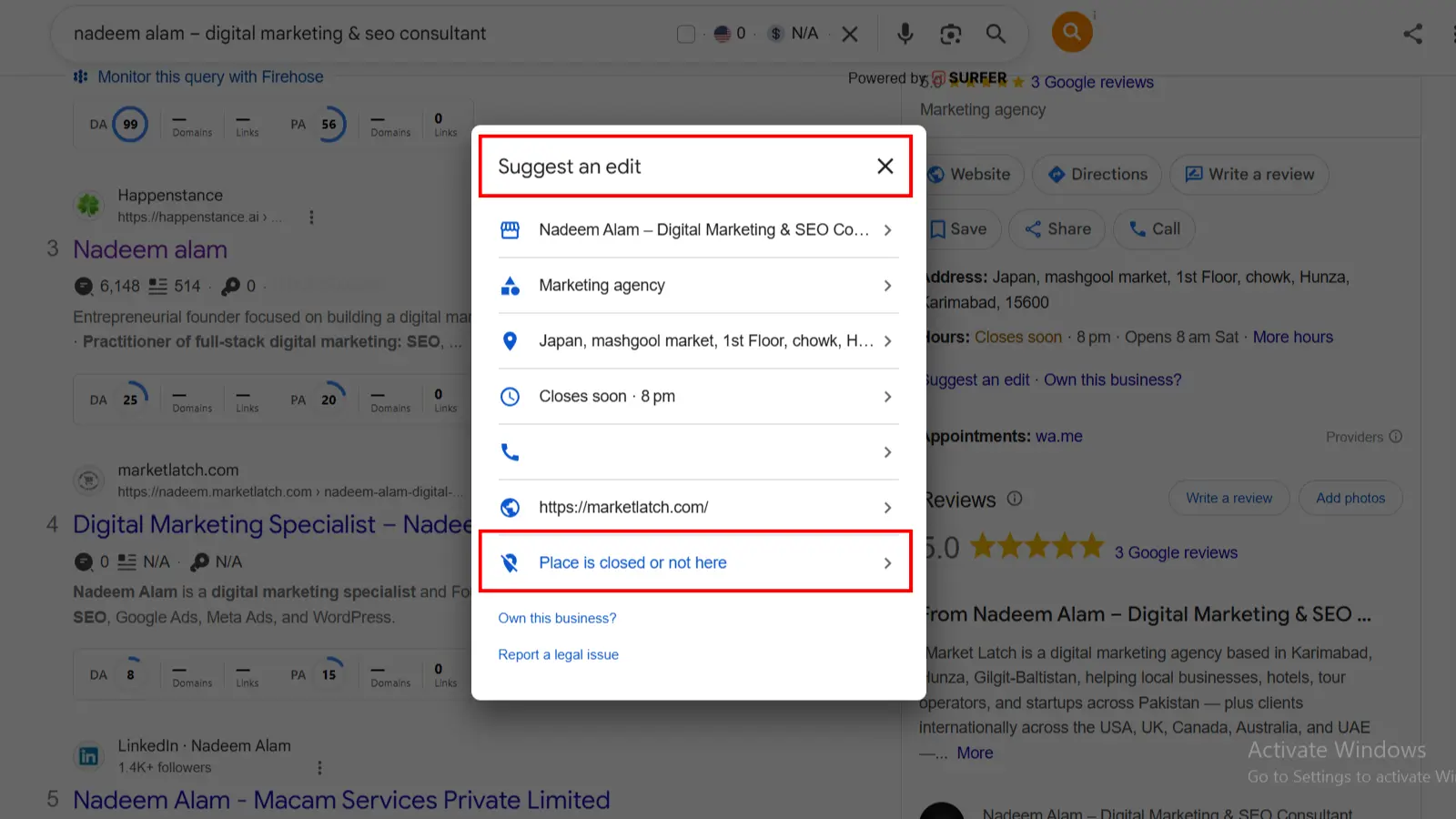
Official instructions: Request removal of a Business Profile from Google Search & Maps.
Should You Mark the Business Permanently Closed Instead?
If the business really closed, marking it permanently closed is usually the better choice. It tells customers what happened instead of making the listing look like an unexplained disappearance. Google says a permanently closed Business Profile may still appear on Search and Maps for people searching for the business, but it clearly shows that the business is closed.
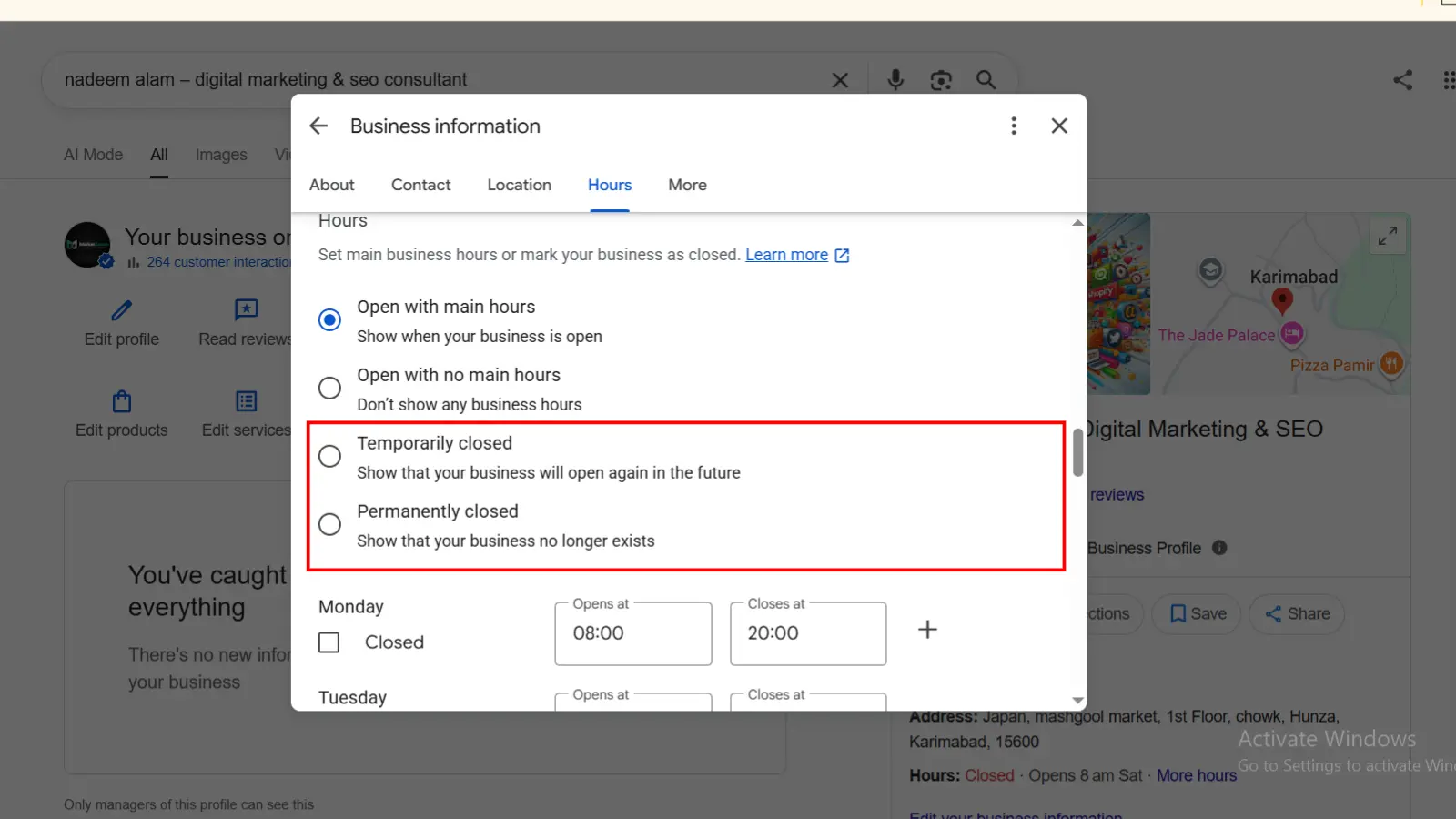
See Mark your business as closed for Google’s current permanent and temporary closure instructions.
When You Should NOT Delete Your Google Business Profile
You are moving to a new location
A move is not automatically a reason to erase the profile. First determine whether the business is still the same eligible business and update the profile according to Google’s rules. Deleting a legitimate listing simply because the address changed can throw away useful history and create unnecessary verification work.
You are rebranding
A name or branding change does not automatically mean you should delete the profile. Review Google’s business representation rules and update the legitimate profile when the business itself remains the same. Do not create a new listing merely because the brand presentation changed unless Google’s rules require a new profile.
You sold the business
If the location and business listing should continue under a new owner, transfer ownership rather than deleting the profile. The goal is continuity, not starting the listing from zero.
You only want to stop managing it
If you are leaving an agency relationship, changing staff, or simply no longer want the listing in your Google Account, stop managing or transfer ownership as appropriate. Do not remove the entire profile just because your role changed.
You have a duplicate
First identify the correct, established profile. Then handle the duplicate using Google’s duplicate-profile and ownership guidance. Never assume the newest listing is the one you should keep, and never delete a profile before checking which one contains the legitimate business history.For duplicate-profile issues, see Google’s duplicate profile guidance.
What I Observed While Testing the Current Google Business Profile Interface
I wanted this guide to reflect the interface a business owner actually sees, rather than repeating an old menu path from a generic SEO article. While documenting the current Business Profile interface, I walked through the removal path far enough to verify the settings sequence and the confirmation screen shown in the screenshots used in this article.
The first thing that stood out was that Google does not present “delete my business from Google” as a single universal action. The menu leads to “Remove Business Profile,” and the next important wording is “Remove profile content and managers.” That wording matters. It describes what Google is actually removing from your account rather than promising that the business will be erased from every Google surface.
I also noticed how important the confirmation stage is. If you manage more than one location, this is the point where I would stop and check the business name, location, and account one more time. The risk is not that the menu is difficult to understand; the risk is moving quickly through a destructive action on the wrong profile.
The other important observation was the difference between the account-removal path and the public-removal path. The interface makes the account action easy to find, but Google’s own documentation separately explains that removing profile content and managers does not guarantee removal from Search and Maps. That is why I would not treat the Remove button as a universal “erase this business from Google” button.
I deliberately did not complete the irreversible removal just to claim that I had watched the profile disappear. The screenshots in this guide document the live interface and the confirmation path. The consequences described after the confirmation step are based on Google’s current official documentation, not a made-up personal before-and-after result. That distinction is important when you are writing about an action that cannot simply be undone.
Common Problems When Trying to Delete a Google Business Profile
“I don’t see the Remove Business Profile option.”
Start with access. Make sure you are signed into the Google Account associated with the correct profile and that you have the required owner-level permissions. If you are only a manager, Google’s current permissions documentation says managers cannot remove the profile. If you cannot find the option to delete a Google Business Profile, check your ownership level and whether you recently became an owner or manager.
“I’m a manager. Why can’t I delete it?”
Because manager access does not include profile removal. Google’s owner and manager guidance gives owners broader administrative control and explicitly lists profile removal as unavailable to managers. If you need the profile removed, the appropriate owner must handle it.
“I became an owner recently and Google won’t let me delete it.”
Google applies a seven-day waiting period to certain actions for new owners and managers. The current guidance includes deleting or undeleting a profile among the actions affected by the waiting period. If access was granted recently, the restriction may explain the error.
“I removed the profile, but it is still on Google Maps.”
That can happen. Removing profile content and managers from your account is not the same as requesting public removal from Search and Maps. If the business remains eligible, Google may continue to show it. This is why someone searching for how to delete a business profile on Google should first identify whether the goal is account-level removal or public removal from Search and Maps.
“I manage several businesses and I’m afraid I’ll remove the wrong one.”
Stop before confirming. Check the exact business name, address or service area, website, and the Google Account you are using. Open the intended profile first, then enter Business Profile settings. If you are not certain, do not confirm the removal. If you are unsure which profile to delete, open the Google Business Profile settings for the specific location and verify the business name, address, website, and ownership before continuing.
Quick Checklist Before You Remove Your Profile
- Confirm that you are working on the correct business and location.
- Decide whether you actually need deletion, or whether closing, transferring ownership, or stopping management is the better choice.
- Save any owner-added information you may need later.
- Remember that owner- and manager-added posts, photos, videos, and review replies are permanently removed by the profile-content-and-manager removal process.
- Do not expect the removal action to automatically erase the business from Google Search and Maps.
- If the business is permanently closed, consider marking it permanently closed instead.
- If the listing is ineligible or represents a nonexistent business, use Google’s removal-request process.
- If another person should manage the business, transfer ownership rather than deleting the listing.
- If you accidentally created a duplicate, verify which profile is correct before removing anything.
Frequently Asked Questions
How do I delete a Google Business Profile?
Open the Business Profile while signed in to the associated Google Account, choose More, open Business Profile settings, select Remove Business Profile, choose Remove profile content and managers, then continue through the confirmation steps. Google currently says removal of the profile content and managers is permanent. If you searched for “delete my Google Business Profile,” first confirm that you have selected the correct business and location before continuing with the removal process.
How do I delete a Google Business Profile account?
If by “delete the account” you mean remove the Business Profile from your Google Account, follow the Business Profile removal process. If you mean deleting your entire Google Account, that is a separate action and is not required to remove a Business Profile.
Does deleting my Google Business Profile remove it from Google Maps?
No, not necessarily. Google says removing the profile from your account does not guarantee that the business will stop appearing on Search and Maps.
Will my Google reviews disappear if I delete the profile?
Google’s current documentation says user-generated content and reviews remain. Owner- and manager-added posts, photos, videos, and review replies are the content specifically identified as permanently removed.
Can a Google Business Profile manager delete the profile?
No. Google’s current permissions guidance says managers cannot remove the profile. The removal action requires the appropriate owner access, with Google’s removal help specifically identifying the primary owner for removing profile content and managers.
Should I delete the profile if my business permanently closed?
Usually, mark the business permanently closed instead. Google says a permanently closed profile may still appear on Search and Maps but will be shown as closed, which gives customers a clearer status.
What if I only want to stop managing the profile?
Do not delete the whole profile. Stop managing it or transfer ownership as appropriate. If you are the primary owner, transfer primary ownership before removing yourself.
Final Answer: Delete, Close, Transfer, or Request Removal?
| If your goal is… | Choose… |
| I do not want to manage the profile anymore. | Stop managing / remove yourself. |
| The business is permanently closed. | Mark it permanently closed. |
| The business is temporarily closed. | Mark it temporarily closed. |
| The business was sold or someone else should manage it. | Transfer ownership. |
| I accidentally created a duplicate. | Remove the duplicate after confirming the correct profile. |
| The business never existed or is not eligible. | Request removal from Google Search and Maps. |
If you remember only one thing from this guide, remember this: deleting a Google Business Profile from your Google Account is not necessarily the same as deleting the business from Google Search and Maps. The safest approach is to decide whether you need to delete a Google Business Profile, mark it closed, transfer ownership, or request public removal before taking action.
If you decide to keep the profile, the next step is making sure it accurately represents the business. Our complete Google Business Profile optimization guide covers the profile fields, categories, services, photos, reviews and audit process.
The safest decision is the one that matches what is actually happening to the business. If the business is legitimate and customers may still need to find it, deleting the profile is often not the best answer. If the listing itself should not exist on Google, use the appropriate removal-request route instead.
If you are keeping the profile and want a structured way to audit, organize and maintain it, the Local SEO & Google Business Profile Domination Kit provides the supporting worksheets, trackers and implementation resources.
Need help with the wider listing? See MarketLatch Google Business Profile help.
If you are not trying to delete an existing profile and instead need to create a new listing, follow our guide on how to add your business to Google.
About the author

Nadeem Alam is the founder of Market Latch, a digital marketing agency working with clients across the USA, UK, Canada, Australia, the UAE and Pakistan. He is a digital growth strategist and WordPress specialist with around 5 years in search, covering technical, on-page, off-page and local SEO, generative engine optimization and answer engine optimization, WooCommerce and Elementor development, and Google and Meta Ads.
He is the author of the Generative Engine Optimization Book, the AEO Masterclass guide and the AI SEO Implementation Checklist 2026, and holds certifications from Google Digital Garage, Semrush Academy, Coursera, uConnect and Virtual University (DigiSkills)